

Shipping Bar
Build a tiered shipping reward ladder with a live progress bar, including full setup steps and an example.
1. What is the Shipping Bar?
The Shipping Bar shows shoppers a live progress bar toward your shipping reward tiers, for example “Spend $20 more to unlock free shipping!”, in the cart and/or on product pages. Because the next reward is always visible, it is one of the most effective ways to raise average order value (AOV).
Example: Spend $50 → 50% off shipping. Spend $100 → free shipping.

2. Campaign setting
Creating a shipping reward offer consists of 4 fundamental parts:
Basic information
Customer buys (main condition, sub-condition)
Tiers and rewards
Works with other offers
Advanced settings (optional)
2.1. Basic information
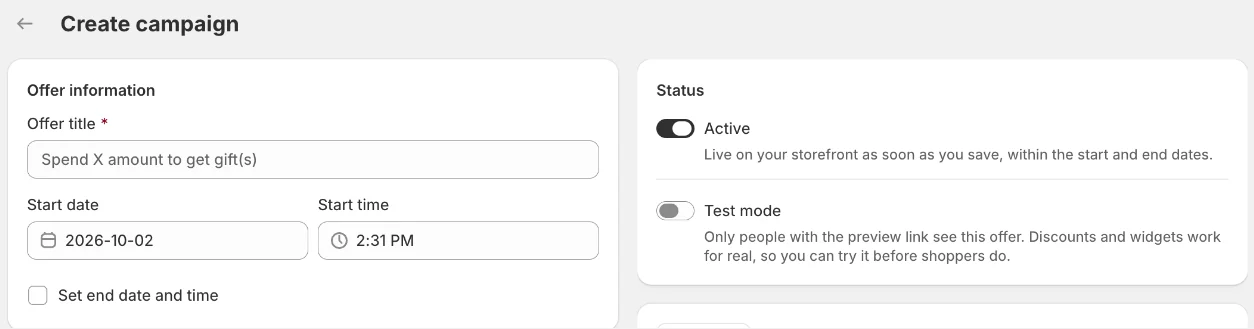
2.1.1. Offer title
The offer name is for internal management only and won’t be visible to customers.
2.1.2. Start date/End date
Start time: The time that the offer starts working.
End time (optional): The time that the offer stops working.
2.2. Customer buys
2.2.1. Select the products that will trigger the offer
First, decide what the qualifying purchase applies to: All products, Collections, Product tags, or Specific products. This controls which items move the customer toward the reward.
All products: All products in cart will be counted toward the cart quantity/cart value condition.
Collections: Only products in the selected collections will be counted toward cart quantity/cart value condition.
Product tags: Only products with the chosen tags will be counted toward cart quantity/cart value condition.
Specific products: Only products selected will be counted toward cart quantity/cart value condition.
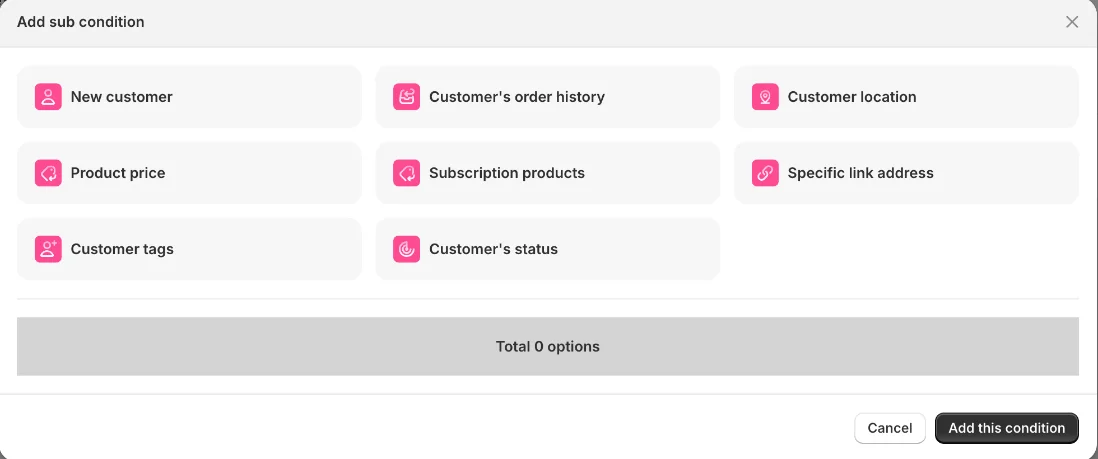
2.2.2. Sub conditions
Sub-conditions are optional to set up. Sub conditions can be combined together to target more specific customers.
Condition | What it checks |
|---|---|
New customer | First-time vs. returning buyers. |
Customer's order history | Total spent overall, spent on the last order, or number of orders placed. |
Customer location | Selected countries — or exclude customers from selected locations. |
Customer tags | Match Shopify customer tags; can exclude by tag, and treat logged-out visitors as having no tags. |
Customer's status | Logged in / logged out. |
Product price | Only items above/below a price qualify. |
Subscription products | Only subscription or only one-time purchases. |
Specific link address | The offer activates only for visitors arriving via a special shareable link (e.g. |
Note: Some sub-conditions rely on Shopify customer data and can only be evaluated when the customer is logged in. These sub conditions include New customer, Customer's order history, Customer tags, Customer's status.
If the customer is not logged in, these conditions may not be applied.
2.3. Tiers & rewards
2.3.1. Tiers
Choose how the progress is measured:
Type | Unit | Example |
|---|---|---|
Cart subtotal | Currency | Spend $100 → free shipping |
Product quantity | Items | Buy 3 items → free shipping |
Then click Add tier to create your reward tiers. You can add up to 4 shipping tiers.

2.3.2. Tier reward
The Tier reward section controls the progress message shown to shoppers as they move toward the next milestone. Use it to motivate them to reach the next tier.
For example:
You are {{amount}} away from getting Free shipping
{{amount}} is a variable that shows how much more the shopper needs to add to reach the next tier. It displays a currency value for Cart subtotal and a number of items for Product quantity. Keep {{amount}} in your message so the bar can display the remaining amount.

2.4. Works with other offers
Under Works with other offers, two controls decide the outcome:
Priority — a number. Assign a priority level to this offer to determine the order in which offers are applied. A lower number indicates a higher priority (for example, 1 takes precedence over 2 or 3). This setting is used when a customer qualifies for multiple offers at the same time. Give your most important offer priority 1.
Skip other offers when this one applies — When the campaign fires, no lower-priority campaign runs.

Example:
Campaign A (Priority 1): Buy $500 get free gift A
Campaign B (Priority 2): Buy 3 products get free gift B
"Skip other offers" is true -> If customer achieve $500 cart value, they will receive free gift A no matter whether they have more or less than 3 products in cart.
3. Display setting
Choose where the reward widget will be displayed on your store.
Show the reward widget on cart
Enable this option to display the reward widget on the cart page or cart drawer.
Show the reward widget on product pages
Enable this option to display the reward widget on product pages. Then, use the Display on dropdown to choose which product pages should show the widget:
- All product pages – Display the widget on every product page.
- Product specific page – Display the widget only on selected product pages.
- Products included in the offer – Display the widget only on product pages for products included in the campaign.
- All products in specific collections – Display the widget on product pages for products belonging to selected collections.

Still need help?
Our support team is available 24/7. Contact support →