

Feature Overview
Explore the key features of Ego Cart Drawer Cart Upsell and learn how they help improve the cart experience and increase average order value.
Announcement
The Announcement feature displays a notification bar with custom text and a countdown timer. When a customer adds a product to their cart, the countdown timer starts, creating a sense of urgency. This encourages faster checkouts and helps reduce cart abandonment rates.
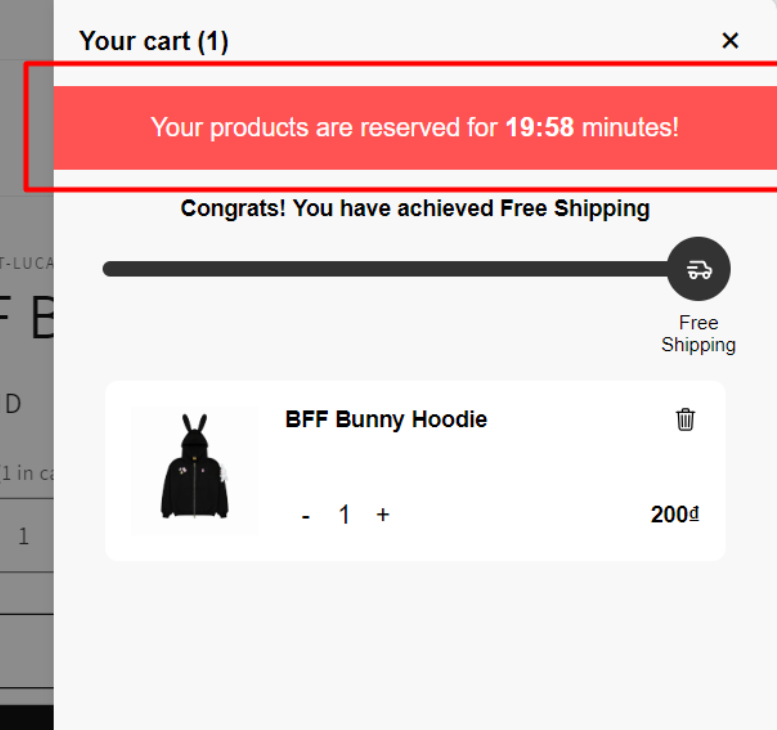
Announcement can be utilized to show other content without a timer, for example promoting a sale campaign.
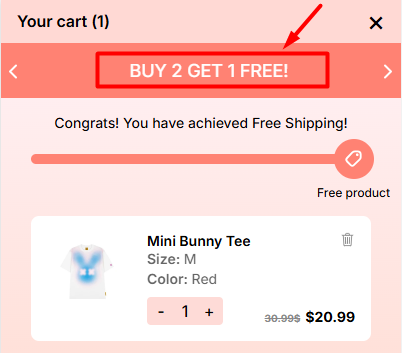
Rewards Bar
Rewards bar is a progress bar that motivates customer to buy more.
When the customer starts adding products to their cart and you want to offer them some discounts based on their cart value/cart quantity, the rewards bar will serve as a progress tracker that helps them know how close they are to earning rewards. This will increase sales as people will want to buy more and receive valuable rewards.
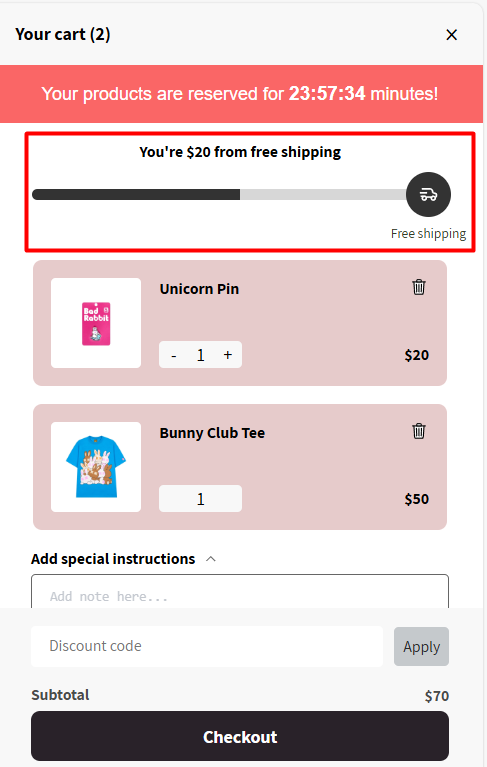
Reward tiers are the milestones of the reward that customer has reached, and those tiers will be set through the Reward Types within the module. Reward types include: Free Shipping, Free Product, Discount, Free Gift.
These 4 types will be presented by 4 icons (In #1 template) in cart.
Their mechanism are different: Free Shipping and Discount will only change the icon (In #1 template) of the tier to visualize the reward. But Free Product will automatically add a product to cart when the cart value is larger than Minimum Amount, and Free Gift will work based on the set up inside Free Gift module.
Upsells
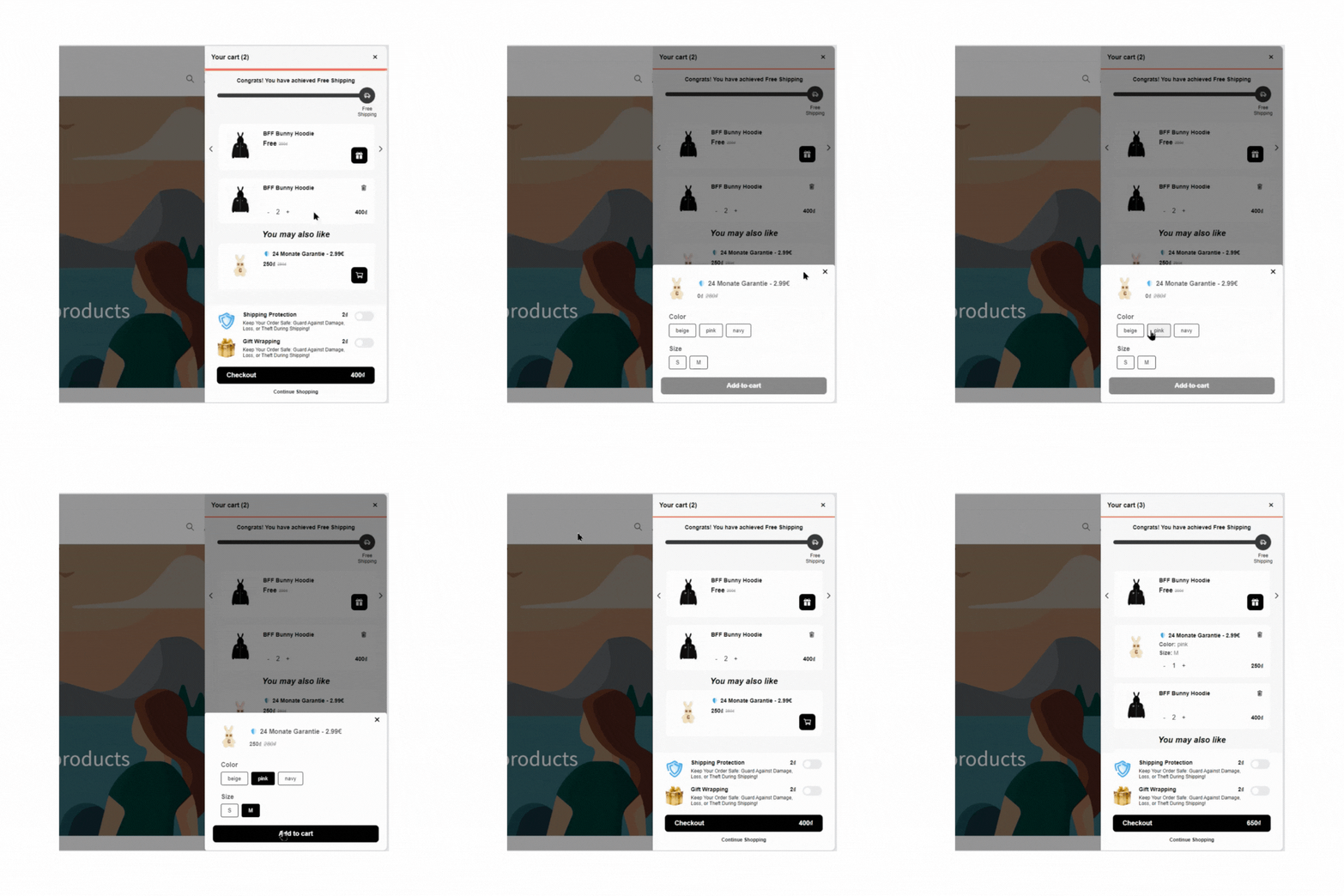
Upsells is a block within the cart drawer that displays one or multiple complementary/related products of the added main products. Merchants can use this to encourage customers to purchase a more expensive item, add-ons, or upgrades to enhance their original purchase.
Customers can add these items to their cart with just a few clicks, increasing the chances of additional sales.
Free Gift
The Free Gift feature allows you to offer free complimentary items to customers based on specific purchase conditions. You can set up free gifts to show in customer's cart when they meet one of the following criteria:
Minimum Purchase Quantity – e.g., Buy 3 items, get 1 free
Minimum Spend Amount – e.g., Spend $50, get a free gift
Specific Products or Collections – e.g., Buy any item from the "Skincare" collection, get a free item
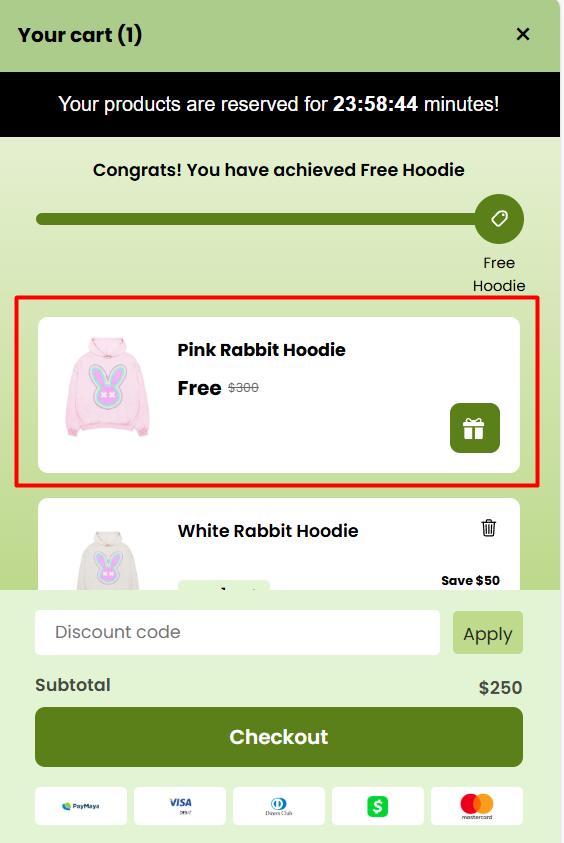
Free gifts are not automatically added to the cart. Customers must manually select the gift after meeting the conditions by clicking a button inside the gift block.
Add-ons
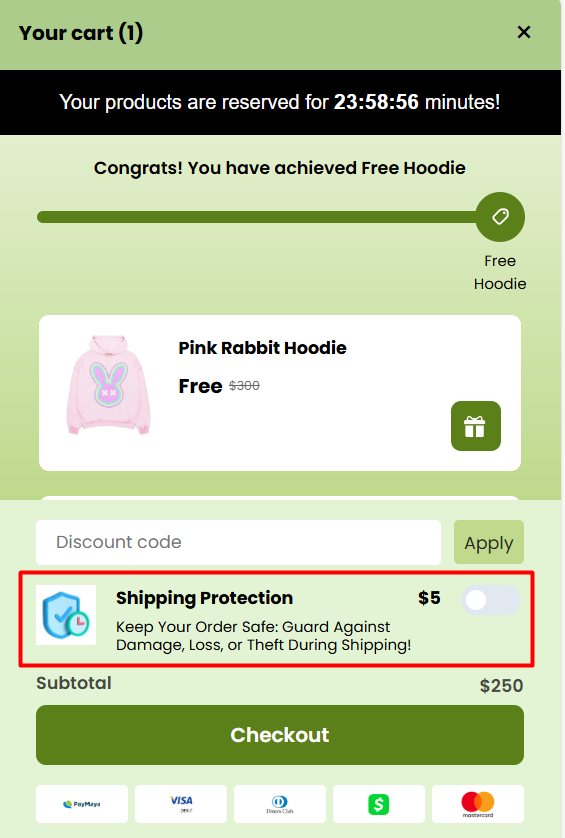
Add-ons is a feature that displays special services or products offered by merchants, such as shipping protection, gift wrapping, or any one-click upsell product directly in the cart.
There are 3 price settings for this product:
Fixed Price: A set amount charged for the additional product.
Percentage Price: A dynamic charge based on order value.
Initial Amount: The minimum charge, applied if the calculated percentage is lower than this value.
Percentage of Order Value: The percentage of the order total to charge.
Incremental Rates: Adjusts the charge in increments (up to 99 values).
This price setting will create a product with 100 variants in your store with the formula:
Final charge = Initial Amount + (n×Incremental Rate)
(n = ordinal number of the variant closest to the percentage of the order value)
Example: Shipping Protection is 10% of the order value, with a $5 minimum and $0.5 incremental rate. If the order is $2995, the charge would be $300.
Tier Price: The price varies based on order value, divided into defined ranges.
Example: $2 for Shipping Protection if the order is under $100, $5 if it's $101 to $500, and $10 if it's more than $500.
Discount Box
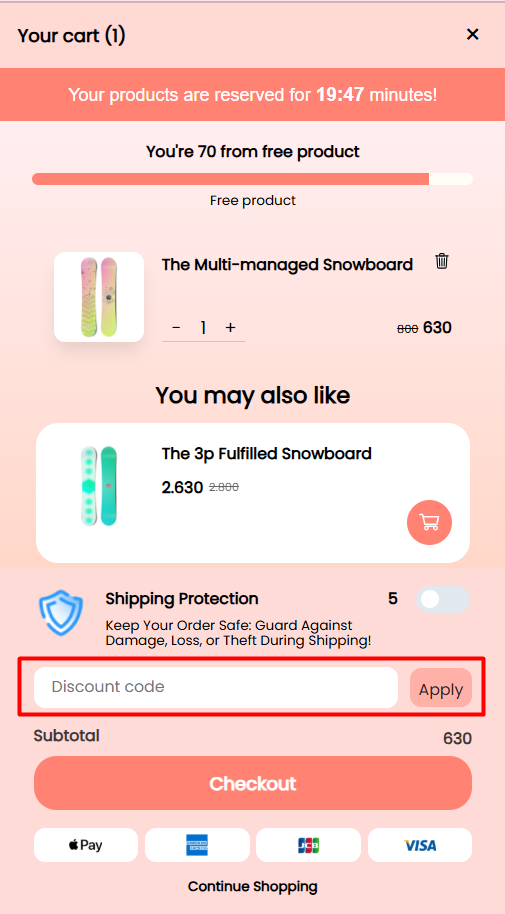
Discount box is a field in which customers can type in the discount code. Instead of applying discount code in the checkout page, this field allows customers to use their code directly in the cart drawer, showing how the discount affects the order, hence making easier purchase decisions.
Additional Notes
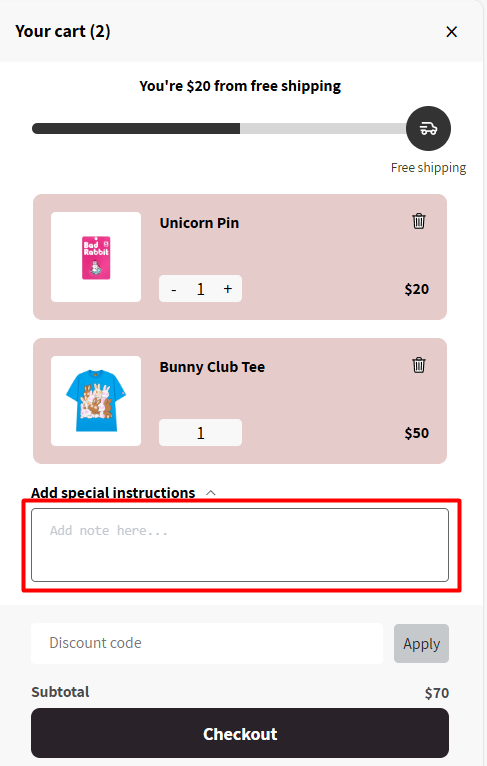
Additional Notes is a text box being hidden under a text line, allowing customers to put additional information for merchants such as special requirements or shipping notice.
Position
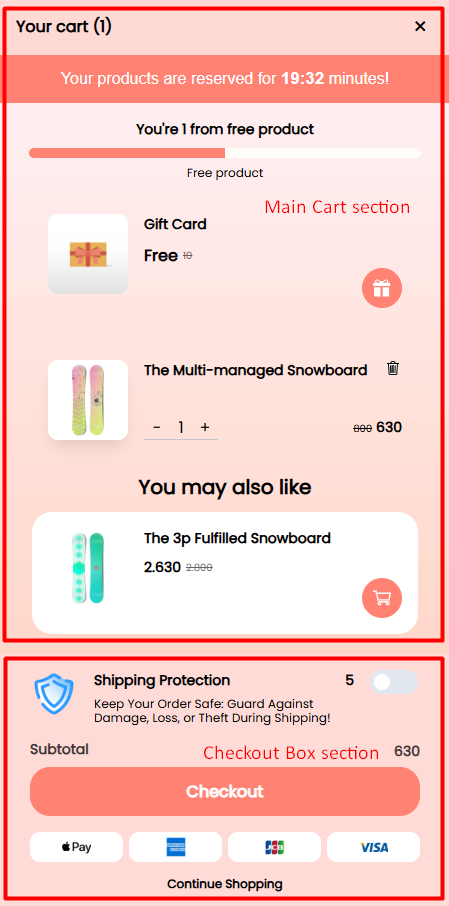
The Position feature allows you to rearrange the module placement within the cart drawer based on your preferences. The cart drawer is divided into two main sections: Main Cart and Checkout Box, which include smaller modules. The modules can only be moved within its original main section.
Trust Badges
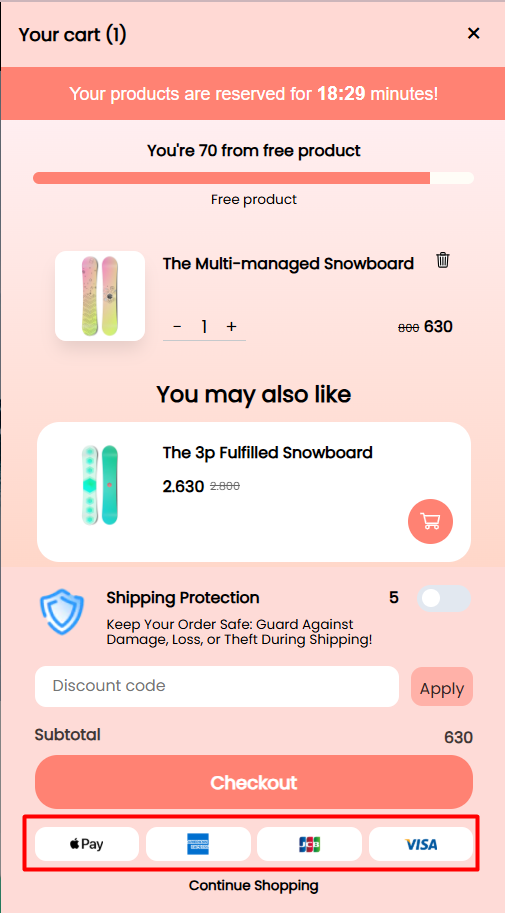
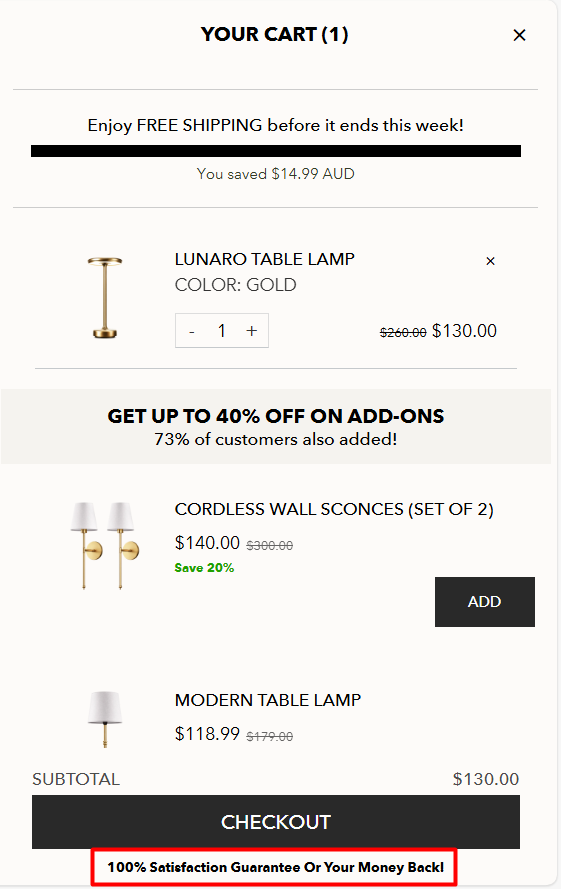
Trust Badges are visual indicators displayed in the cart drawer to build customer confidence and reassure them about the security and legitimacy of the transaction. These badges typically represent security certifications, payment gateways, guarantees, or positive reviews.
Customized Text (Terms and Conditions)
Add a customizable checkbox to your cart or checkout page for various consent and policy confirmation, such as checkout rules, terms of use, shipping policy, payment terms, tax duties, the new Canada import tariff notice, refund policy, GDPR/CCPA compliance, and more.
You can also use it for seasonal promotions or special events like Father’s Day, the 4th of July, and Summer Sale terms. Additionally, this feature allows you to display a reminder text to inform customers of important updates or agreements before they complete their purchase.
Express Payment
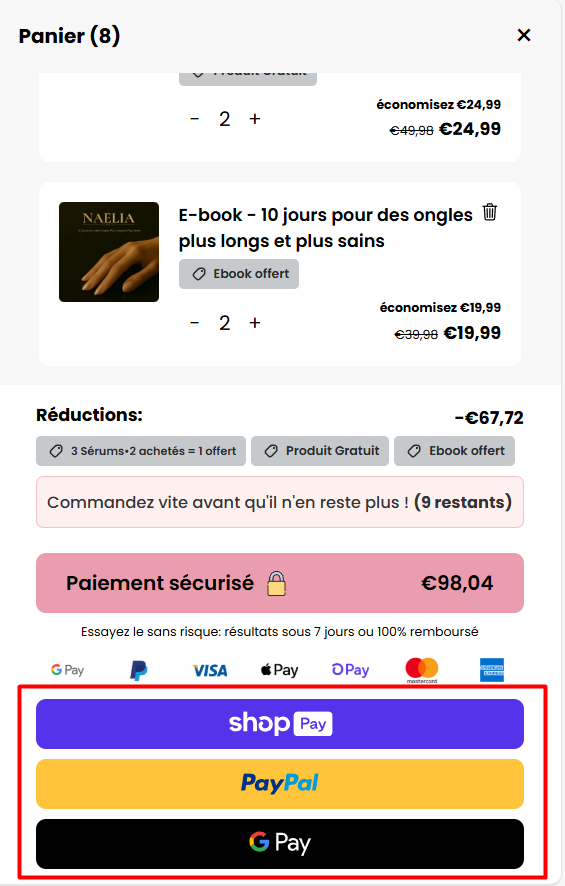
Express Payment refers to special checkout buttons designed for certain payment methods like PayPal, Apple Pay, Google Pay, Shop Pay, and more.
These buttons take customers directly to their preferred payment method, making the checkout process faster and reducing the chances of cart abandonment.
Display Condition
Display Conditions are the rules that trigger which cart is shown to the customer. These include:
Targeted Device – e.g., show a specific cart on mobile, desktop or tablet
Targeted Customer – e.g., logged-in customers or guest customers, or logged-in customers with a specific tag added.
Location – e.g., country-based targeting
Active Period – e.g., show a cart only during a specific time or promotional event
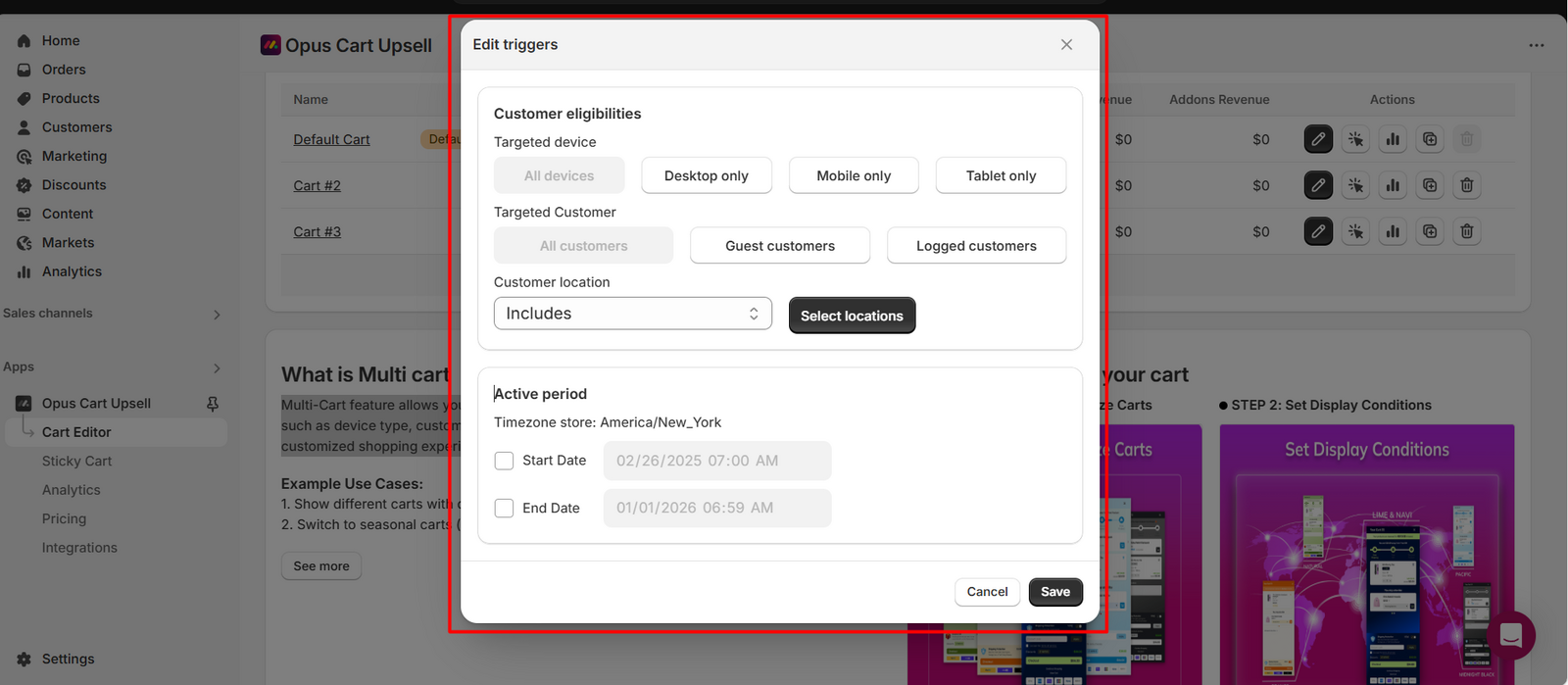
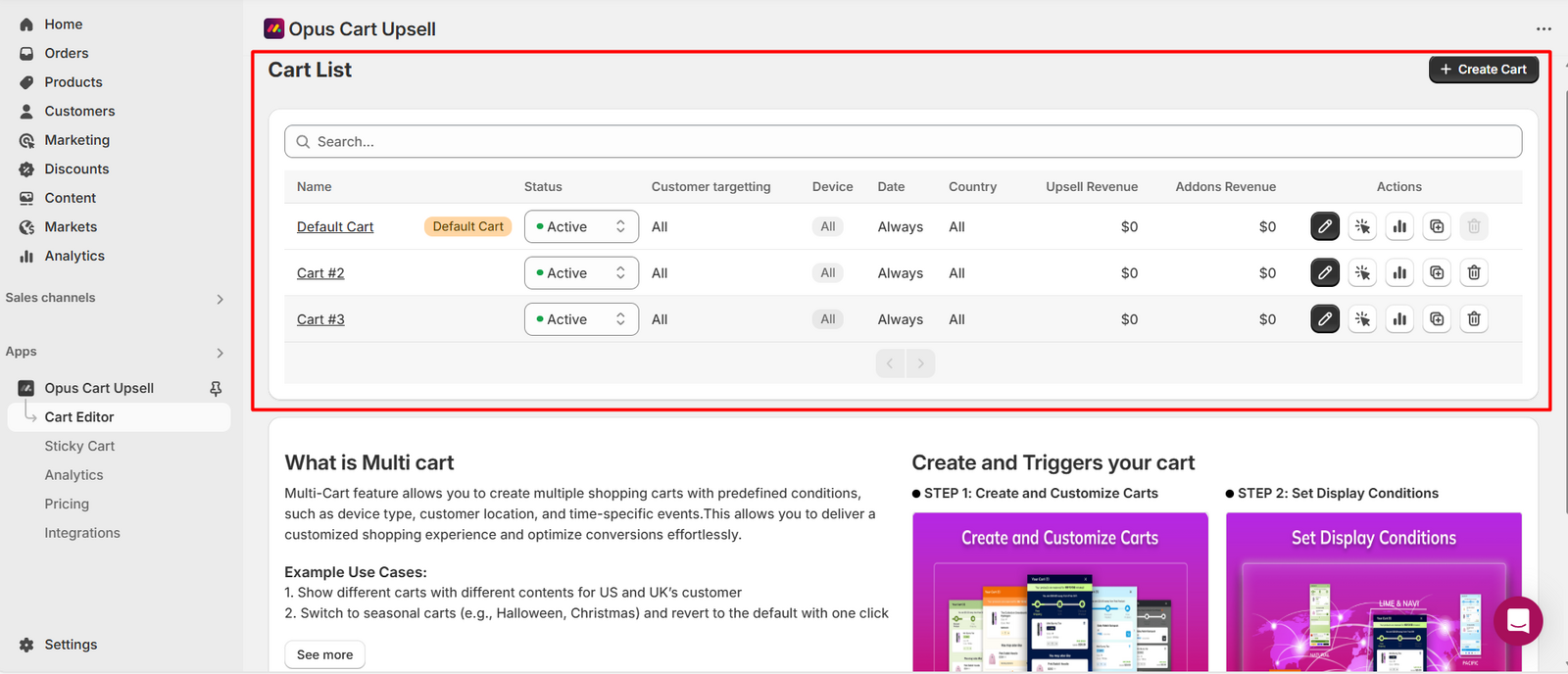
As each cart can have its own display condition, you can create multiple carts to target different customer segments at one time. This helps you deliver a personalized shopping experience and optimize conversions effortlessly.
Default Cart: The initial cart that appears when you first install the app. It serves as the base setup before additional carts are created. If you downgrade from Advanced/Pro plan to Basic/Free plan, all carts will be disabled except for the one with the tag "Default cart".
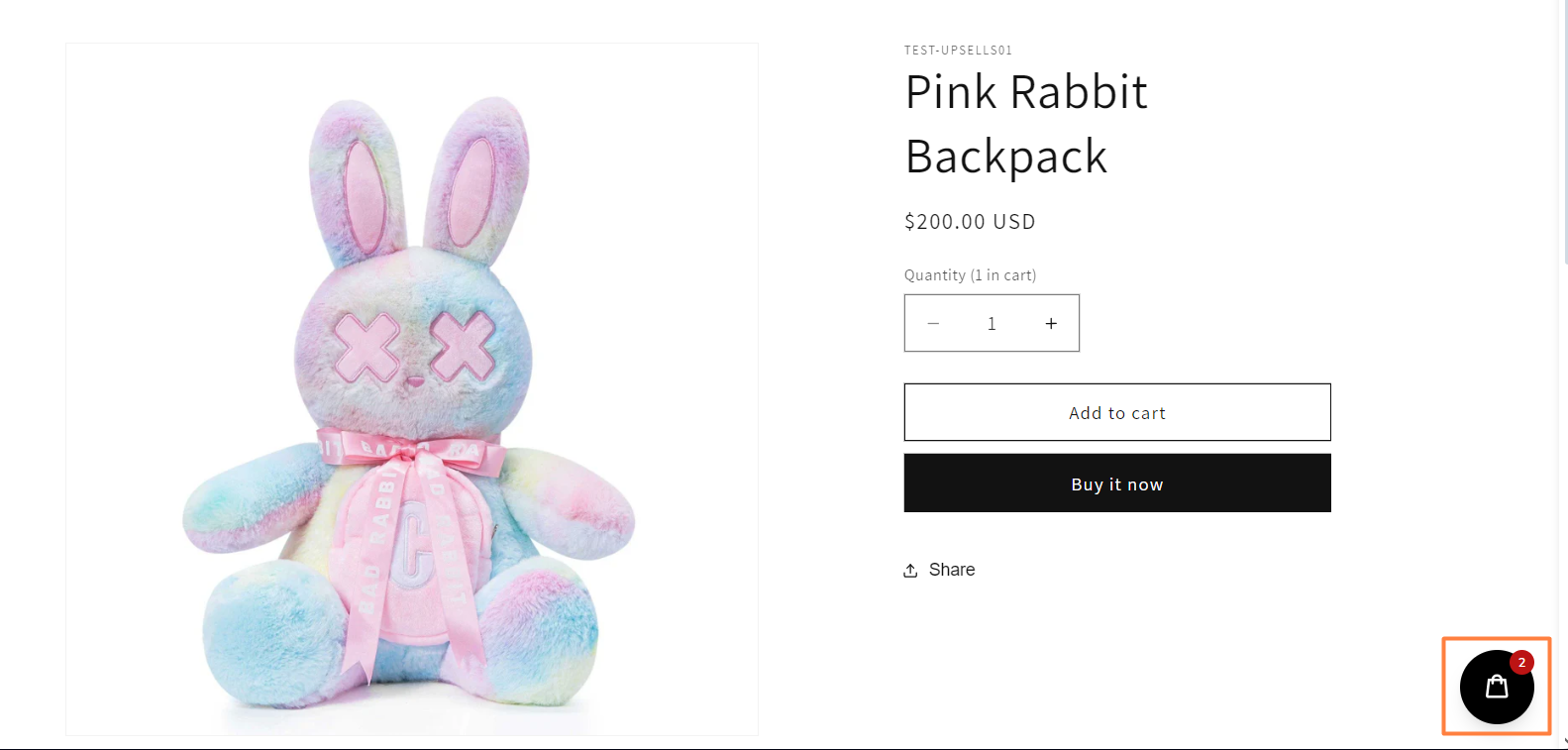
Sticky Cart
The sticky cart button is a button which is visible in all pages of your store. Customer can click this button to see their current cart drawer and the cart will slide from the position set up in the cart editor.
Need help? Let us know via in-app live chat or email: help@opusecom.co 🤩
Still need help?
Our support team is available 24/7. Contact support →