
Theme Integration Setup (Theme cart + Ego add-ons)
Keep your theme's own cart and show Ego's reward bar, free gifts and upsells inside it.
Two cart modes
Ego Cart works in two modes. You can switch between them at any time.
| Ego cart drawer (Recommended) | Theme cart + Ego add-ons | |
|---|---|---|
| What shoppers see | Ego's fully customizable drawer replaces your theme's cart on every page. | Your theme's own cart drawer and cart page, with Ego add-ons inside. |
| Reward bar, free gifts, upsells | Yes | Yes |
| Announcements, add-ons, trust badges | Yes | No |
| Express checkout, sticky cart | Yes | No |
| Design | Fully customizable | Keeps your theme's look |
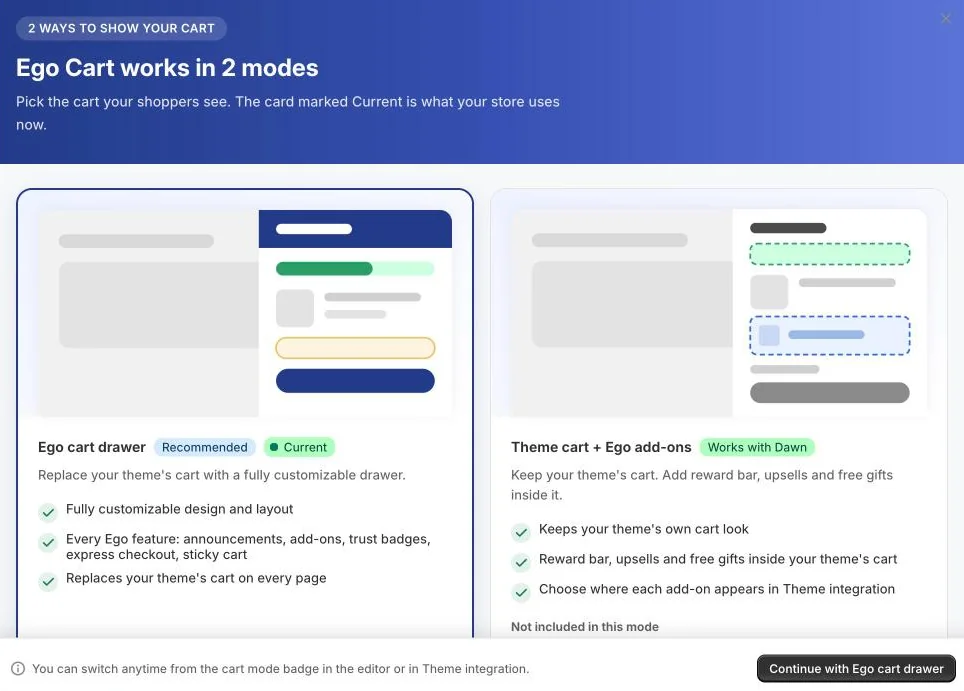
Choose Theme cart + Ego add-ons if you love your theme's cart and only want to add Ego's sales boosters to it. Your store keeps using the Ego cart drawer until you switch and save.
Supported themes
Ego detects your live theme automatically. On these themes, add-ons work in both the cart drawer and the cart page (badge Fully supported):
Horizon and its family: Atelier, Pitch, Fabric, Dwell, Heritage, Ritual, Savor, Tinker, Vessel.
Dawn and Shopify's free themes based on it: Refresh, Sense, Craft, Studio, Taste, Origin, Crave, Colorblock, Ride, Spotlight, Publisher, Trade.
Impulse, Prestige and Impact.
Copies or renamed versions of these themes are recognized too.
On other themes, the badge reads Cart page only: the theme's cart drawer isn't supported yet, so Ego add-ons show on your /cart page only. Contact our support team if you need add-ons in your theme's drawer.
Step 1: Switch to Theme cart mode
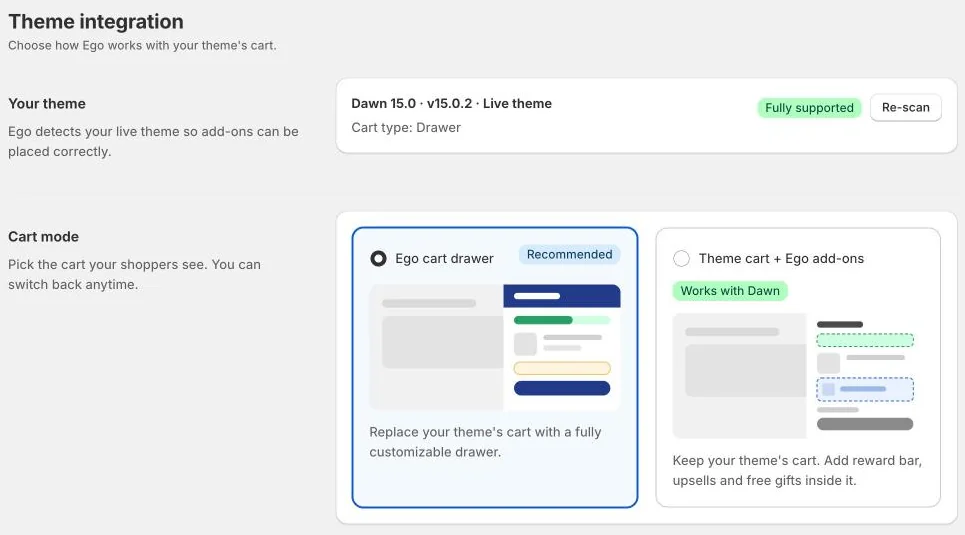
From the app's navigation menu, go to Theme integration.
In Your theme, check that Ego detected your live theme and its cart type (Drawer, Page or Notification). If you just changed themes, click Re-scan.
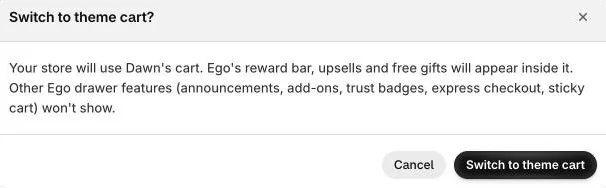
In Cart mode, select Theme cart + Ego add-ons and confirm with Switch to theme cart.
Click Save.
You can also click the Cart mode badge next to the cart editor title to compare the two modes and switch.

Before you switch, make sure you have an Active cart in the Cart Editor with the Reward bar, Free gifts or Upsells turned on — add-ons only show for an Active cart.
Step 2: Check the status
After saving, the Status card shows whether your add-ons are visible to shoppers:
| Row | What it means | How to fix |
|---|---|---|
| App embed | Active — Ego is turned on in your theme. Inactive — shoppers can't see your add-ons. | Click Turn on app embed. The theme editor opens with Ego's app embed selected — turn it on and click Save. |
| Add-ons on store | Live — add-ons have been shown to shoppers recently. Not shown yet — no shopper has opened the cart since you switched. | Click View store, add a product to the cart and wait a few minutes. |
| Cart page blocks (Reward bar, Upsells, Free gifts) | Added / Not added — whether the Ego block is placed on your cart page template. | Optional. Click Add block (see Step 4). |
Step 3: Choose where add-ons appear
In the Placement card, set the position of each add-on (Reward bar, Free gifts, Upsells) separately for the Cart drawer and the Cart page:
Top — below the cart title.
Bottom — above the subtotal and checkout button.
Hidden — not shown on that surface.
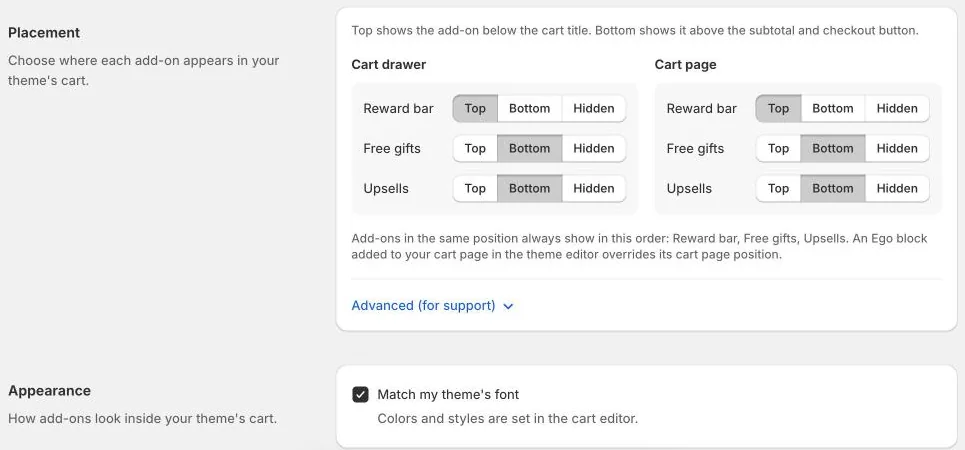
By default, the Reward bar is at the Top, and Free gifts and Upsells are at the Bottom. Add-ons in the same position always show in this order: Reward bar, Free gifts, Upsells.
In the Appearance card, keep Match my theme's font on so add-ons use your theme's font. Colors and styles are set in the cart editor.
Click Save when you're done.
The Advanced (for support) section contains custom position settings. Only change it if Ego support asks you to.
Step 4 (optional): Add Ego blocks to your cart page
Want add-ons in an exact spot on your cart page? Add them as blocks in the theme editor:
In the Status card, click Add block next to Reward bar, Upsells or Free gifts. The theme editor opens on your cart page template with the block ready to add.
Drag the block where you want it. You can adjust its Top padding and Bottom padding.
Click Save in the theme editor.
The blocks are called Cart reward bar, Cart free gifts and Cart upsells. A block placed on the cart page overrides that add-on's cart page position from the Placement card.
Blocks are only available for the cart page. In the cart drawer, add-ons are placed automatically.
Edit your add-ons in the cart editor
In Theme cart mode, the cart editor shows a Theme cart mode banner with a Manage placement shortcut.
The sidebar groups the features that work in your theme's cart under In your theme cart. Features only available in the Ego drawer are grouped under Ego drawer only.
Use the Drawer / Cart page switch to preview each surface. The final look follows your theme's styles.
Display conditions, design and settings still apply as usual.
Switch back to the Ego cart drawer
Go to Theme integration, select Ego cart drawer in Cart mode, confirm with Switch and click Save. Ego's drawer replaces your theme's cart again, with all features available.
Troubleshooting
My add-ons don't show
Check that the App embed status is Active.
Make sure you have an Active cart with the Reward bar, Free gifts or Upsells turned on, and that its display conditions match you.
Add a product to the cart — add-ons don't show in an empty cart.
Check the add-on isn't set to Hidden in the Placement card.
Add-ons only show on the cart page
Your theme's cart drawer may not be supported yet (badge Cart page only). Contact support, or switch back to the Ego cart drawer.
If your theme's cart type is Notification (a small popup after add to cart), add-ons show on the cart page only. For the best results, change your theme's cart type to Drawer — click Open theme settings in the Your theme card.
Ego shows the wrong theme
Click Re-scan in the Your theme card. Ego also re-detects your theme automatically when you publish a new one.
Free gifts don't show
Free gifts aren't included in the Free plan. Upgrade your plan to use them in your theme's cart.
Need help? Let us know via in-app live chat or email: help@egohub.co 🤩
Still need help?
Our support team is available 24/7. Contact support →