

A/B Testing Setup
Compare two versions of a cart with a custom traffic split, then keep the winner in one click.
What is A/B testing?
A/B testing lets you compare two versions of the same cart:
Variant A — your current cart.
Variant B — a copy of it that you can change freely: free gifts, upsells, add-ons, design, texts and more.
Ego splits your shoppers between the two variants, tracks the orders each one brings, and lets you keep the better one as your cart.
Common use cases
Test a different free gift threshold in the reward bar.
Compare two upsell offers or product recommendations.
Check whether a new design or add-on increases your average order value.
Before you start
A/B testing is a paid feature. If the Create A/B test button shows a lock icon, your current plan doesn't include it — upgrade from the Pricing page to unlock it.
Each cart can run one A/B test (variants A and B). You can run tests on several carts at the same time.
The cart's status, name, priority and display conditions are shared by both variants. Ego first picks the cart that matches the shopper, then picks the variant.
Save the cart before creating a test — variant B is copied from the saved settings.
Step 1: Create an A/B test
From the app's navigation menu, go to Cart Editor and open the cart you want to test.
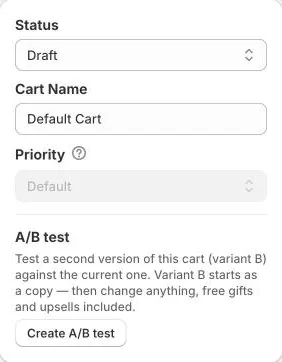
In the Status card, find the A/B test section and click Create A/B test.
Ego creates variant B as a full copy of your cart (settings, translations, free gifts, upsells and add-ons) and starts the test right away with a 50% / 50% split.
The editor switches to variant B and shows the message "You're editing variant B. Its free gifts, upsells and add-ons are separate from variant A."
Step 2: Edit variant B
Use the A · 50% | B · 50% switch in the Status card to move between the two variants.
Change anything you want to test in variant B, then click Save. Each variant is saved separately.
Variant B starts with a copy of variant A's translations. To change them, click Edit translations for variant B, or select Variant B on the Translations page. Later changes to A's translations are not copied to B.
Tip: change only one or two things in variant B, so you know what made the difference.
Step 3: Adjust the traffic split
Click the gear icon (A/B test settings) next to the A | B switch.
Under Traffic allocation, choose:
Even allocation — traffic is split equally (50/50).
Custom allocation — choose how much traffic goes to variant B with the Traffic to variant B slider (1–99%) or the 10% / 25% / 50% / 95% presets.
Click Apply.
A new split only applies to shoppers who haven't been assigned to a variant yet. Shoppers already in the test keep their variant.
Step 4: Track the results
Open A/B test settings to see the Results table, counted from the moment the test started:
Orders and Order share
Cart revenue and Average order value
Upsell revenue / order and Add-on revenue / order
Free gifts given
In the Cart List, a cart with a running test shows a green A/B badge. Click the arrow next to it to see each variant's traffic share, how long the test has run and its upsell and add-on revenue. Click a variant row to open it in the editor.
Reading the results
Results are based on orders. Orders appear after the analytics sync, so allow some time before new orders show up.
If your split is uneven (for example 90/10), compare the per-order metrics such as average order value — not the totals.
Carts that were already open before the test started stay on variant A, so variant A can look a little stronger in the first days. Let the test run long enough to collect a meaningful number of orders for both variants before deciding.
Step 5: Select a winner and end the test
Click End test in the Status card (or choose Select a winner from the cart's ⋮ menu in the Cart List).
Compare the variants (Orders, AOV, Upsell rev., Add-on rev., Total rev.), then click Choose A or Choose B.
Click End test to confirm.
What happens next:
Keep A — variant B and its translations are deleted. Your cart stays as it was.
Keep B — variant B's settings and translations (including its free gifts, upsells and add-ons) replace variant A, then variant B is deleted. The cart keeps its name, status and display conditions.
All traffic goes to the winning variant.
Upsell discounts from the losing variant keep working for 14 days for shoppers who already have them in their cart. Free gifts from the losing variant are removed from shoppers' carts.
Ending a test can't be undone. The losing variant's settings can't be recovered.
How shoppers are assigned to a variant
Each shopper is assigned to variant A or B according to your traffic split and keeps the same variant on later visits.
Logged-in customers get the same variant on every device.
Once a shopper's cart is on a variant, it stays on that variant until checkout.
To check a specific variant on your store, add
?opus_variant=1(variant A) or?opus_variant=2(variant B) to your store URL. Open it in a private (incognito) window — a cart that is already assigned keeps its variant.
FAQ
What happens if I downgrade to a plan without A/B testing?
Running tests end automatically and variant A is kept.
Can I duplicate or delete a cart that is being tested?
Yes. Duplicating copies variant A only — the copy is created as a Draft without a test. Deleting the cart removes both variants.
Can I restart a test?
End the current test, then click Create A/B test again. The new test starts at 50/50 and shoppers are assigned again from scratch.
Can I A/B test a cart in Test mode?
Yes, but only visitors who open the preview link are split between the variants. See Test Mode Setup
Need help? Let us know via in-app live chat or email: help@egohub.co 🤩
Still need help?
Our support team is available 24/7. Contact support →