

Announcements Setup
A notification showing an announcement text with countdown timer or multiple announcement texts
1. Annoucements Definition
The Announcements feature displays a notification bar with custom text and a countdown timer. When a customer adds a product to their cart, the countdown timer starts, creating a sense of urgency. This encourages faster checkouts and helps reduce cart abandonment rates. Announcement can be utilized to show other content without a timer, for example promoting a sale campaign.
2. Common used cases
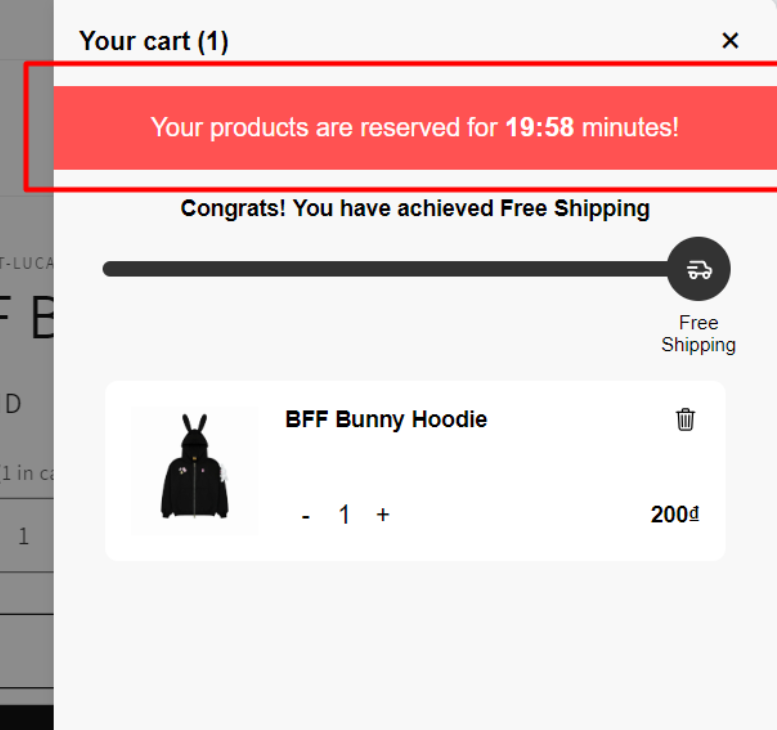
Example 1: Merchants want to count down 20 minutes since customers add a product to cart.
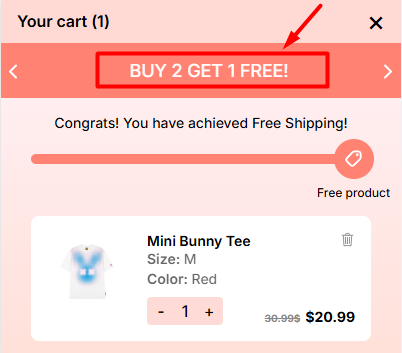
Example 2: Merchants want to inform customers about the BUY 2 GET 1 FREE sale campaign.
3. Steps to set up an Announcement
Step 1:
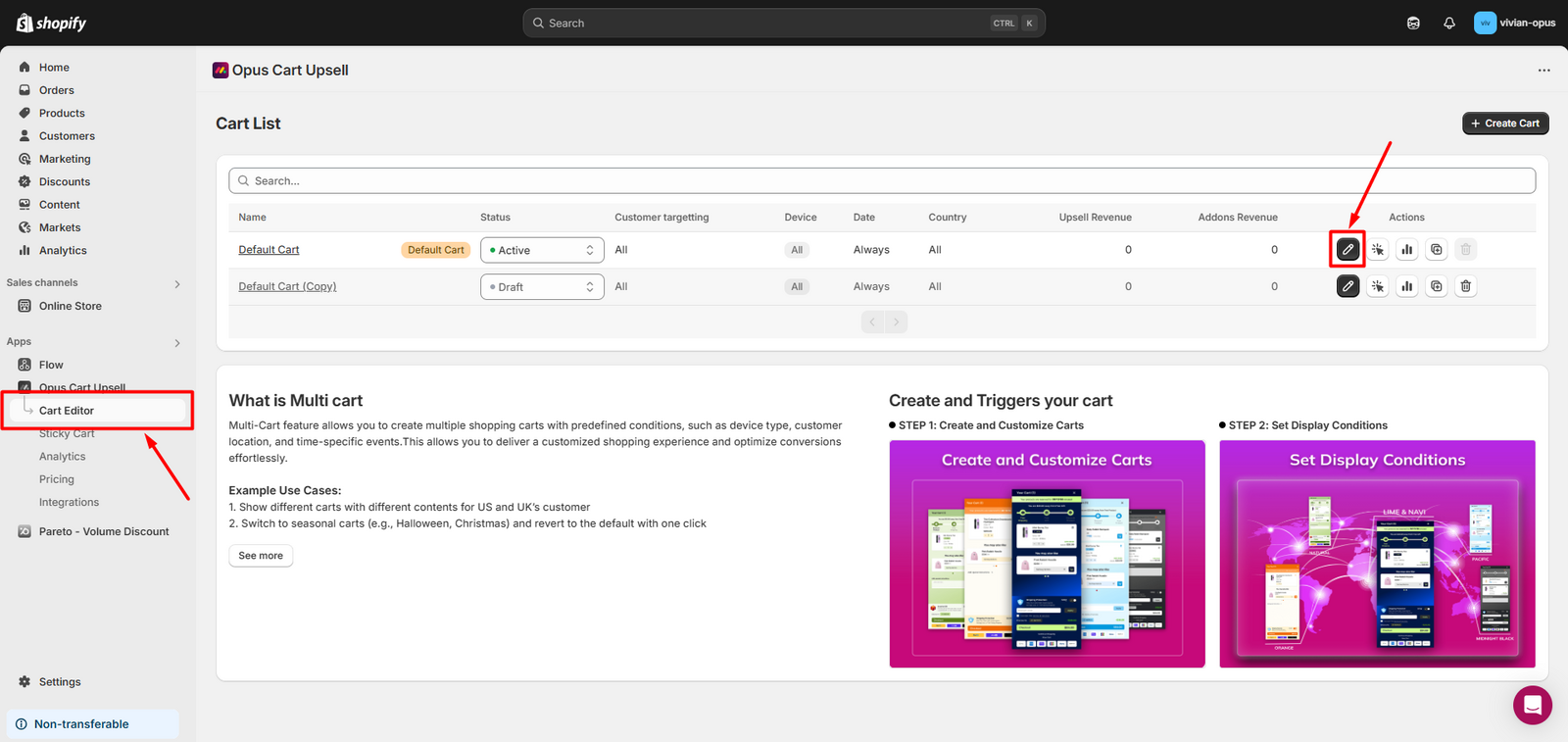
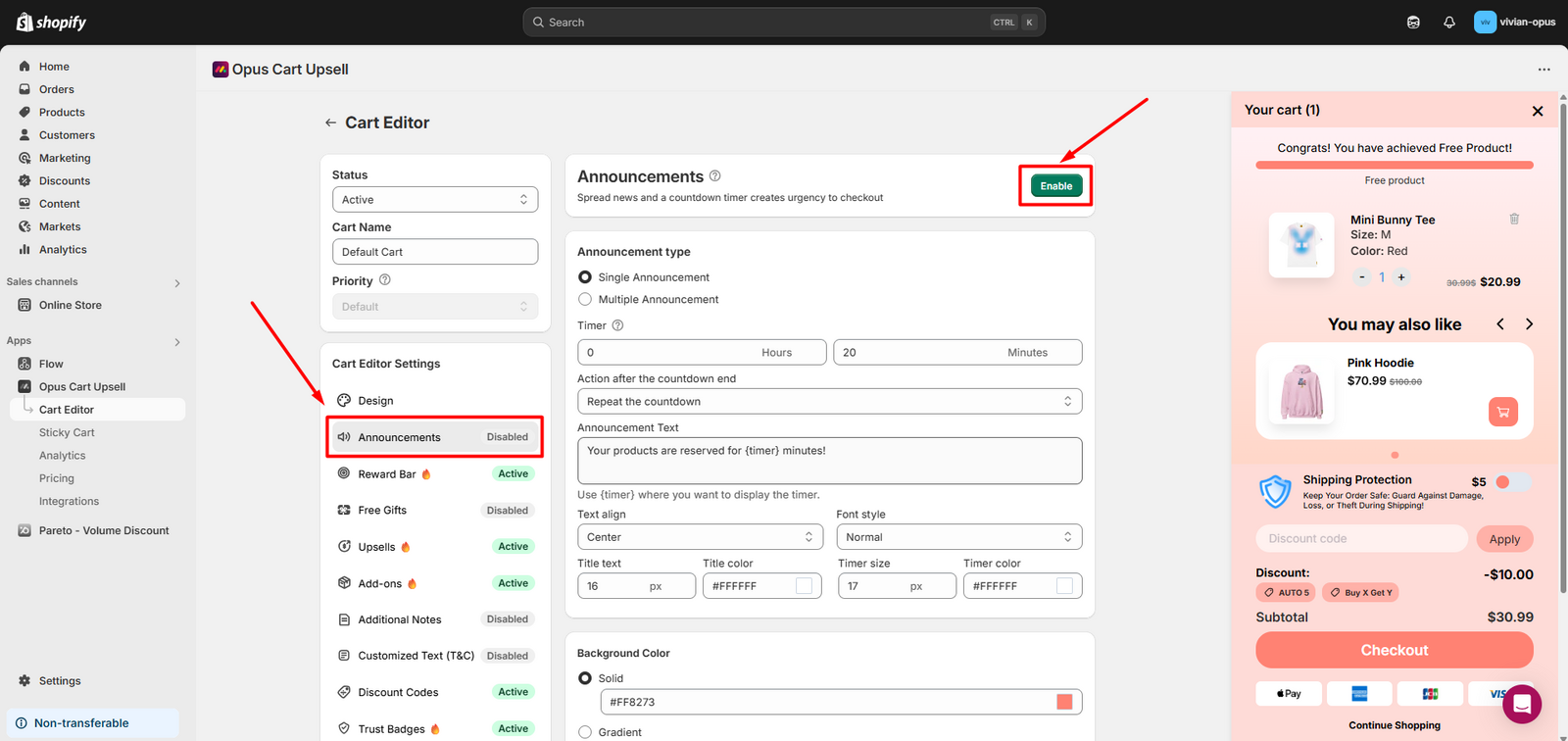
Navigate to the Cart Editor, select the cart that you want to edit. Then select Announcements module in the feature menu.
Step 2:
Set up the Timer by entering the number of hours and minutes (minimum 1 minute, maximum 24 hours). The countdown starts when the first product is added to the cart.
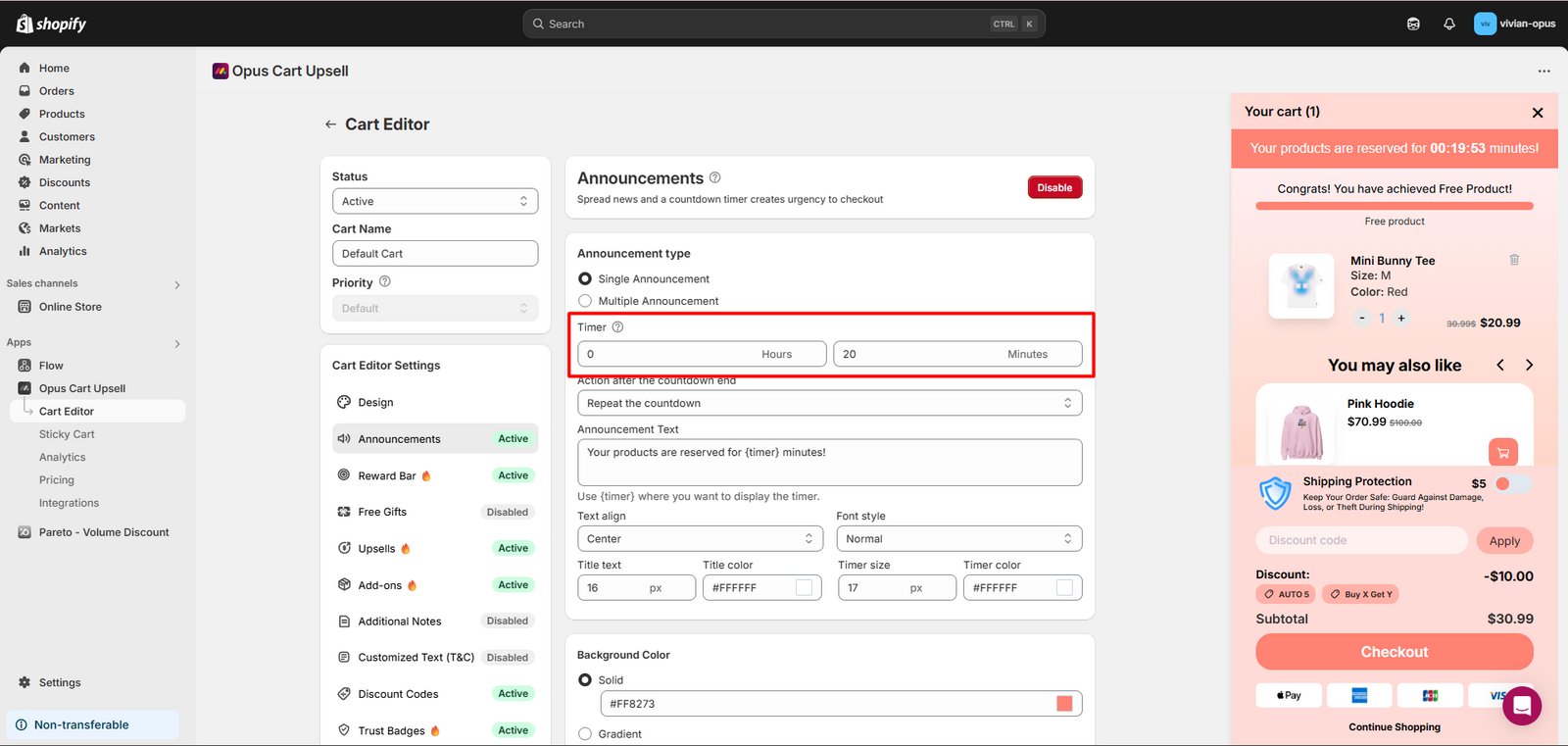
Any value exceeding 24 hours will be automatically adjusted to 24.
The timer must be set to more than 0 minutes for the announcement to appear in the cart, even if you choose to display text only.
Step 3:
Choose what happens when the countdown ends:
Repeat the Countdown: Resets and starts over.
Hide the Countdown: The announcement bar disappears after the countdown ends.
Remove all items in cart: Removes all items from the cart once the countdown ends.
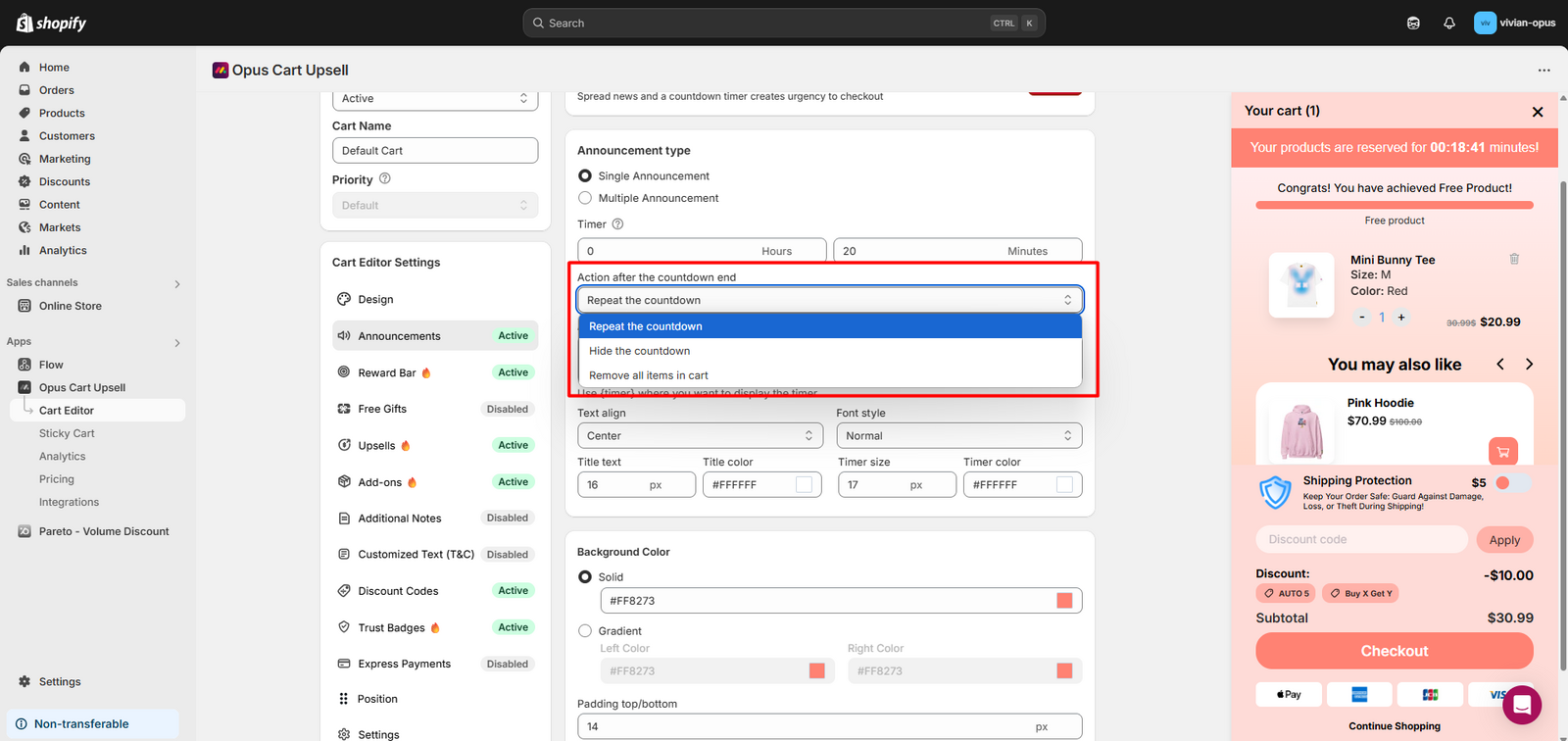
Step 4:
Enter the Announcement Text, which will be displayed in the cart drawer. You can add emojis, align the text (left, center, right) and change the font style (normal, italic, bold).
Use {timer} where you want to display the timer. For example: Your products are reserved for {timer} minutes!
Customize the appearance of the text in the cart:
Text size and Text color change the size and color of the normal text, not including the timer.
Timer size and Timer color change the size and color of the timer only.
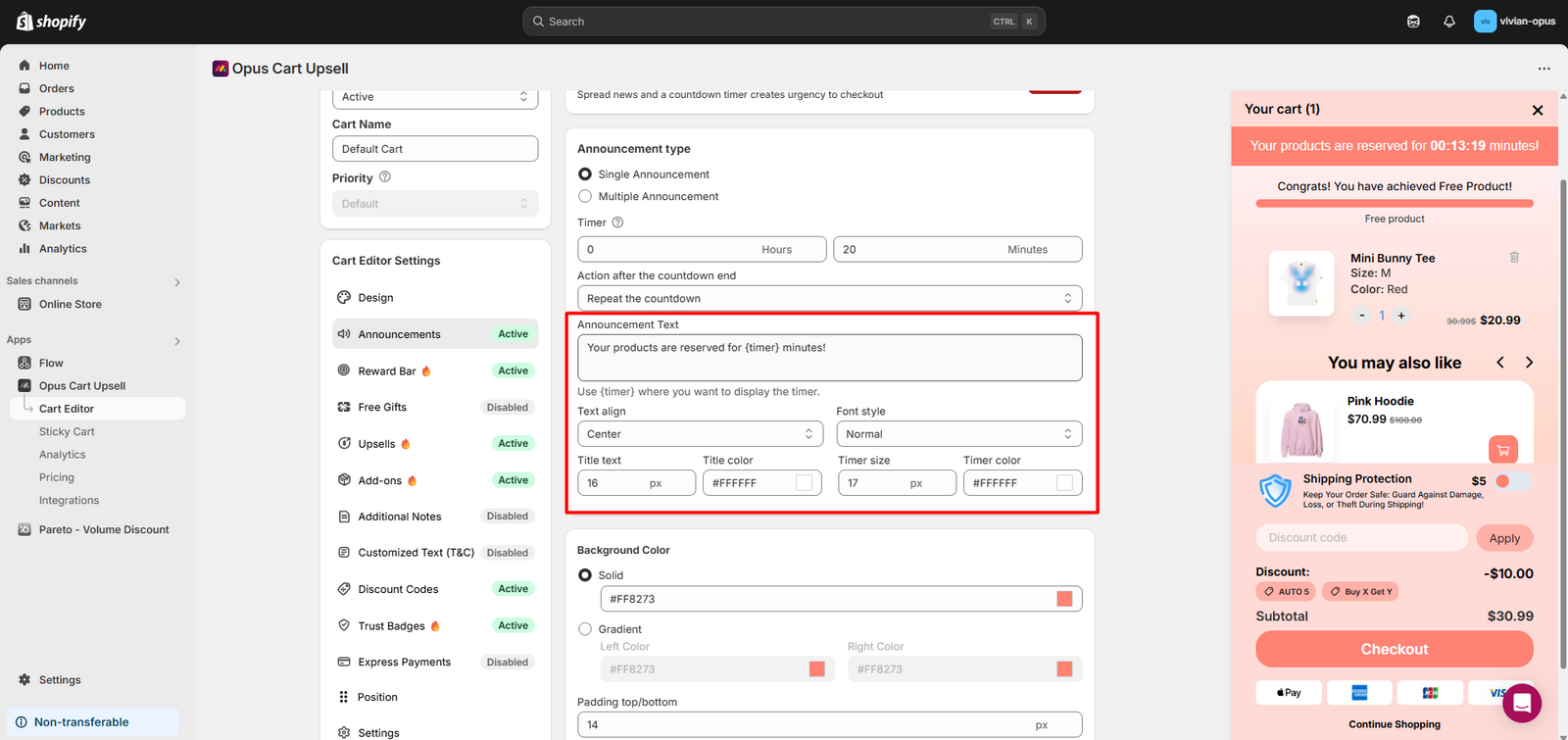
Step 5:
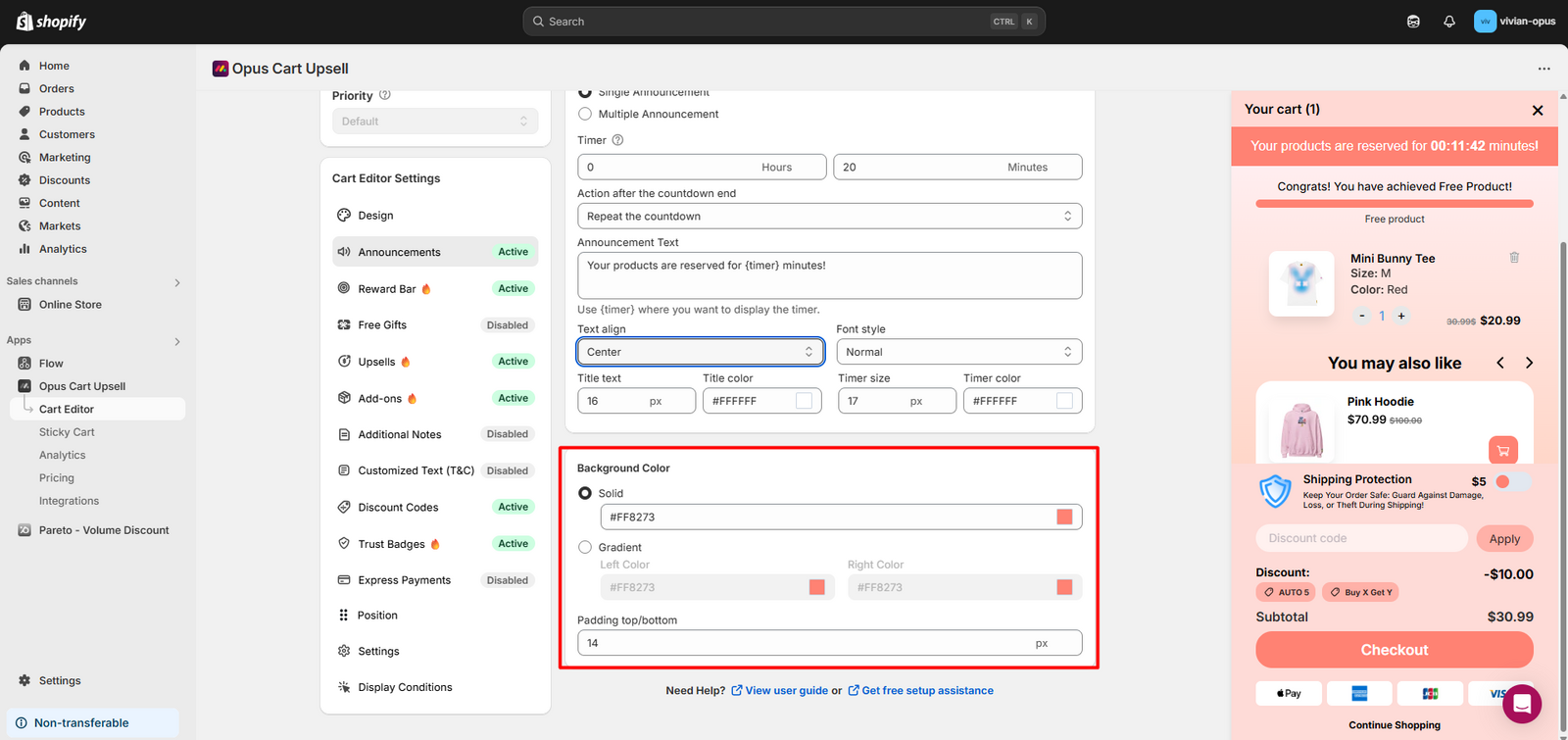
Customize the background color: solid or gradient color of the Announcement.
Adjust top/bottom padding.
Step 6:
Click "Save" to finalize the setup.
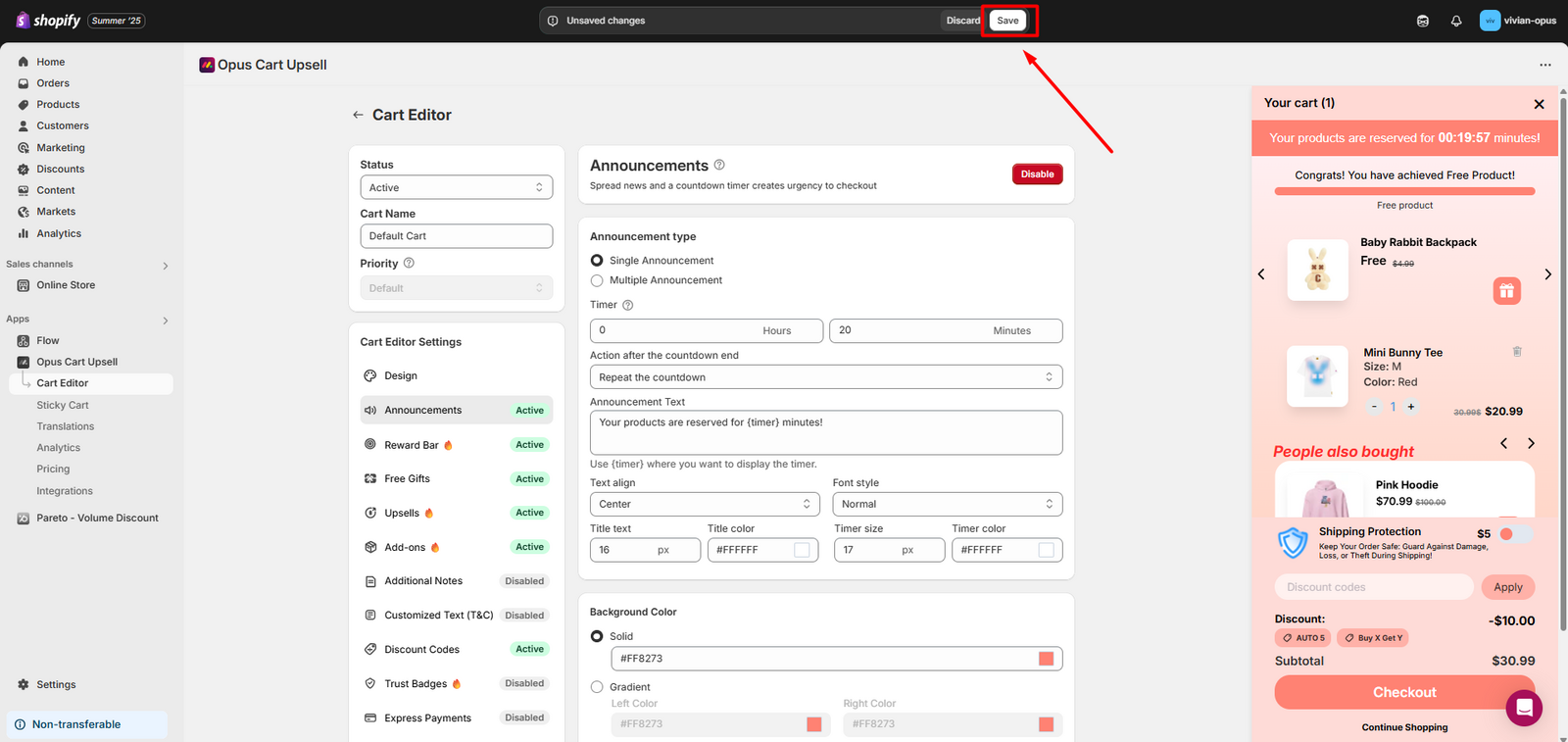
Step 7:
If this button is in green color and says "Enable", it means the feature is not activated yet. Click to activate the module.
4. Multiple Announcements
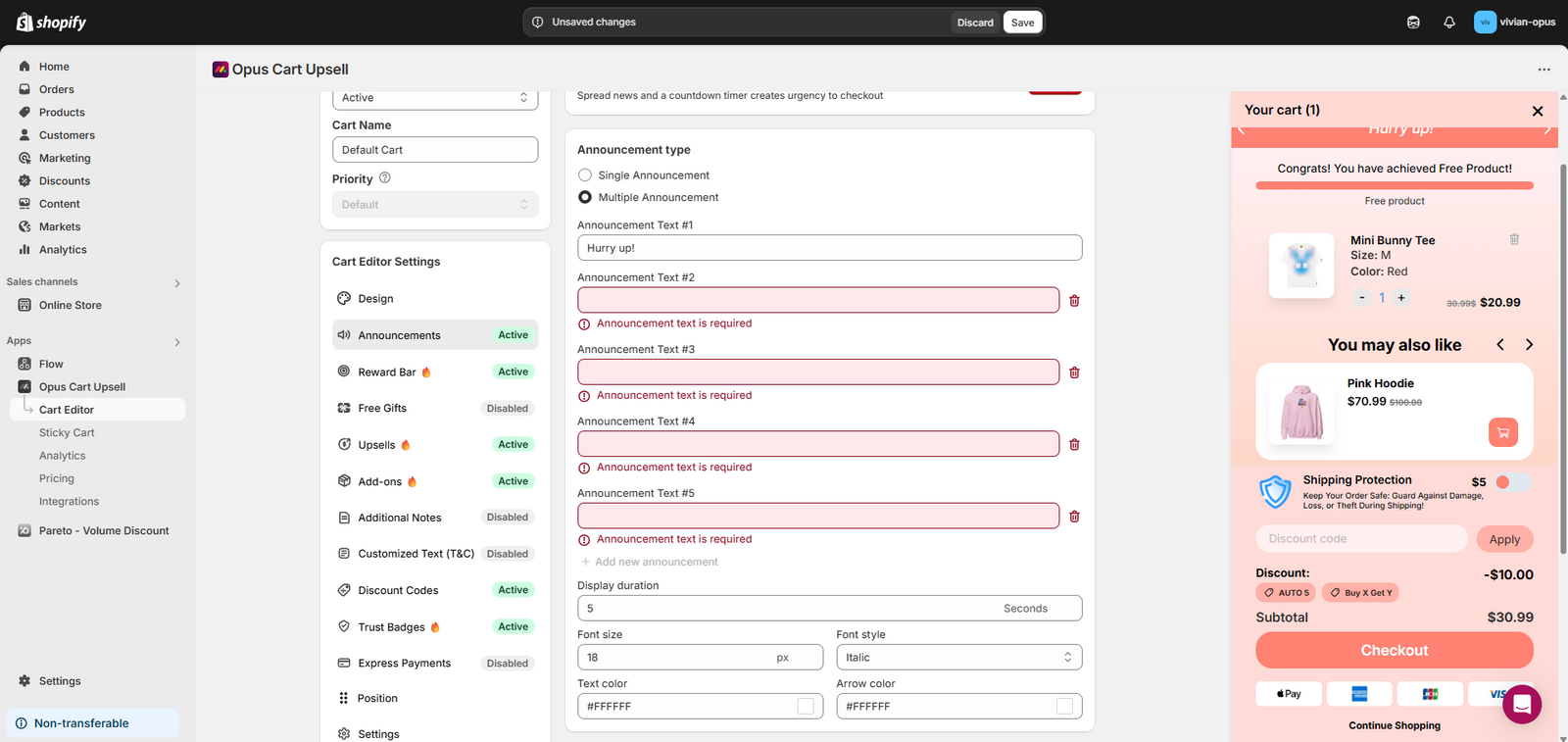
The Announcements feature allows to show up to 5 different texts. To set up multiple announcements, you should:
Select Multiple Announcement in the Announcement type
Fill in the content that you want to show to customers, hit "Add new announcement" if you want to show more announcements.
Announcements will auto-slide for the time in Display Duration.
Change the font size and style, the text color, and the arrow color.
You cannot show a time countdown when using Multiple Announcements.
Need help? Let us know via in-app live chat or email: help@opusecom.co🤩
Still need help?
Our support team is available 24/7. Contact support →