
Test Mode Setup
Try a cart on your live store with a private preview link before shoppers see it.
What is Test mode?
Test mode lets you try a cart on your live store before your shoppers see it. Only visitors who open your store's preview link see a cart in Test mode — everyone else keeps seeing your current live cart.
Offers and discounts work for real in Test mode, so you can check the full experience (reward bar, free gifts, upsells, add-ons…) exactly as a shopper would.
Every cart has one of three statuses:
| Status | Who sees the cart |
|---|---|
| Active (green dot) | All shoppers who match the cart's display conditions. |
| Test mode (blue dot) | Only visitors who opened the preview link, and who match the cart's display conditions. |
| Draft (grey dot) | Nobody. The cart is turned off. |
Turn on Test mode
You can switch a cart to Test mode from two places.
Option 1: From the Cart List
From the app's navigation menu, go to Cart Editor.
Find your cart and open its Status dropdown.
Select Test mode. The change applies immediately — no need to save.
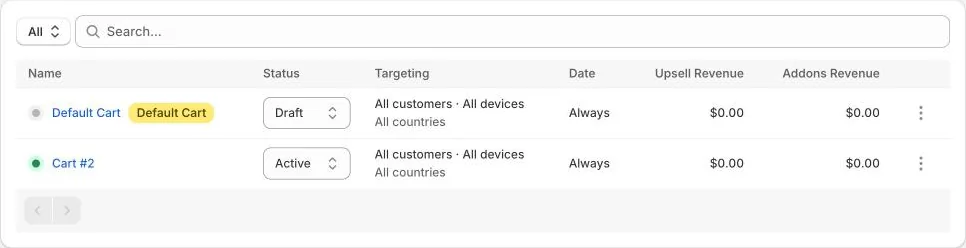
Use the status filter next to the search box (All / Active / Test mode / Draft) to quickly find your test carts.
Option 2: Inside the cart editor
Open the cart you want to test.
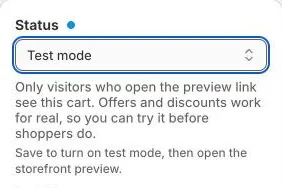
In the Status card, select Test mode.
Click Save. Test mode is turned on together with your other changes.
Open the storefront preview
After saving, the Status card shows an Open storefront preview button. Click it — your store opens in a new tab.
A small blue Test mode preview badge appears in the bottom-left corner of the page. This confirms the preview is unlocked.
Browse your store and add products to the cart as a shopper would. Your Test mode cart is shown instead of the live cart.
Good to know
The preview stays unlocked for that browser tab while you browse. Closing the tab ends the preview — click Open storefront preview again to reopen it.
To preview on your phone or share it with a teammate, right-click Open storefront preview, copy the link and open it on the other device.
Your store has a single preview link that unlocks all carts in Test mode. Only share it with people you trust.
The Ego Cart app embed must be turned on in your live theme. If it's off, the app shows an "App embed is turned off" banner — click Activate app embed, then Save in the theme editor.
What works in Test mode
Offers and discounts are real. Free gifts, upsell discounts and reward bar rewards are applied exactly as they will be when the cart goes live.
Orders are real. An order placed during a preview is a normal Shopify order. Use a test payment method, or cancel and refund the order afterwards.
Analytics are recorded. Orders placed during a preview are counted in the cart's statistics like any other order.
Display conditions still apply. A Test mode cart only shows when its conditions (device, customer, location, schedule) match you. If no Test mode cart matches, you see your normal live cart.
Test a replacement safely. A Test mode cart can use exactly the same display conditions as an Active cart — useful when you want to try a new version of your live cart before switching.
A/B tests also run in Test mode, but only preview visitors are split between the variants. See A/B Testing Setup
Go live or turn off the cart
When you're happy with the cart, change its status:
Active — the cart goes live for every shopper who matches its display conditions.
Draft — the cart is turned off and no one sees it.
A Test mode cart whose schedule end date has passed is switched to Draft automatically, the same as an Active cart.
Troubleshooting
The preview shows my live cart instead of the test cart
Make sure you saved the cart after selecting Test mode.
Check the cart's display conditions: your device, location or customer status must match them.
If you closed the tab, open the preview link again.
"Cannot activate: trigger is identical to active cart…"
Two carts with the same status can't use identical display conditions. Edit the locations, device, customer or dates of one of them first. (A Test mode cart and an Active cart can share the same conditions.)
I can't turn on Test mode
Test mode follows the same plan rules as activating a cart. If the app asks you to subscribe or upgrade (for example when the Free plan's monthly orders are used up), upgrade your plan to continue.
Need help? Let us know via in-app live chat or email: help@egohub.co 🤩
Still need help?
Our support team is available 24/7. Contact support →