
Set Up a Bundle Deal
Configure bundle info, visibility, offer tiers, add-ons, eligible products, variants and pricing.
1. Bundle info, visibility and timeline
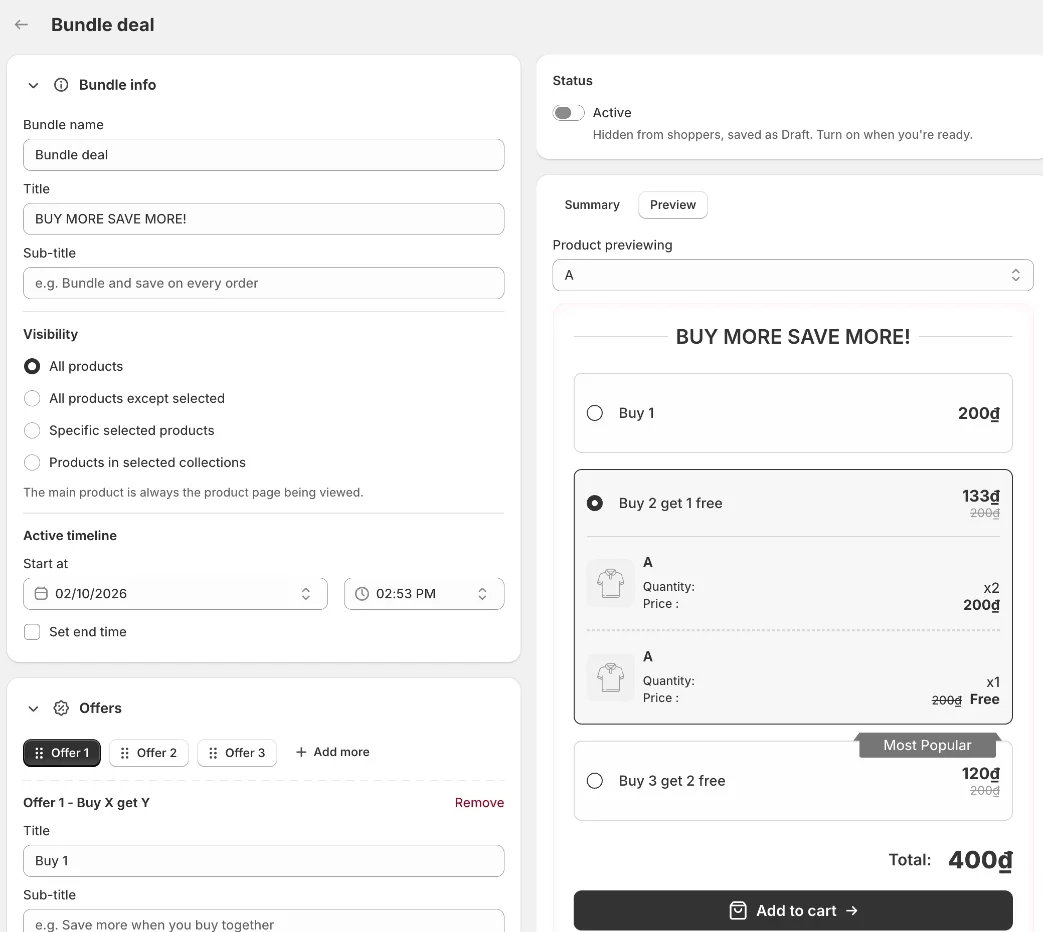
Bundle name — for your own reference only.
Title / Sub-title — the heading shoppers see above the tiers (e.g. BUY MORE SAVE MORE!).
Visibility — show the bundle on all products, all products except selected, specific products, or products in selected collections. The main product is always the product page being viewed.
Active timeline — start date/time and an optional end time.
The Preview on the right renders the widget for the product you pick under Product previewing.
2. Offers (tiers)
A bundle can have maximum 10 offers. Click Add more and pick the offer type; drag the chips to reorder.
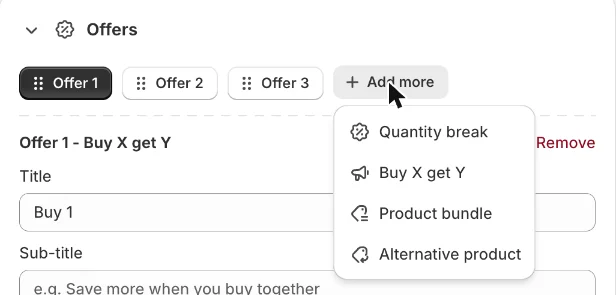
Quantity break — quantity plus a Percentage or Fixed amount discount (fixed amounts are taken off each item).
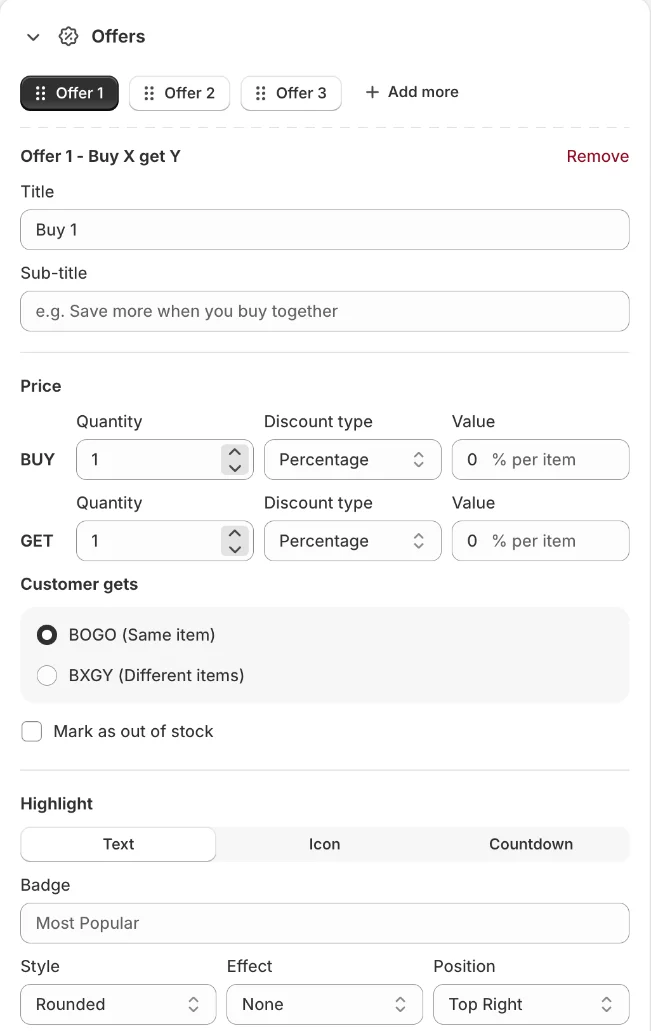
Buy X get Y — BUY and GET quantities with their own discount; under Customer gets choose BOGO (Same item) or BXGY (Different items).
Product bundle — row 1 is always the viewed product; add up to 9 more product rows with quantity, discount and label, and choose a List, Row or Grid layout.
Alternative product — exactly one other product with its own quantity and discount.
Offer type | Suggested campaign |
|---|---|
Quantity break | Buy 2 Get 10% off, Buy 3 Get 20% off, Buy 4 Get 30% off |
Buy X Get Y | Buy 1 item → get another product at 50% off |
Product bundle | Buy a combo 1 Shirt + 1 Pant + 1 Hat at 20% off each item |
Alternative product | Try another product at 30% off |
Every offer also has a Title, Sub-title, Mark as out of stock, a Tag and Selected by default (one offer only).
3. Highlight and add-ons
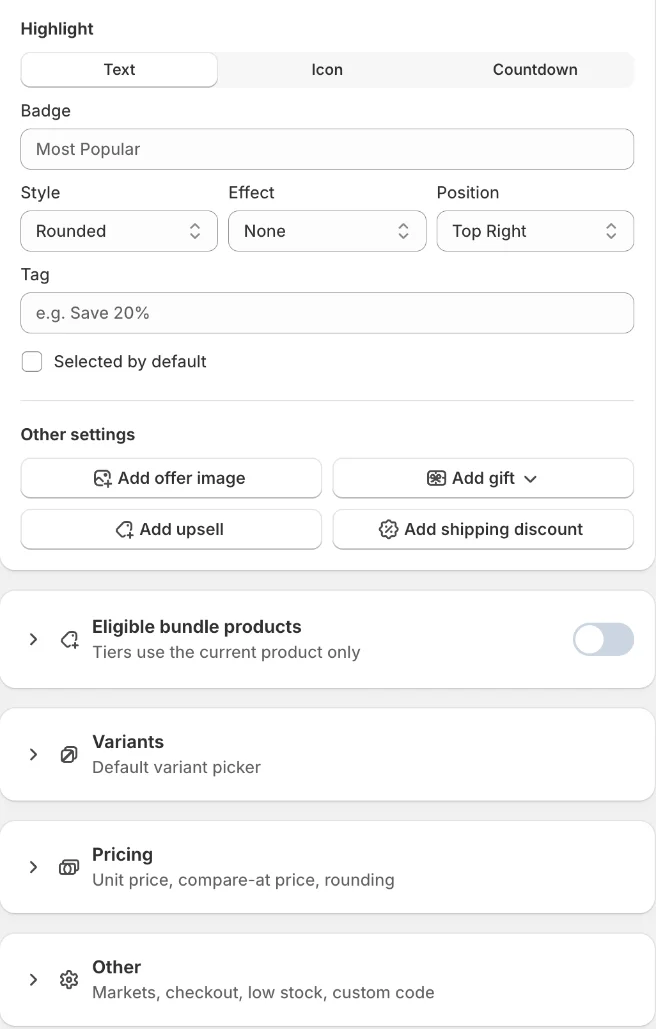
Highlight — a badge on the tier as Text (e.g. Most Popular), Icon or Countdown, with style, effect (None/Blinking) and position.
Other settings — Add offer image, Add gift (single gift or a multiple-gift selector), Add upsell (selected or complementary products) and Add shipping discount. Alternative product offers support the offer image only.
4. Eligible products, variants, pricing and other
Eligible bundle products — off by default, so tiers are a pure quantity break on the current product. Turn it on to let shoppers fill the units with other products (all products, same as deal visibility, all except selected, specific products or collections).
Variants — let customers choose a different variant for each item, hide the theme variant picker, and style the picker with swatches.
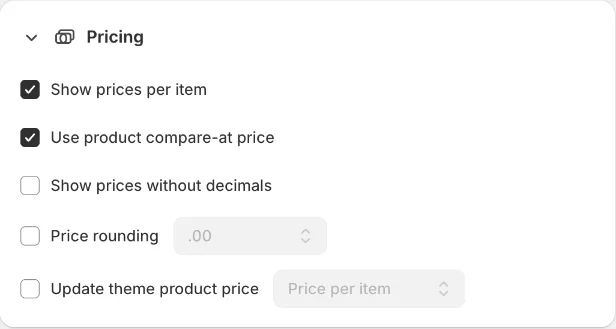
Pricing — show prices per item, use the compare-at price, hide decimals, round prices, or update the theme's product price.
Other — skip the cart and go straight to checkout, limit the bundle to selected Markets, exclude B2B customers, zoom offer images on hover, and copy the
<div data-ego-hybrid-bundle></div>snippet for custom placement or page builders.
5. Activate
New bundles are saved as Draft. Turn on Active in the Status card and click Save. When you edit a live bundle, carts that already contain it keep their current lines.
Still need help?
Our support team is available 24/7. Contact support →