
Bundle Display, Styling & Checkout
Show the Bundle widget on your theme, style it, and understand how bundle prices apply at checkout.
Show the widget on your theme
Make sure the Ego Free Gift app embed is on (see Installing & Activating).
On Online Store 2.0 themes, add the Ego Bundle app block to the product section in the theme editor.
For other themes or page builders, paste the snippet from the bundle's Other settings.
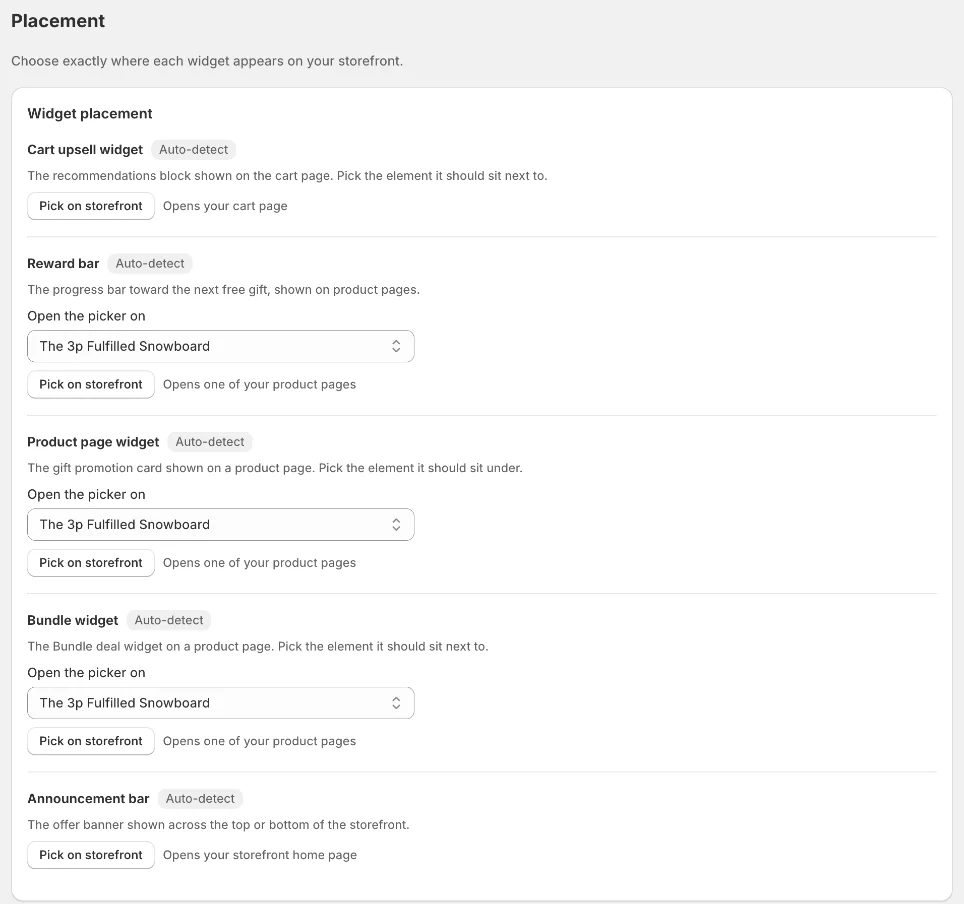
If the widget sits in the wrong spot, use Placement → Bundle widget → Pick on storefront.
Theme Add to cart & Buy it now buttons
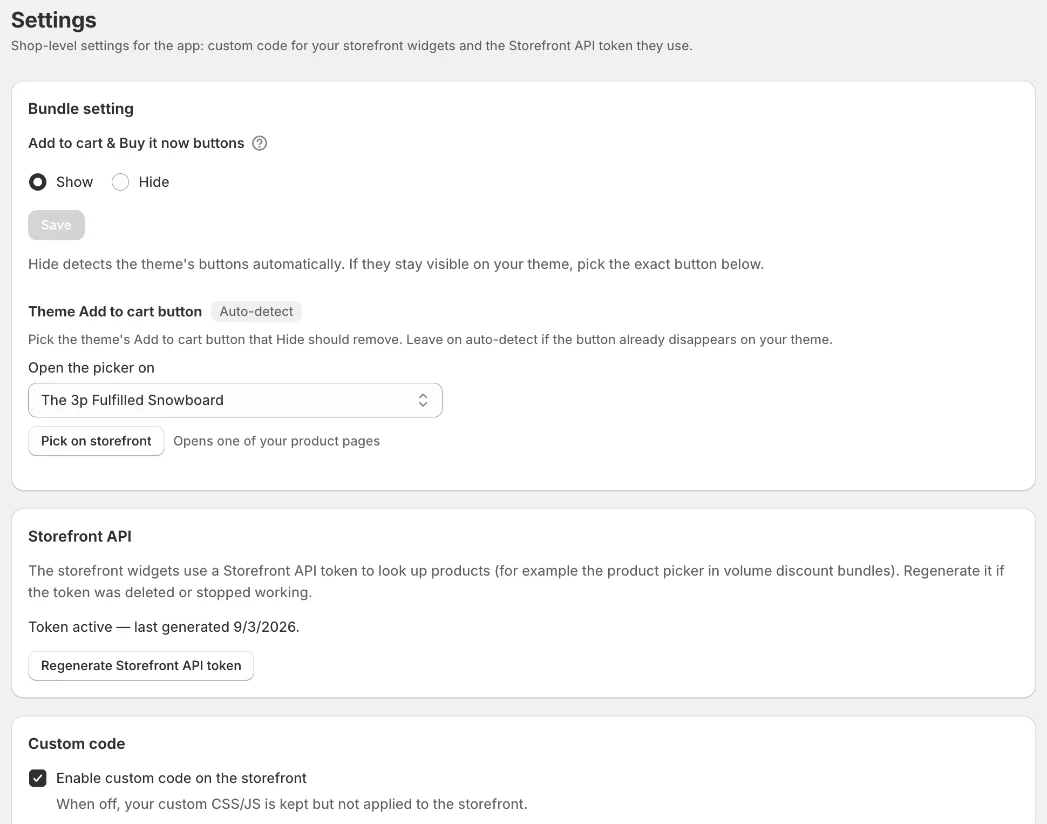
In Settings → Bundle setting, choose whether the theme's Add to cart & Buy it now buttons are shown or hidden on bundle products. Hide detects the buttons automatically; if they stay visible, pick the exact button on your storefront.
Style the widget
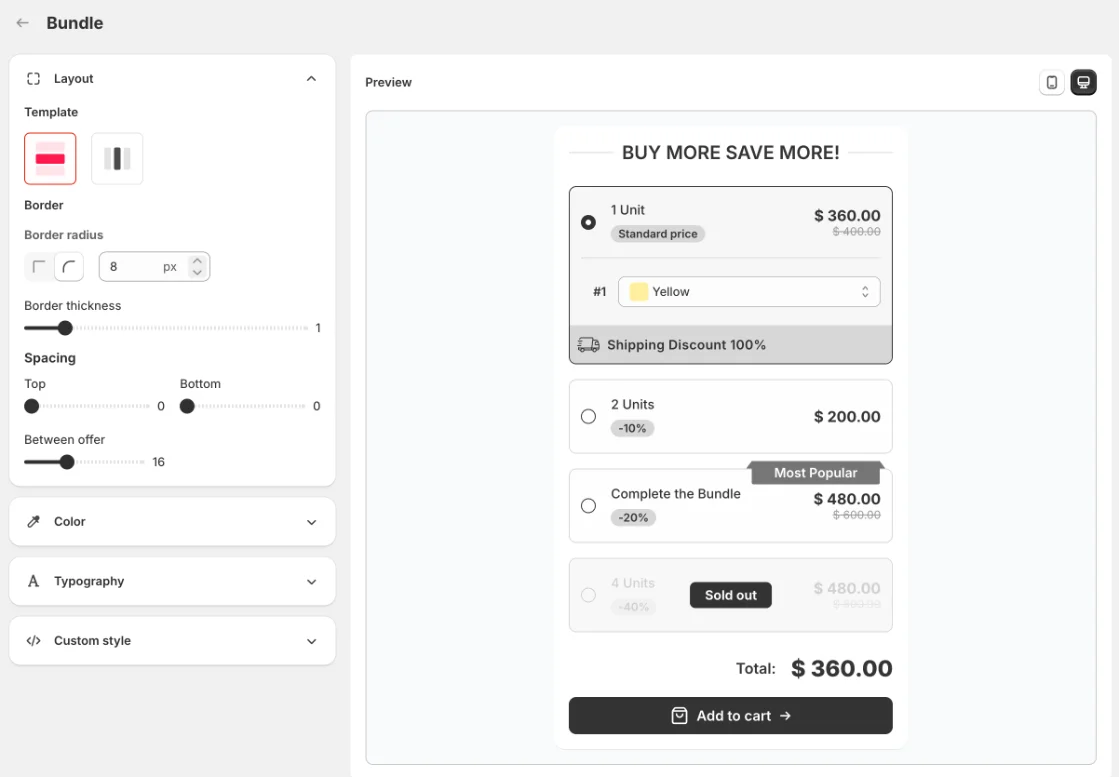
Go to Widgets → Bundle → Customize. Layout (template, border, spacing), Color, Typography and Custom style apply to every bundle on your store.
How bundle prices apply
Bundle discounts are applied automatically through the app's Ego Free Gift Discount — no code to enter.
Each bundle item stays a separate line in cart and checkout, with the discount applied.
Only items added through the bundle widget get the bundle price. If a shopper breaks the group (removes an item or changes a quantity), the group goes back to full price.
Inventory is tracked per product as usual — there are no bundle SKUs.
Make sure your other Shopify discounts can combine with Product and Order discounts, otherwise Shopify may prefer them over the bundle discount.
Good to know
One Bundle widget shows per product page. If several bundles match the same product, the one created first is shown.
Track results on Analytics → Bundle: Orders with Bundle, Bundle Revenue and the View → Add to cart → Order funnel.
Still need help?
Our support team is available 24/7. Contact support →