

Developer Account Access
If you choose to submit your mobile app using your own Apple Developer or Google Play Developer account, you will need to grant access to the Ego Mobile…
Overview
Overview
If you choose to submit your mobile app using your own Apple Developer or Google Play Developer account, you will need to grant access to the Ego Mobile Builder team so they can help configure and submit the app on your behalf.
This access is granted by inviting an email address to your developer account with the appropriate permissions.
This guide explains how to invite a collaborator to:
Apple App Store Connect: <support@opusecom.co>
Google Play Console: <supportopusecom@gmail.com>
1. Invite Access to Apple App Store Connect
Before You Start
Make sure that:
You have an active Apple Developer account
You have Admin or Account Holder permissions
You know the email address provided by the Ego Mobile Builder team
Apple manages app publishing through App Store Connect, where collaborators can be invited.
Step 1: Log in to App Store Connect
Sign in using your Apple Developer account
Step 2: Open Users and Access
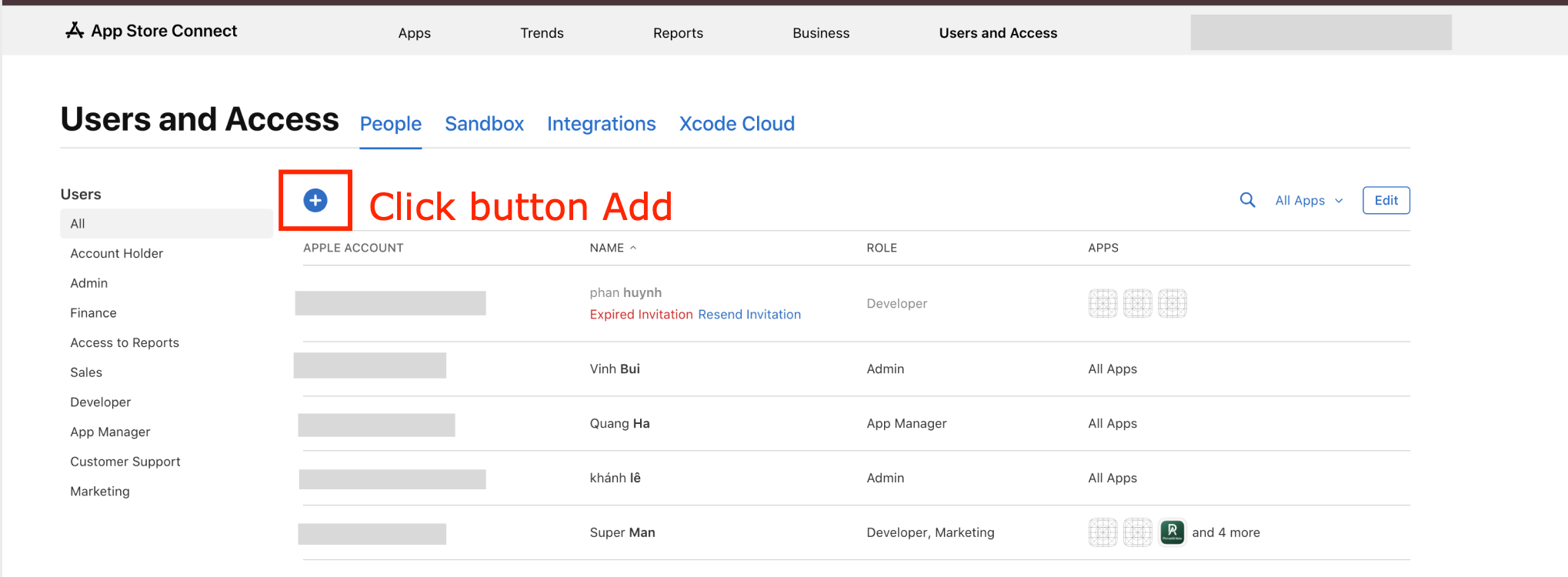
From the dashboard, click Users and Access
You will see the list of current users with access to your account
Step 3: Add a New User
Click the + (Add User) button
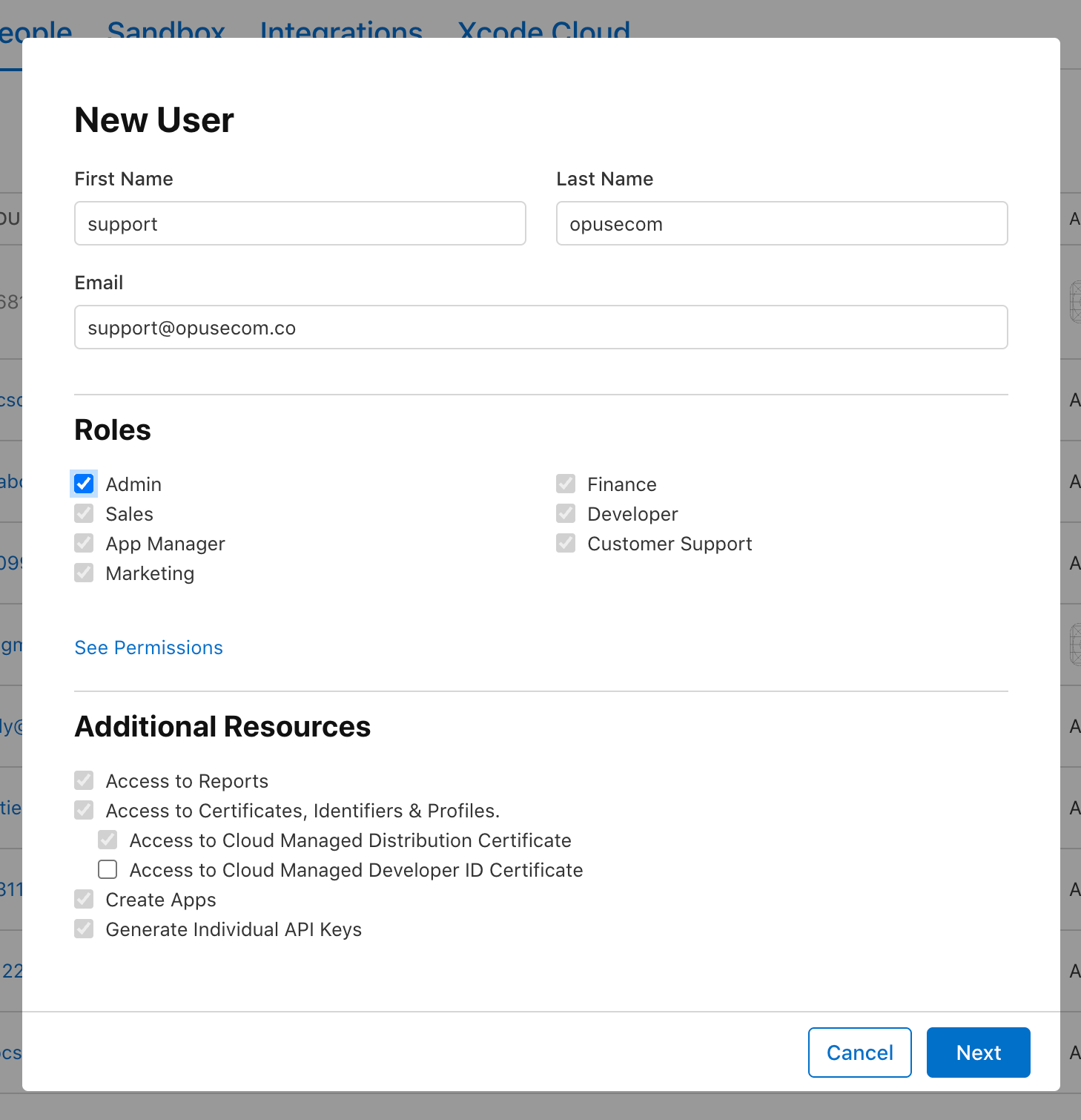
Enter the following information:
First Name
Last Name
Email Address (the email provided by the Ego Mobile Builder team): <support@opusecom.co>
Step 4: Assign Roles
Assign the appropriate role so the team can manage submission tasks.
Recommended roles typically include:
Admin (full access - recommended for submission tasks)
If requested by the platform, also ensure access is granted to:
App management
TestFlight
App submission and metadata editing
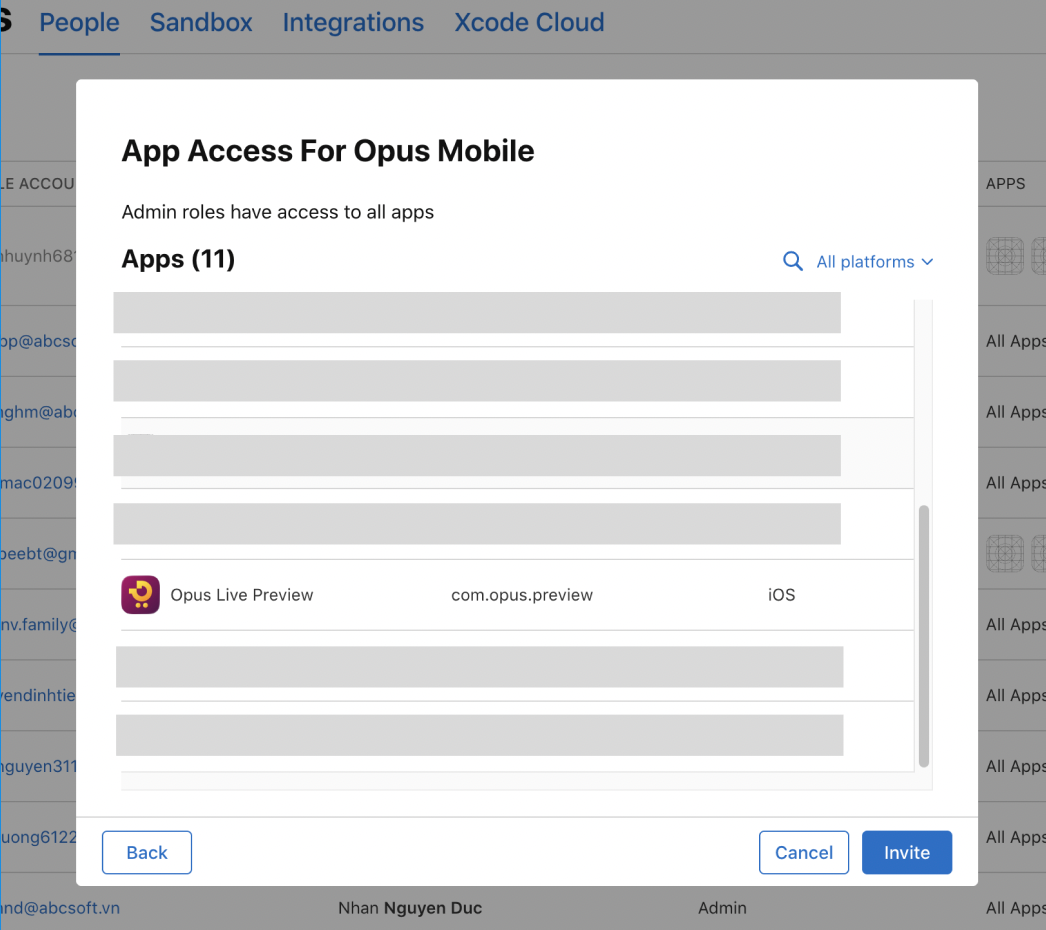
Step 5: Send the Invitation
Review the role permissions
Click Invite
Apple will send an invitation email to the provided address. Once accepted, the invited user will be able to access your App Store Connect account according to the assigned permissions.
2. Invite Access to Google Play Console
Before You Start
Make sure that:
You have an active Google Play Developer account
You have Owner or Admin access
You have the email address provided by the Ego Mobile Builder team
Google Play uses the Play Console to manage apps and permissions.
Step 1: Log in to Google Play Console
Sign in with your Google Play Developer account
Step 2: Open Users and Permissions
In the left navigation menu, open Users and Permissions
This page displays all users who have access to your developer account
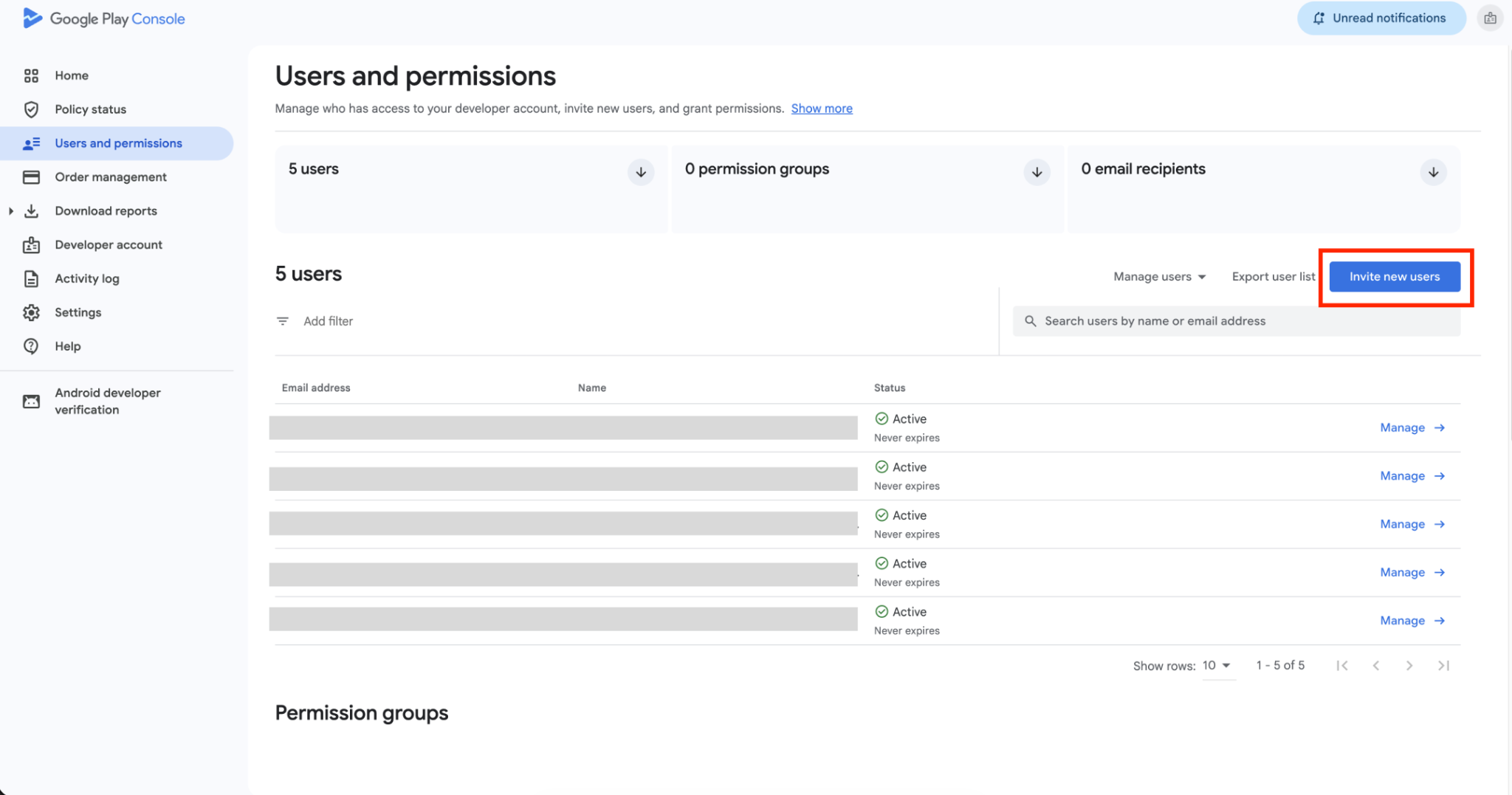
Step 3: Invite a New User
Click Invite New User
Enter the email address provided by the Ego Mobile Builder team: <supportopusecom@gmail.com>
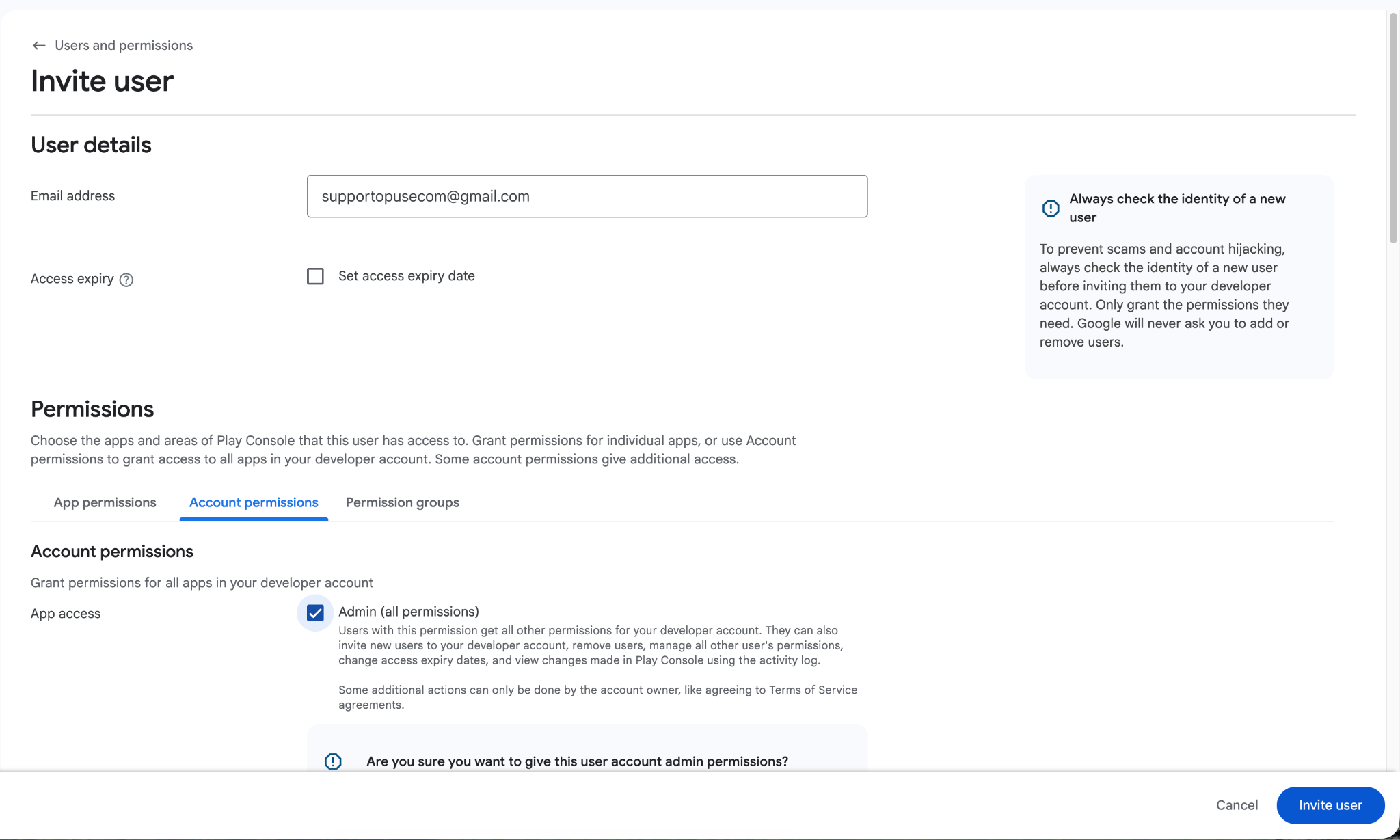
Step 4: Assign Permissions
Grant the necessary permissions for app submission and management.
Common permissions include:
Release Manager
App Manager
Store Listing management
Production releases
Testing management
Depending on the platform requirements, you may grant broader access such as Admin, or limited access specifically for app release tasks.
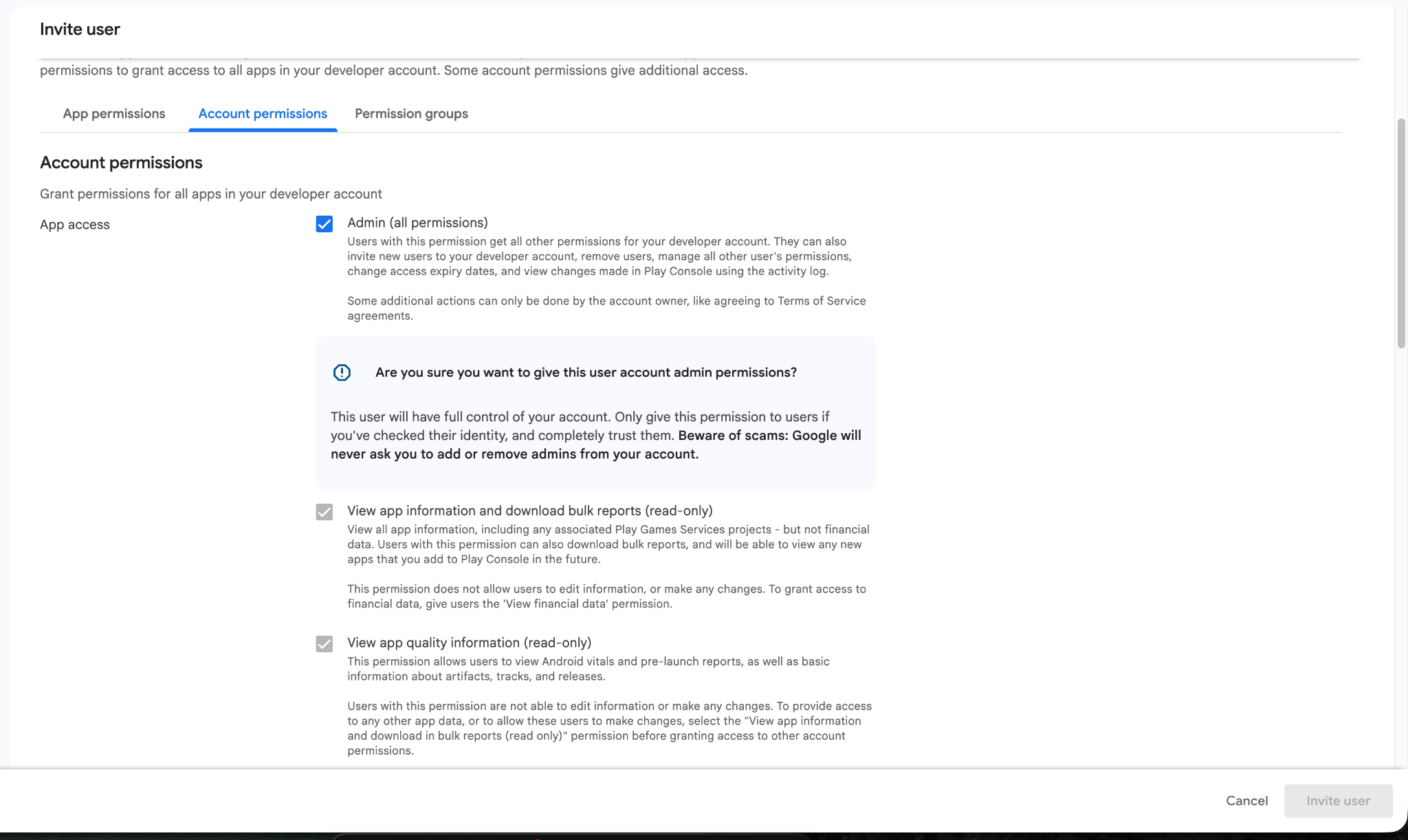
Step 5: Send the Invitation
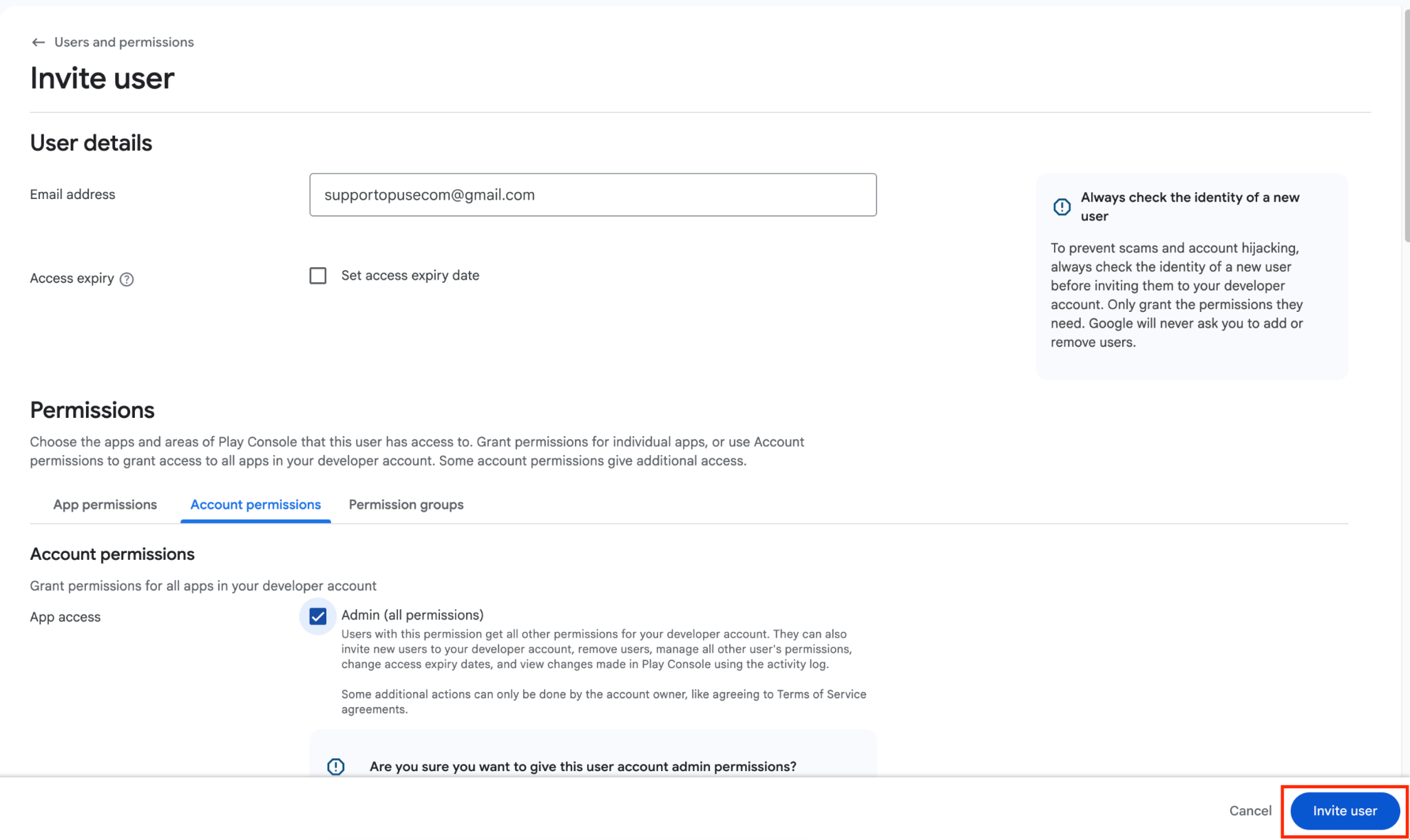
Review the selected permissions
Click Invite User
The invited user will receive an email invitation and can access your Play Console once they accept the invitation.
After Sending the Invitations
Once both invitations are accepted:
The Ego Mobile Builder team will be able to:
Configure your app listing
Upload app builds
Manage store metadata
Submit the app for review
You can continue managing your account and revoke or modify permissions at any time.
Important Notes
- You retain full ownership of your developer accounts.
- Access granted through invitations can be modified or removed anytime.
- Always ensure the email address you invite is provided by the official Ego Mobile Builder team.
If the invitation has not been accepted yet, you can resend it from the Users and Access or Users and Permissions section of your developer account.
Frequently Asked Questions
1. Why does Ego Mobile Builder need access to my developer account?
Ego needs access to prepare, configure, and submit your mobile app to the Apple App Store and Google Play on your behalf.
2. Why do I need to grant these permissions to Ego Mobile Builder?
These permissions allow the Ego team to complete the app submission process, including managing app information, uploading builds, configuring store listings, setting up testing, and releasing approved versions to production. Without the required permissions, we may not be able to submit or update your app successfully.
3. What permissions should I grant to the Ego Mobile Builder team?
For Apple App Store Connect, grant the role requested in this guide. For Google Play Console, provide the permissions required for app management, store listings, testing, and production releases.
4. Will Ego own my Apple Developer or Google Play Developer account after I grant access?
No. You remain the owner of your developer accounts. Ego only receives the permissions you grant and uses them to support app submission and management.
5. Can I remove or change Ego’s access later?
Yes. You can update or revoke Ego’s permissions at any time from App Store Connect or Google Play Console. However, removing required access may prevent Ego from submitting future updates or assisting with app releases.
6. What should I do if my invitation has not been accepted?
Check that you invited the correct email address provided by Ego Mobile Builder, then resend the invitation if necessary.
Still need help?
Our support team is available 24/7. Contact support →