

Add Judge.me reviews
Show the reviews you already collect in Judge.me inside your mobile app. Copy your private API key, connect the integration, place the review blocks on your screens, and publish.
Overview
Judge.me puts the reviews you already collect on your storefront into your mobile app. Connect it once, then place the review blocks on the screens where they help shoppers decide.
There are four blocks, all tagged Social Proof in the Sections Library:
Review widget — the full review list with the star summary. The only one you can also use on a Custom page, which is how stores build an "all reviews" screen.
Review slide — a compact list for the product screen.
Review Carousel — reviews swiped sideways, with their photos.
Review Video Carousel — only the reviews that came with a video.
Shoppers can also write reviews without leaving the app: after an order arrives they get a prompt for the star rating, the review, their name and an optional photo or video. Moderating, replying and importing stay in Judge.me.
Before you start
Judge.me is installed in your Shopify store.
You have reviews. Collected, or imported from your previous review app — a connected integration with an empty catalogue shows empty blocks.
Those reviews are published in Judge.me. Anything held in moderation is not served to the app.
For the video carousel, at least one review with a video. Text and photo reviews do not appear there.
Judge.me is available on the Growth plan and above.
Step 1: Get your private API key
Unlike most integrations, Judge.me connects with a key you copy yourself.
Open Judge.me from your Shopify admin.
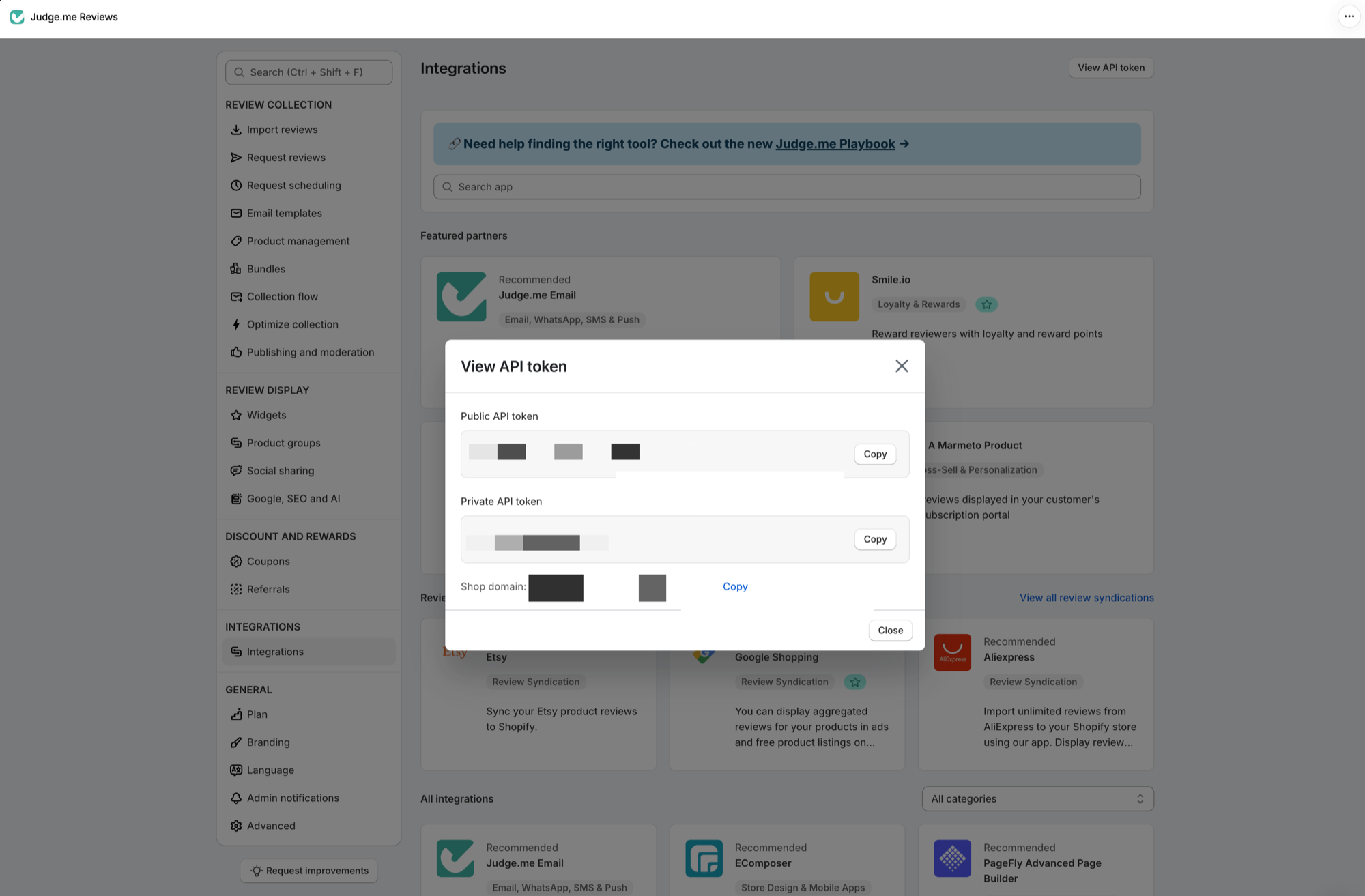
In the left menu, under Integrations, open Integrations.
Click View API token, top right.
Copy the Private API token — the second one. The public token will not work here.
Keep it private: it reads your review data. If you ever rotate it in Judge.me, come back and reconnect with the new one.
Step 2: Connect Judge.me in Ego Mobile Builder
From Shopify Admin, open Ego Mobile Builder.
Go to Integrations.
Open Judge.me Product Reviews App.
Paste the key into Private API key and click Connect.
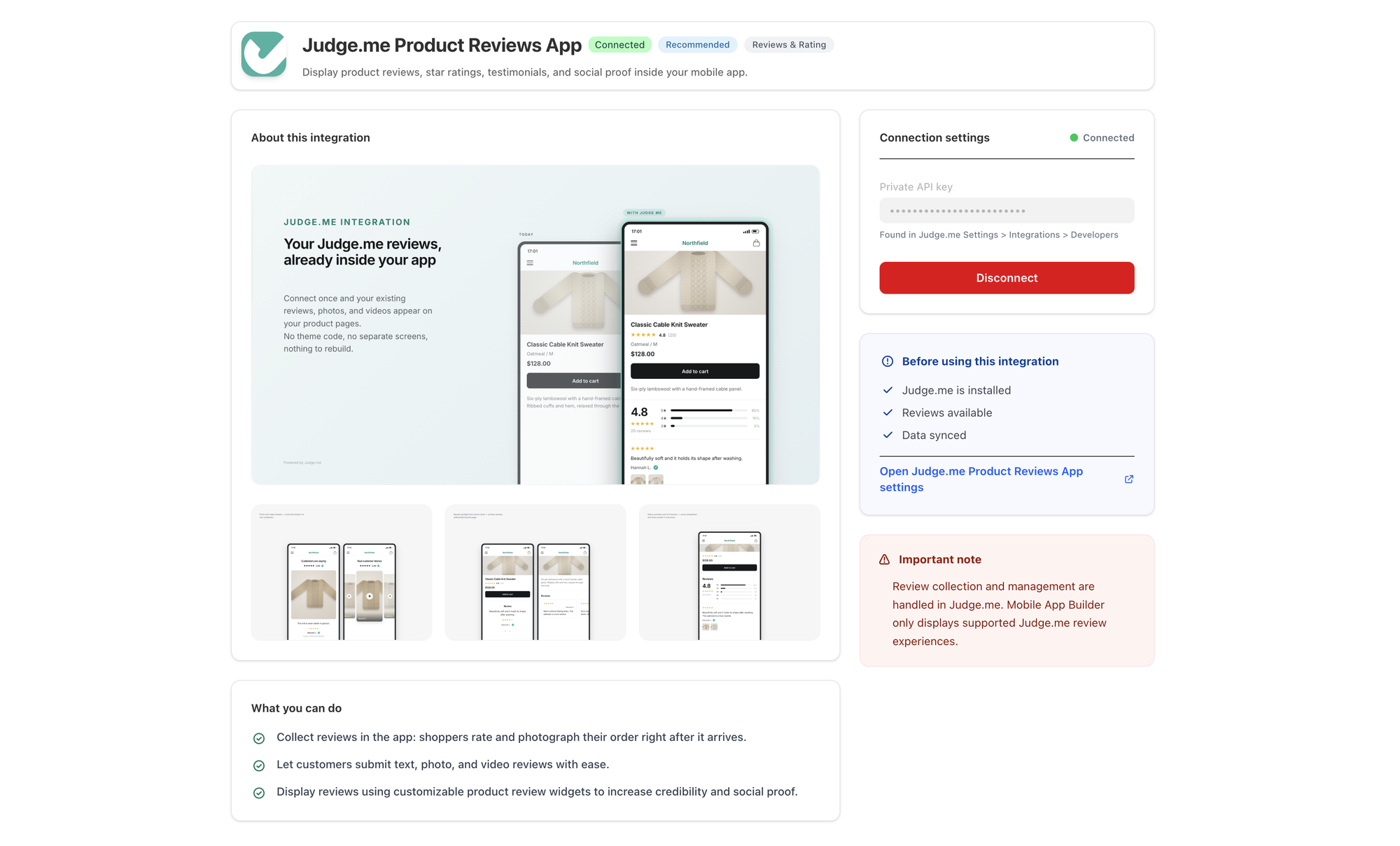
Once connected the header turns Connected, the key is masked and the button becomes Disconnect — that is the screen below. To change the key, disconnect first, then connect again with the new one.
Step 3: Add the review blocks
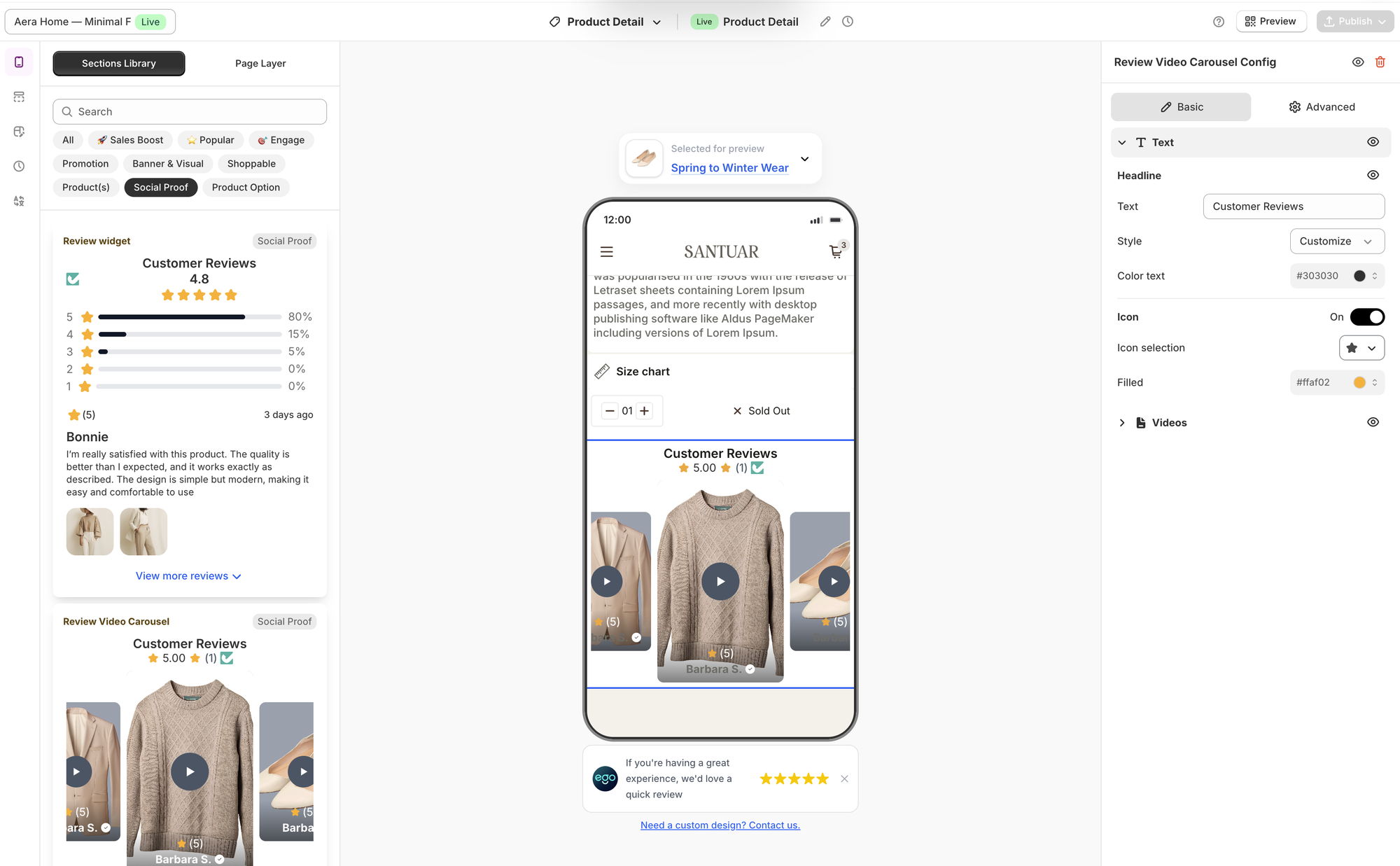
Go to App Design and open the design you want to edit.
Select the screen. All four blocks work on Product Detail; Review widget also works on a Custom page.
Open Sections Library and filter by the Social Proof tag, or search the block by name.
Drag the block to the preferred position.
Which to use where:
Product screen — one compact block below the description. Review slide or Review Carousel reads better here than the full widget, which is long.
Video reviews — add Review Video Carousel only for catalogues that actually get them; it renders nothing on products without video.
A dedicated reviews screen — build a Custom page and put Review widget on it, then link to it from your menu.
You can drag the blocks in before connecting Judge.me. They stay dimmed and their configuration panel shows a Connect Judge.me card until the integration is connected.
Step 4: Customize a block
Select a block to open its configuration panel. You are styling the frame around the reviews — the review text, ratings, author names, photos and videos come from Judge.me and are not editable here.
Every block has a Text section for the headline above the reviews ("Customer Reviews" by default), its style and colour. What sits next to it depends on the block:
Reviews — how the rating and the review count are shown. On Review widget and Review slide.
Button — the action under the list, such as "View more reviews". On Review widget and Review slide.
Media — size and shape of review photos. On Review Carousel.
Videos — the video tiles. On Review Video Carousel.
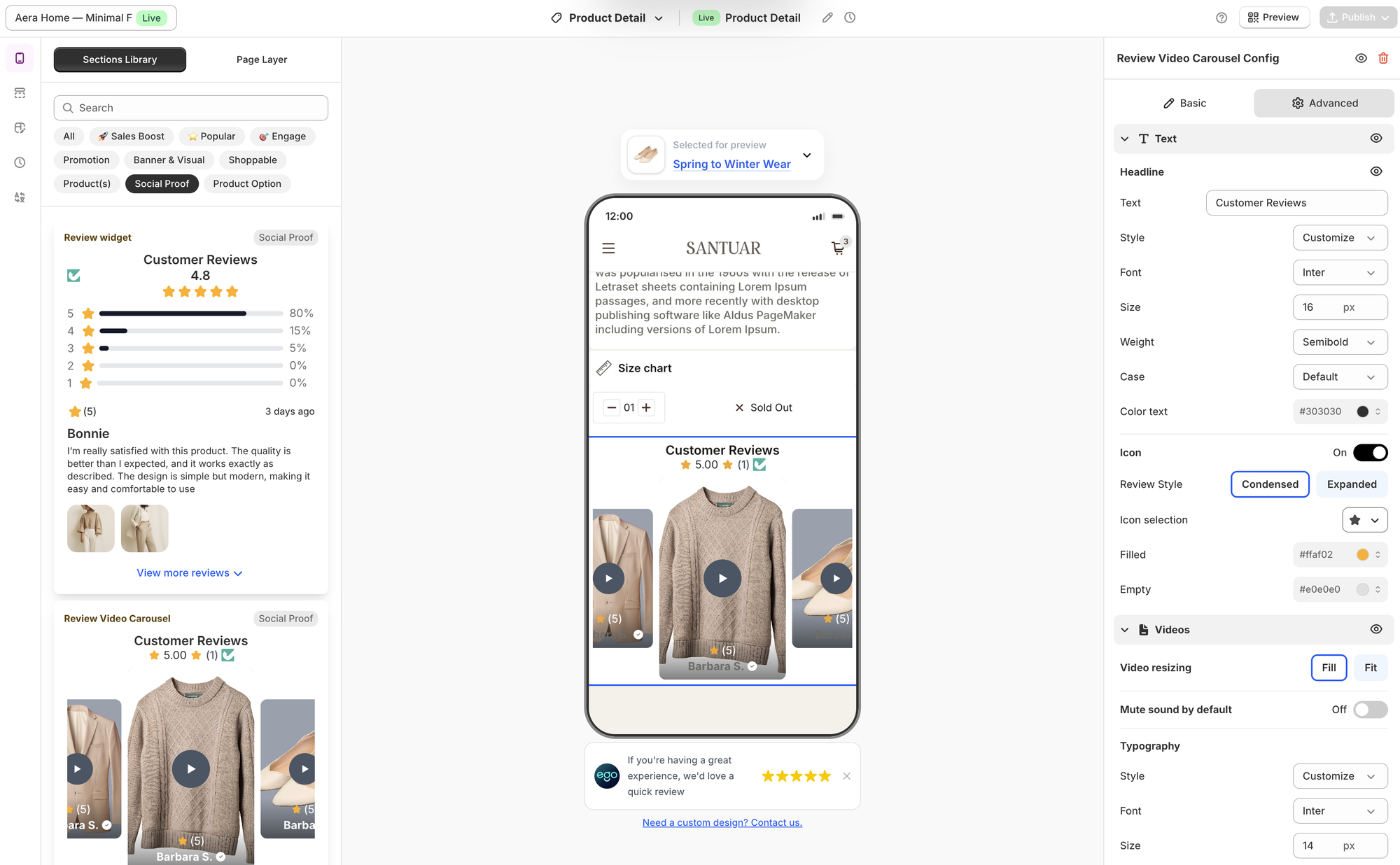
The Advanced tab opens the rest: full typography (font, size, weight, case), the star colours — Filled and Empty — a Review Style switch between Condensed and Expanded, and a Padding section for background, corners, borders and spacing.
On Review Video Carousel, Advanced also holds the two settings worth deciding deliberately:
Video resizing — Fill crops the video to the tile, Fit keeps all of it and leaves bars. Fill looks tidier when reviewers shoot in mixed orientations.
Mute sound by default — leave it on unless you expect shoppers to want audio immediately.
Step 5: Preview and publish
Changes appear immediately in the mobile preview while you configure the block.
Before publishing, check:
A product with many reviews and one with none — the block should not leave an empty gap.
The headline wording matches the rest of your app.
Long review text and tall review photos still read well at phone width.
When ready:
Click Save.
Test on a device with Ego Live Preview.
Click Publish to make the changes available in your app.
Troubleshooting
The block is greyed out in the editor
Judge.me is not connected. Open Integrations → Judge.me Product Reviews App and connect it. The configuration panel of a dimmed block links straight there.
Connect does nothing, or the key is rejected
Check you copied the Private API key from Settings → Integrations → Developers in Judge.me, with no stray spaces. The public key will not work.
The block is empty on every product
Judge.me has no published reviews yet, or they are still in moderation. Check the review list in Judge.me first.
The video carousel shows nothing
It only displays reviews that include a video. Text and photo reviews are not shown there — use one of the other three blocks.
The review prompt never appears after an order
Usually the wait has not elapsed yet. The app follows your Judge.me review-request settings, so check the trigger event and the wait time there — and remember international orders use their own values. The prompt also stays away once that customer has reviewed or dismissed it, and when the order has no date for the chosen trigger (an order never marked delivered, with "delivered" as the trigger, will never qualify).
Reviews show on my online store but not in the app
The app reads Judge.me through the key you connected. Disconnect and reconnect with a freshly copied key; if you rotated it in Judge.me, the old one stops working.
I cannot find Judge.me under Integrations
It is available on the Growth plan and above. Check your plan under Pricing, or contact support.
Frequently Asked Questions
1. Can customers write reviews inside the app?
Yes. The app has its own review form — five steps: the star rating, the review text, the reviewer's name and email (or posting anonymously), an optional photo or video, and a thank-you. Media can be shot with the camera or picked from the gallery.
It opens two ways: a write a review action on the order in the customer's profile, and an automatic prompt on the product screen. You do not place or configure it in App Design — it comes with the integration, and the timing of the automatic prompt follows your Judge.me review-request settings: which event it waits on, how long it waits, how often it may ask again, with separate values for domestic and international orders.
2. Can I edit or hide a single review from here?
No. Moderation lives in Judge.me, and the app follows it.
3. Can I use more than one review block on the same screen?
Yes. A carousel near the top and the full widget further down is a common pairing — just watch the screen length.
4. Can I show reviews outside the product screen?
Yes, with Review widget on a Custom page. The other three are product-screen only, because they read the reviews of the product being shown.
5. Do I have to re-import my old reviews?
No. Import them once in Judge.me and the app shows them like any other.
6. What happens if I disconnect?
The blocks stay on your screens but stop serving reviews, and come back as soon as you reconnect.
Still need help?
Our support team is available 24/7. Contact support →