

Campaigns
Track revenue and funnel performance of each marketing campaign using UTM parameters, and create trackable UTM links for your ads.
Overview
Campaigns helps you see which campaigns, sources, and ads bring in visitors and revenue, based on the UTM parameters in your links.
From this guide, you will:
Filter campaign data by source, medium, and date range.
Read the summary metrics and charts.
Analyze the funnel of every UTM combination.
Export campaign data to CSV.
Create and manage UTM links for your ads.
What is a UTM? UTM parameters are short tags added to the end of a link (source, medium, campaign, content, term). When a customer clicks that link and visits your store, Ego Pixel reads the tags and attributes the visit and the order to that campaign.
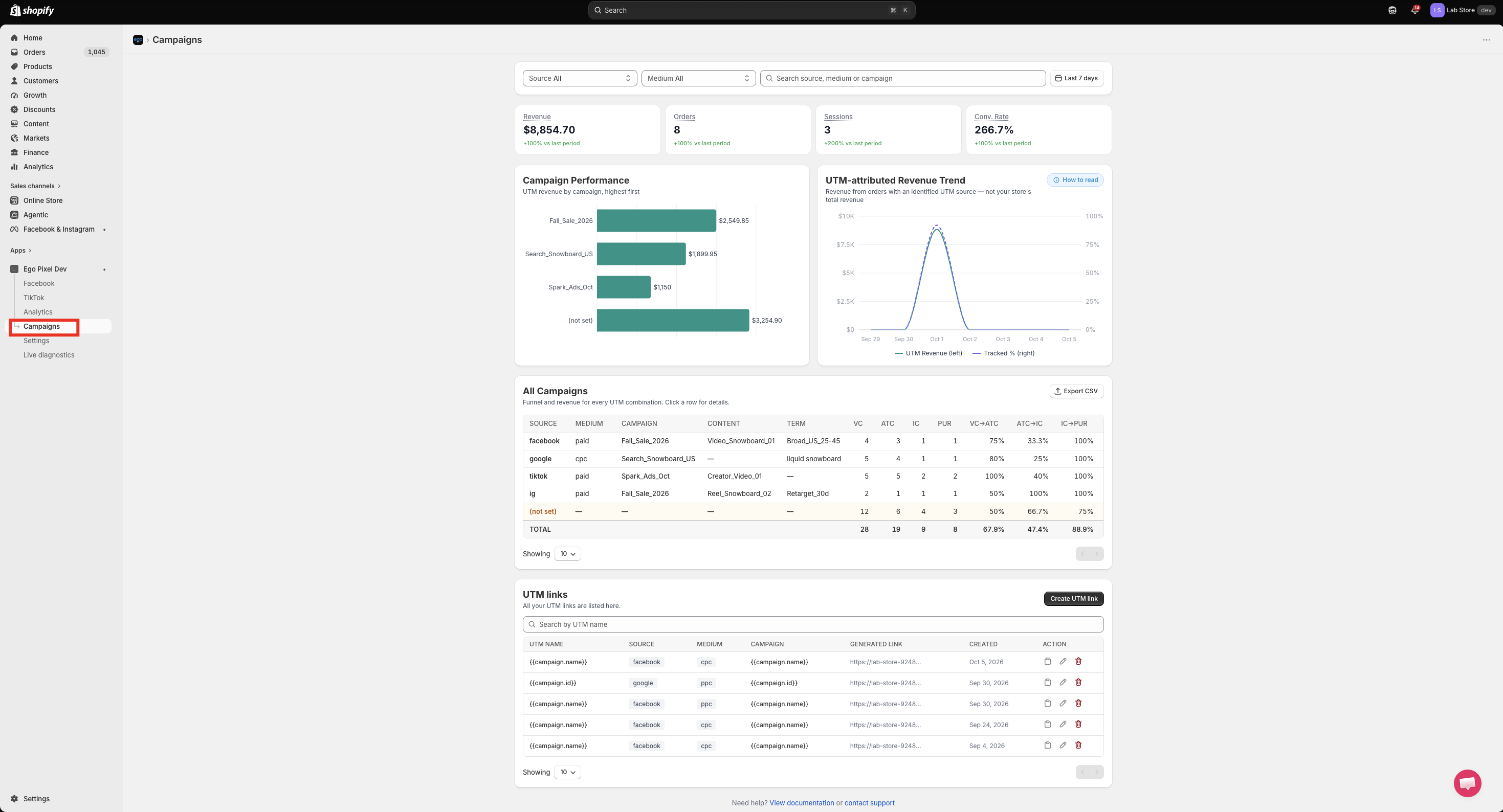
Open Campaigns
Open the app in your Shopify Admin.
Go to Campaigns.
Filter your data
At the top of the page, use the filters to narrow down the data.
Source: Choose a source such as facebook, google, tiktok, or ig. Default is All.
Medium: Choose a medium such as paid or cpc. Default is All.
Search: Type a source, medium, or campaign name to find it quickly.
Date range: Select a period (for example, Last 7 days).
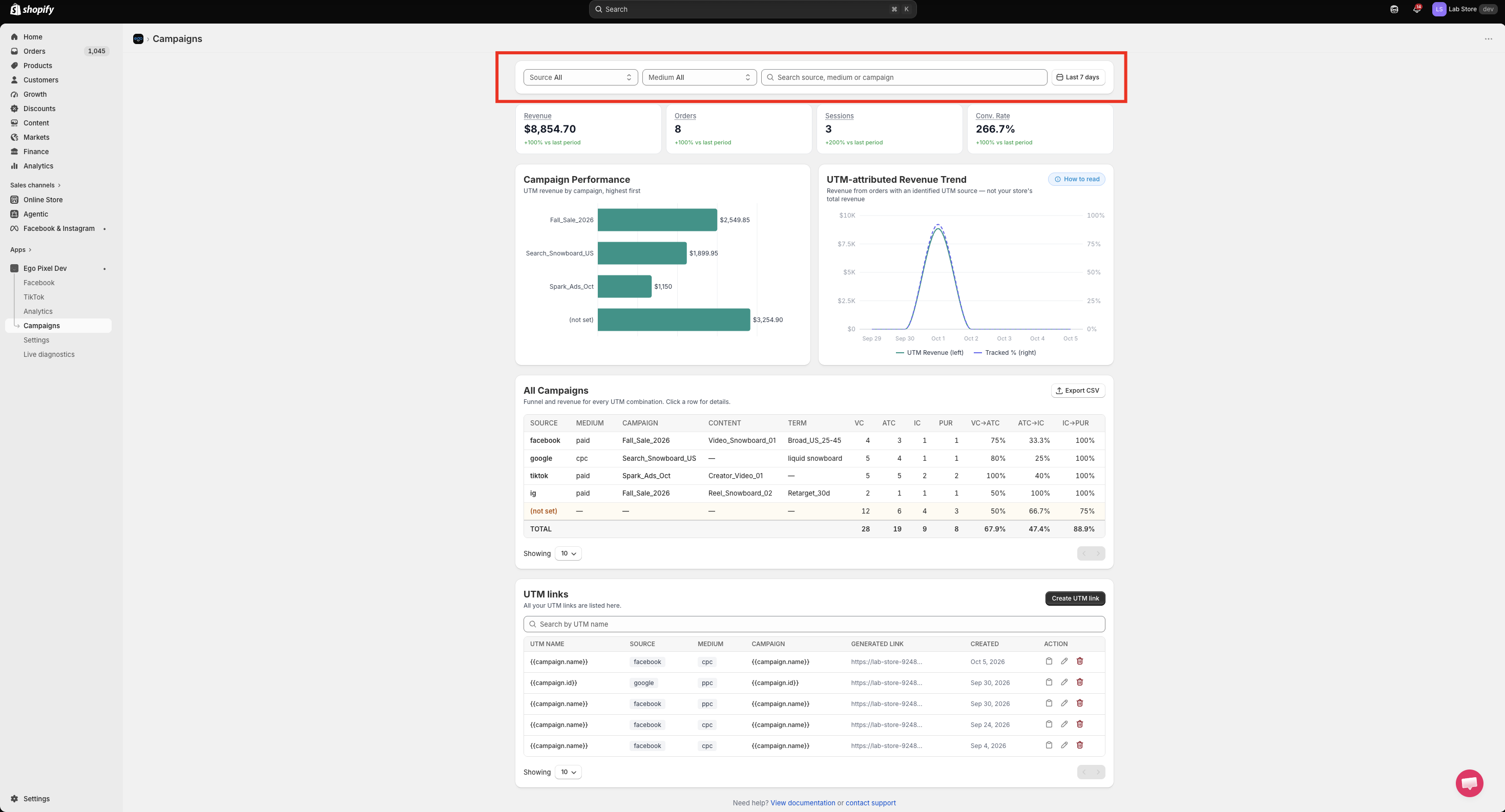
=> All metrics, charts, and tables on the page update based on your filters.
Summary metrics
Four cards at the top summarize your campaign results in the selected period.
Metric | Description |
|---|---|
Revenue | Total revenue from orders attributed to a UTM source |
Orders | Number of orders attributed to UTM campaigns |
Sessions | Number of visits that came from UTM links |
Conv. Rate | Share of sessions that resulted in an order |
Each card also shows the comparison with the previous period.
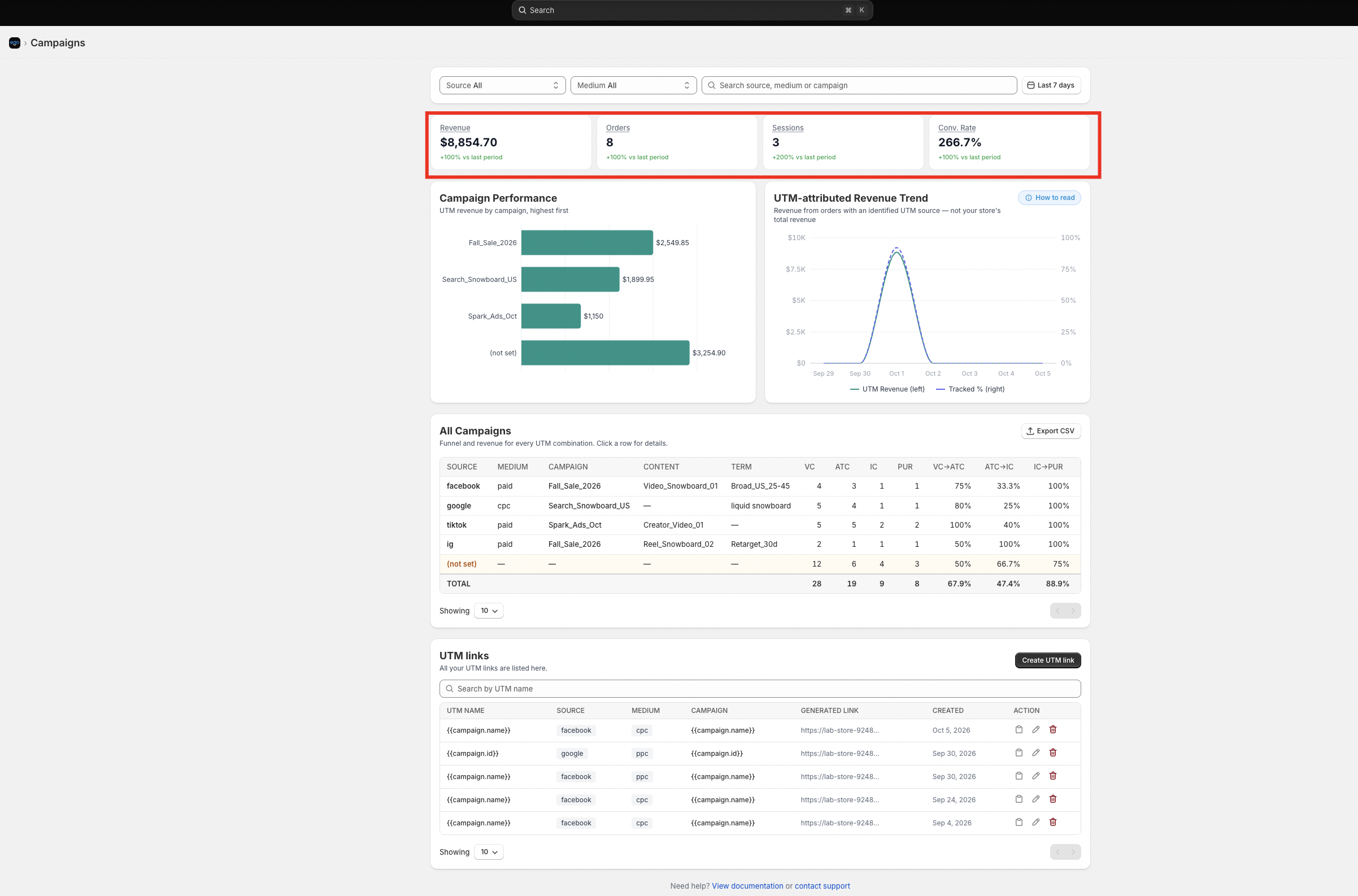
Tip: Hover over a metric name to see its definition.
Campaign Performance
This chart shows revenue by campaign, sorted from highest to lowest.
Each bar is one campaign.
The value at the end of the bar is the revenue generated by that campaign.
Use it to quickly see your best-performing campaigns.
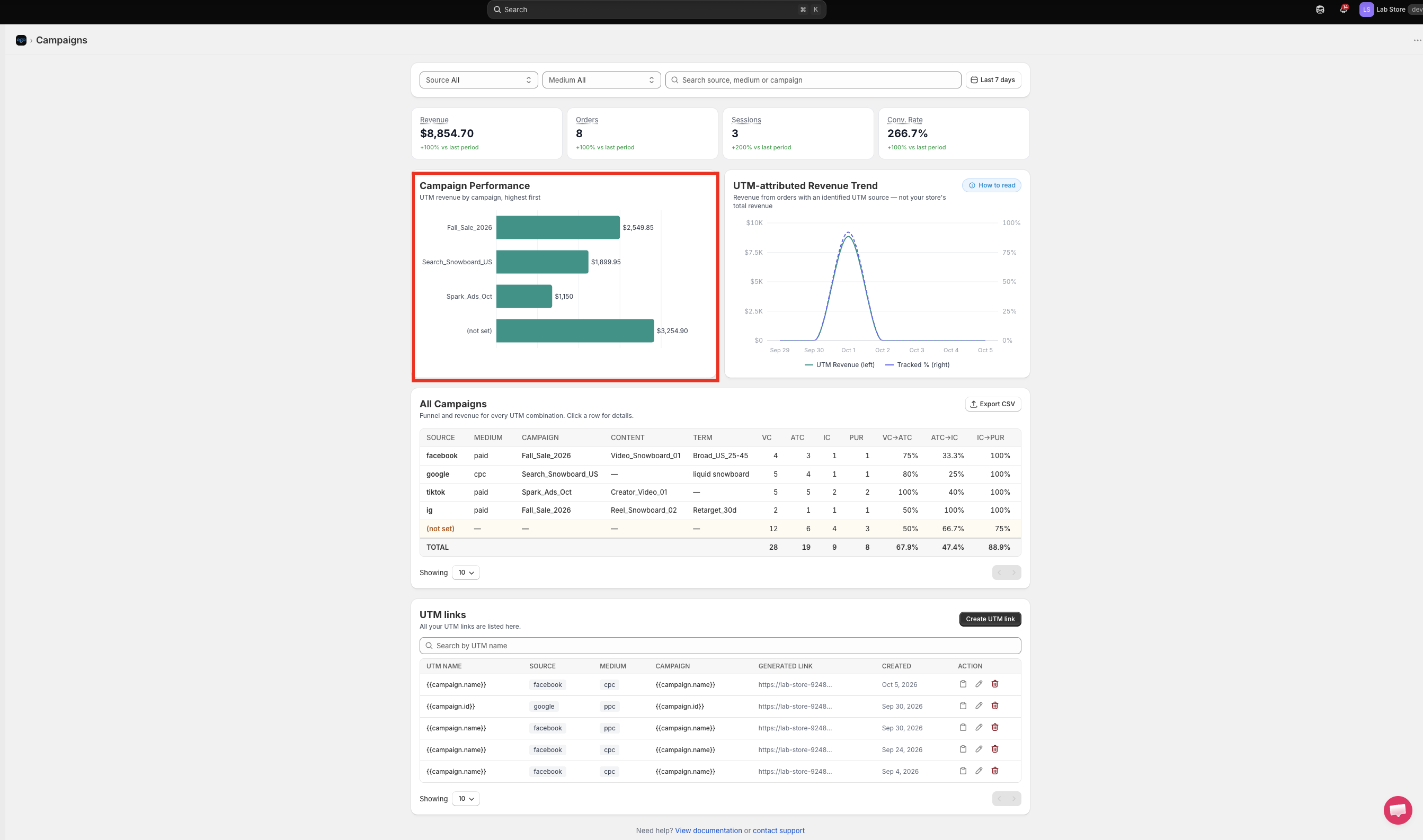
Note: Orders without UTM tags are grouped under (not set).
UTM-attributed Revenue Trend
This chart shows how UTM-attributed revenue changes over time.
UTM Revenue (left axis): Revenue from orders with an identified UTM source.
Tracked % (right axis): The share of revenue that was tracked with UTM.
Click How to read for a quick explanation of the chart.
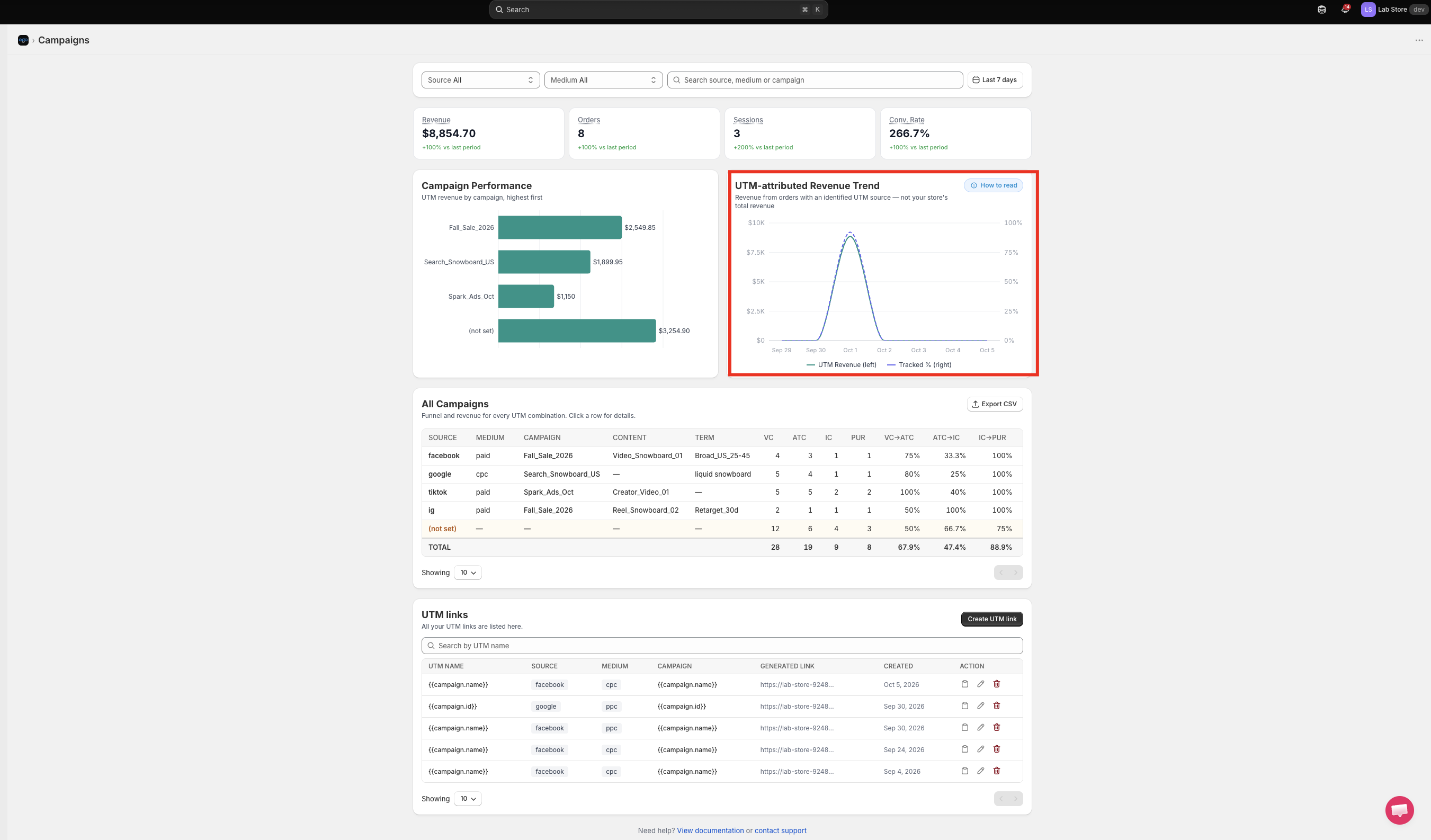
Important: This chart shows only revenue from orders with an identified UTM source. It is not your store's total revenue.
All Campaigns
This table shows the funnel and revenue for every UTM combination.
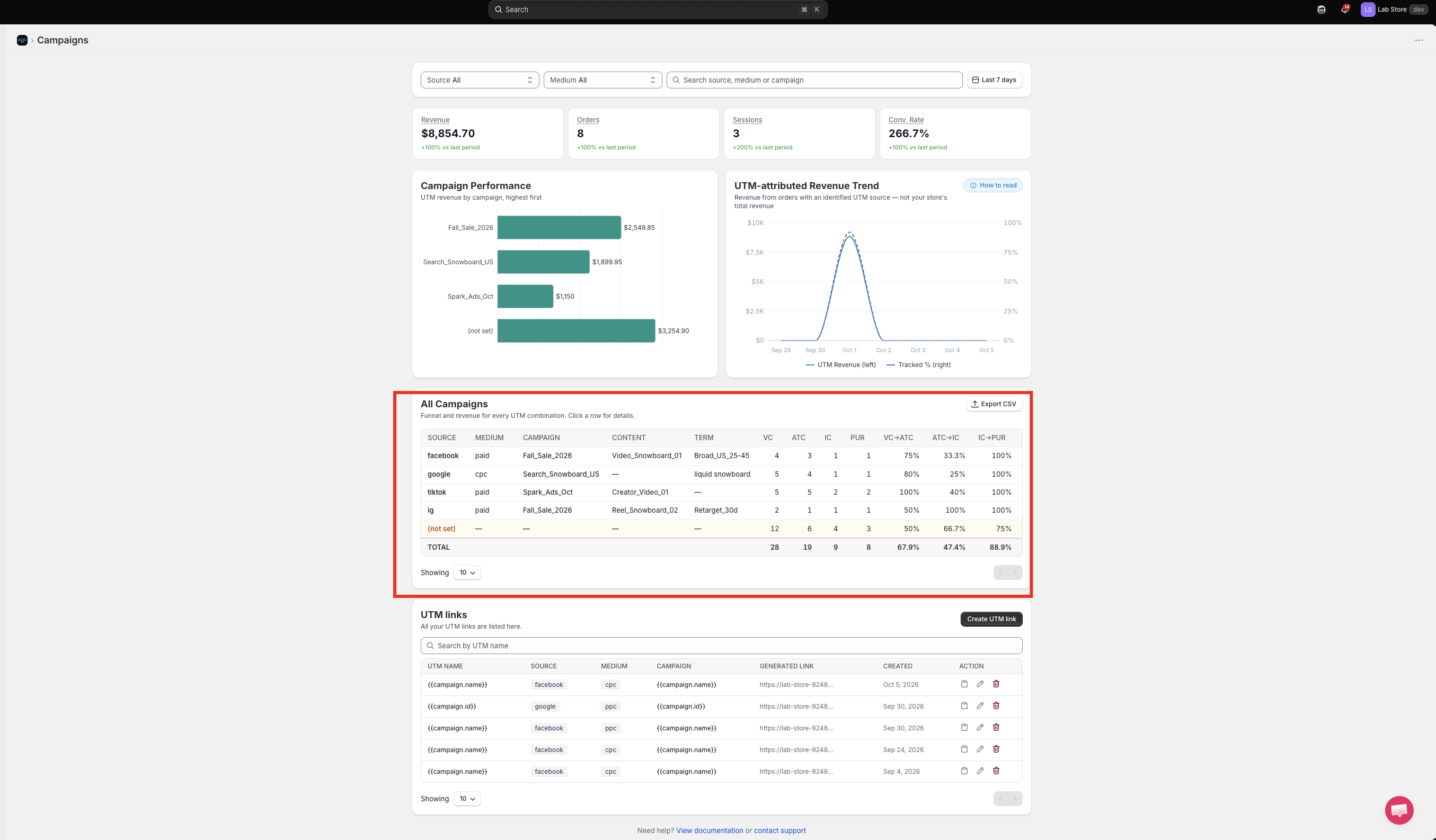
Column | Description |
|---|---|
Source | Where the traffic comes from (facebook, google, tiktok, ig…) |
Medium | Type of traffic (paid, cpc…) |
Campaign | Name of the campaign |
Content | Ad or creative identifier (for example, a video or reel name) |
Term | Audience or keyword (for example, a targeting group or search term) |
VC | View Content: product page views |
ATC | Add to Cart: products added to cart |
IC | Initiate Checkout: checkouts started |
PUR | Purchase: completed orders |
VC→ATC | Conversion rate from View Content to Add to Cart |
ATC→IC | Conversion rate from Add to Cart to Initiate Checkout |
IC→PUR | Conversion rate from Initiate Checkout to Purchase |
How to use the table:
The TOTAL row at the bottom sums up all rows.
Click a row to view the details of that campaign.
Use the Showing dropdown to change how many rows are displayed per page.
Click Export CSV to download the table data.
About (not set): The (not set) row groups visits and orders that came without UTM parameters, such as direct visits or links that were not tagged. A high number here means many of your links are missing UTM tags.
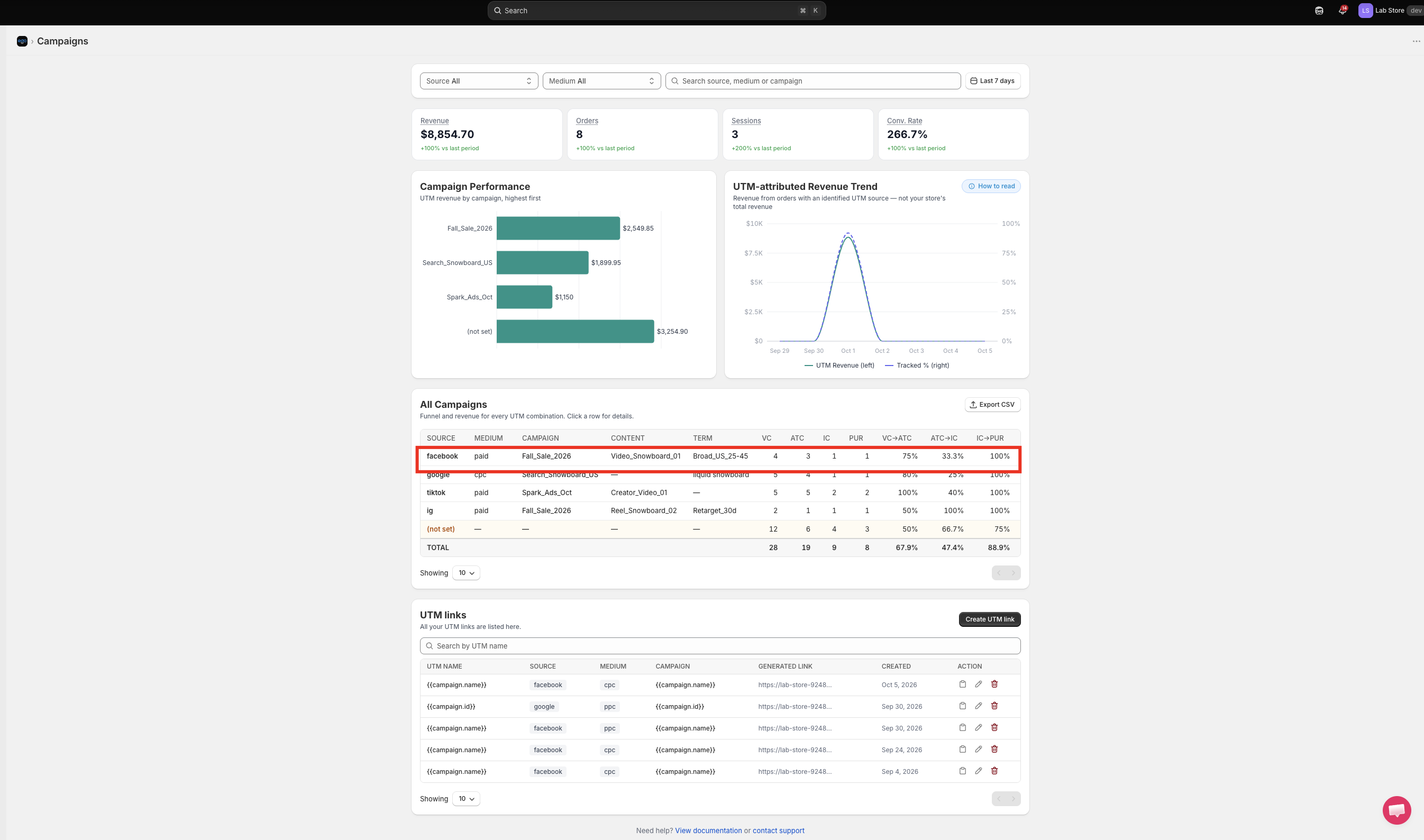
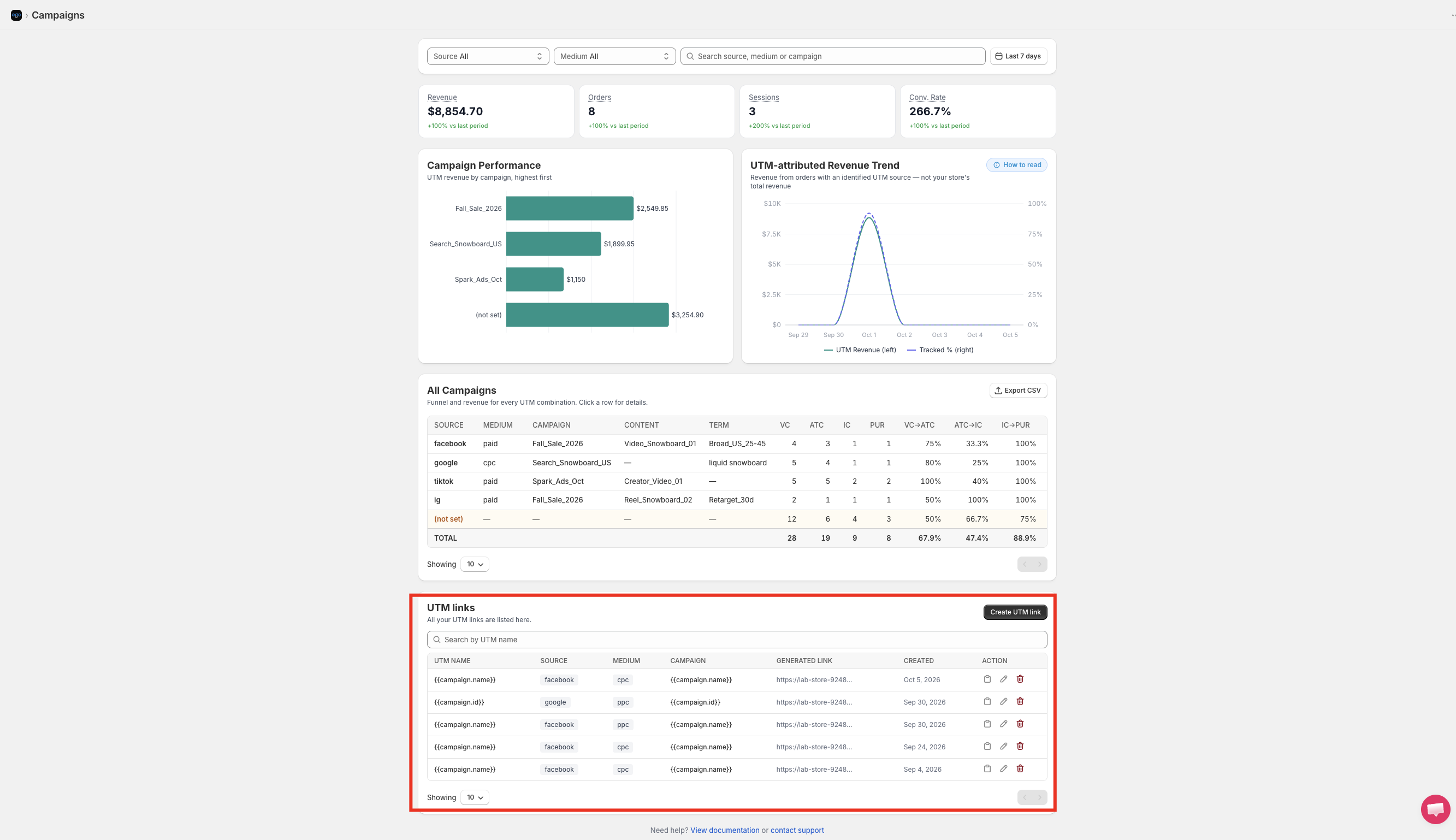
UTM links
Use this section to create and manage trackable links for your ads.
Create a UTM link
In the UTM links section, click Create UTM link.
Fill in the link information (UTM name, source, medium, campaign, and optional content and term).
Save the link.
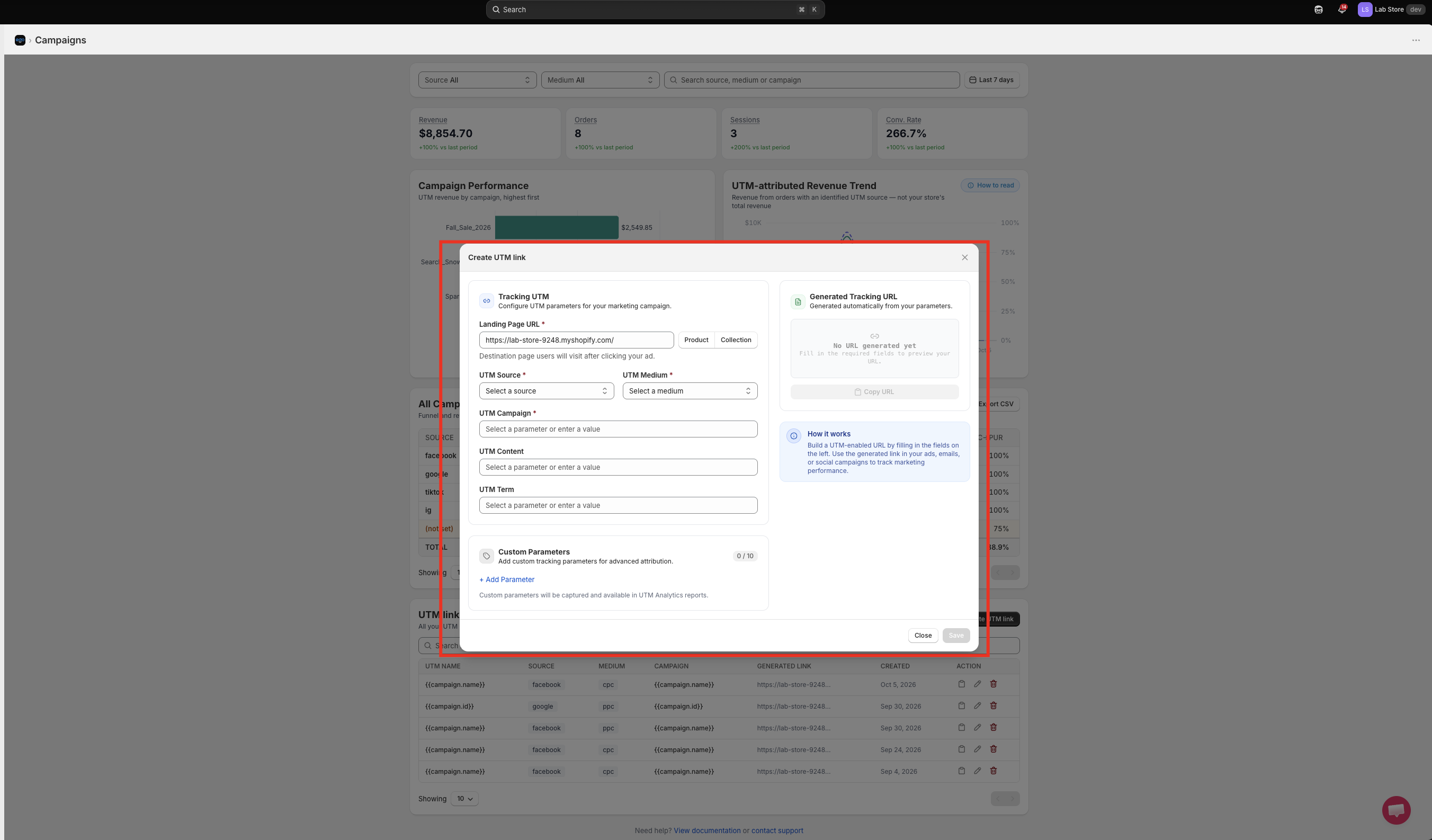
=> The new link appears in the list with a generated link that you can use in your ads.
Manage your UTM links
The table lists all your UTM links.
Column | Description |
|---|---|
UTM name | The name that identifies this UTM link |
Source | Traffic source (for example, facebook) |
Medium | Traffic medium (for example, cpc) |
Campaign | Campaign name |
Generated link | The final link with UTM parameters, ready to use in your ads |
Created | Date the link was created |
Action | Copy, Edit, or Delete the link |
Actions:
Copy icon: Copy the generated link to use in your ad.
Edit icon: Update the link information.
Delete icon: Remove the link from the list.
Use the search box to find a link by UTM name.
Still need help?
Our support team is available 24/7. Contact support →