

Set Up Conversions API Key
Learn how to generate a Conversions API key in ChatGPT Ads Manager and when to use Test mode. The key lets Ego Pixel send checkout and purchase events to OpenAI from the server, unaffected by ad blockers.
Overview
The Conversions API key lets Ego Pixel send events to OpenAI from our server. Ad blockers can't stop these events.
In this guide, you will:
Generate a Conversions API key in ChatGPT Ads Manager.
Add the key to Ego Pixel.
Learn when to use Test mode.
The key is required for Initiate Checkout and Purchase. Without it, Ego Pixel only tracks Page View, View Content and Add To Cart from the browser, and ChatGPT Ads Manager won't receive your orders.
Generate Your Conversions API Key
Step 1: Open Conversions
Open ChatGPT Ads Manager: https://ads.openai.com
Make sure you're in the same ad account as your pixel.
Go to the Conversions tab.
⇒ OpenAI rejects a key created in a different ad account.
Step 2: Create the Key
Create a new Conversions API key.
Copy the key and store it somewhere safe.
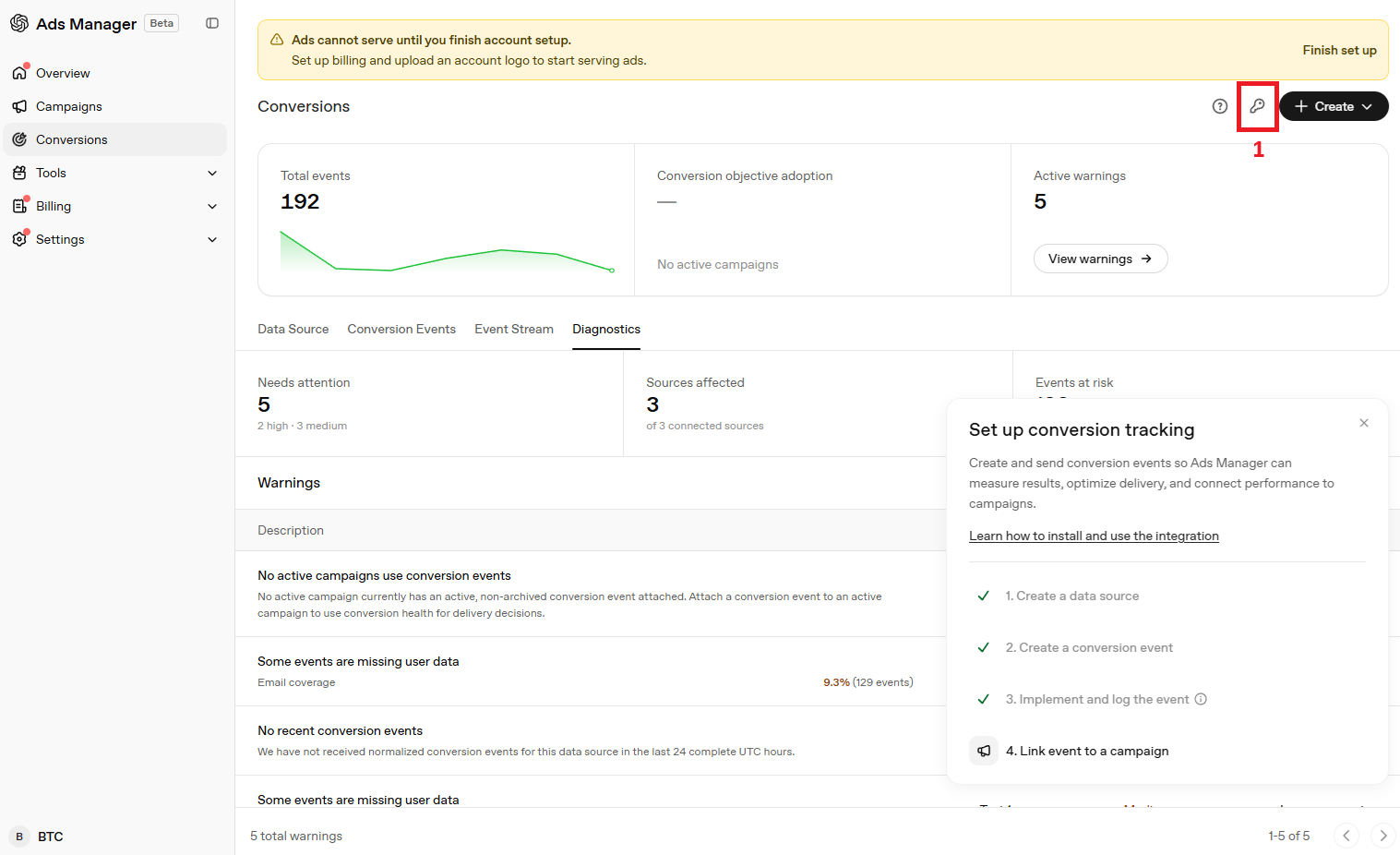
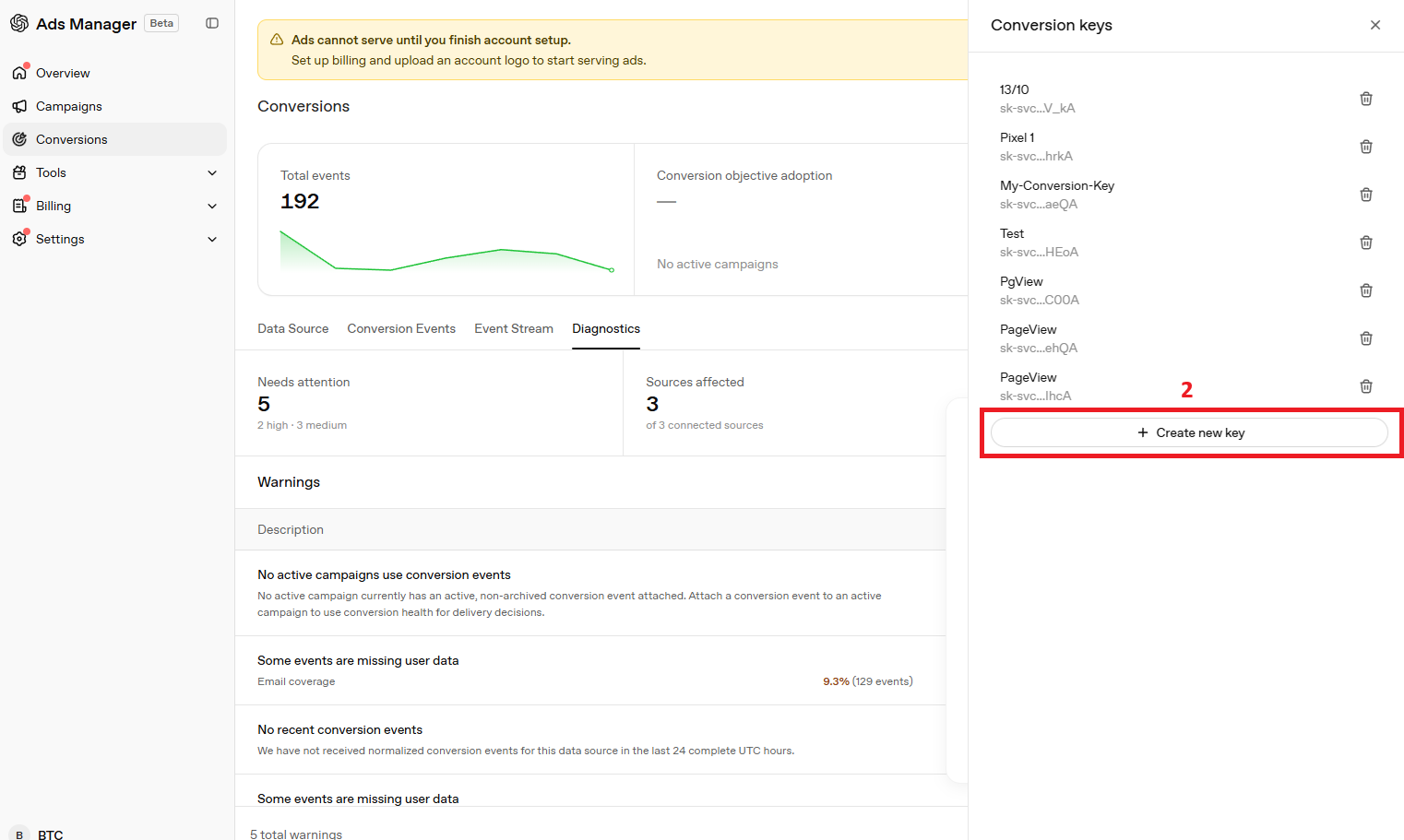
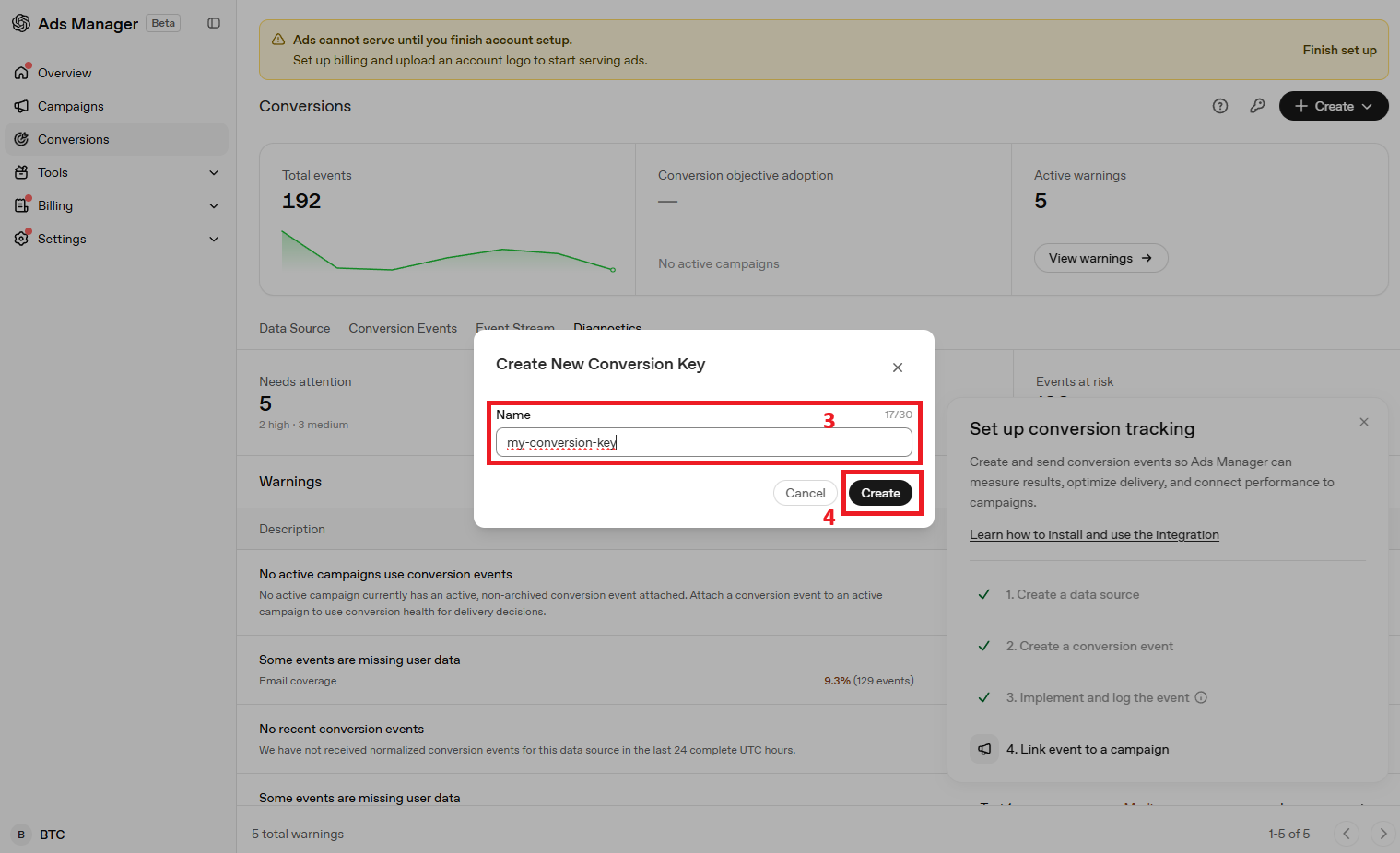
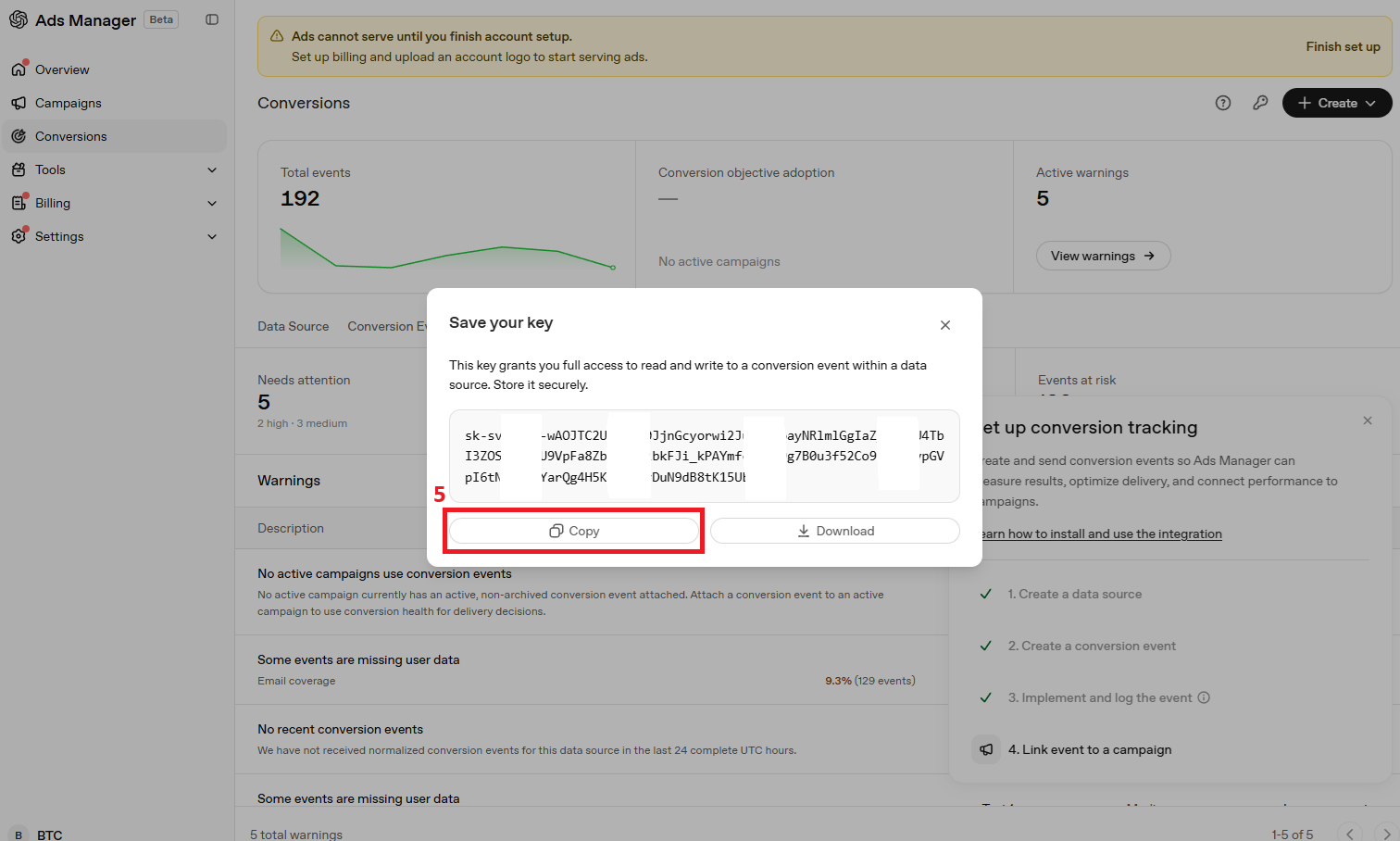
Keep your key private. Paste it only into Ego Pixel. Never share it by chat or email, or add it to your website.
Step 3: Add the Key to Ego Pixel
In Ego Pixel, paste the key into the Conversions API key field when you add or edit your ChatGPT pixel.
Wait a moment while Ego Pixel checks the key with OpenAI.
[Image 06: Conversions API key accepted]
⇒ If the key is wrong, a red message appears under the field. This check doesn't create any events in your ChatGPT Ads account.
Use Test Mode Safely
ChatGPT doesn't use a Test Event Code like Facebook or TikTok. Instead, Ego Pixel has a Test mode checkbox under the key field.
Test mode on: OpenAI checks your events but doesn't record them. Use it while setting up.
Test mode off: events are recorded and count toward your campaigns.
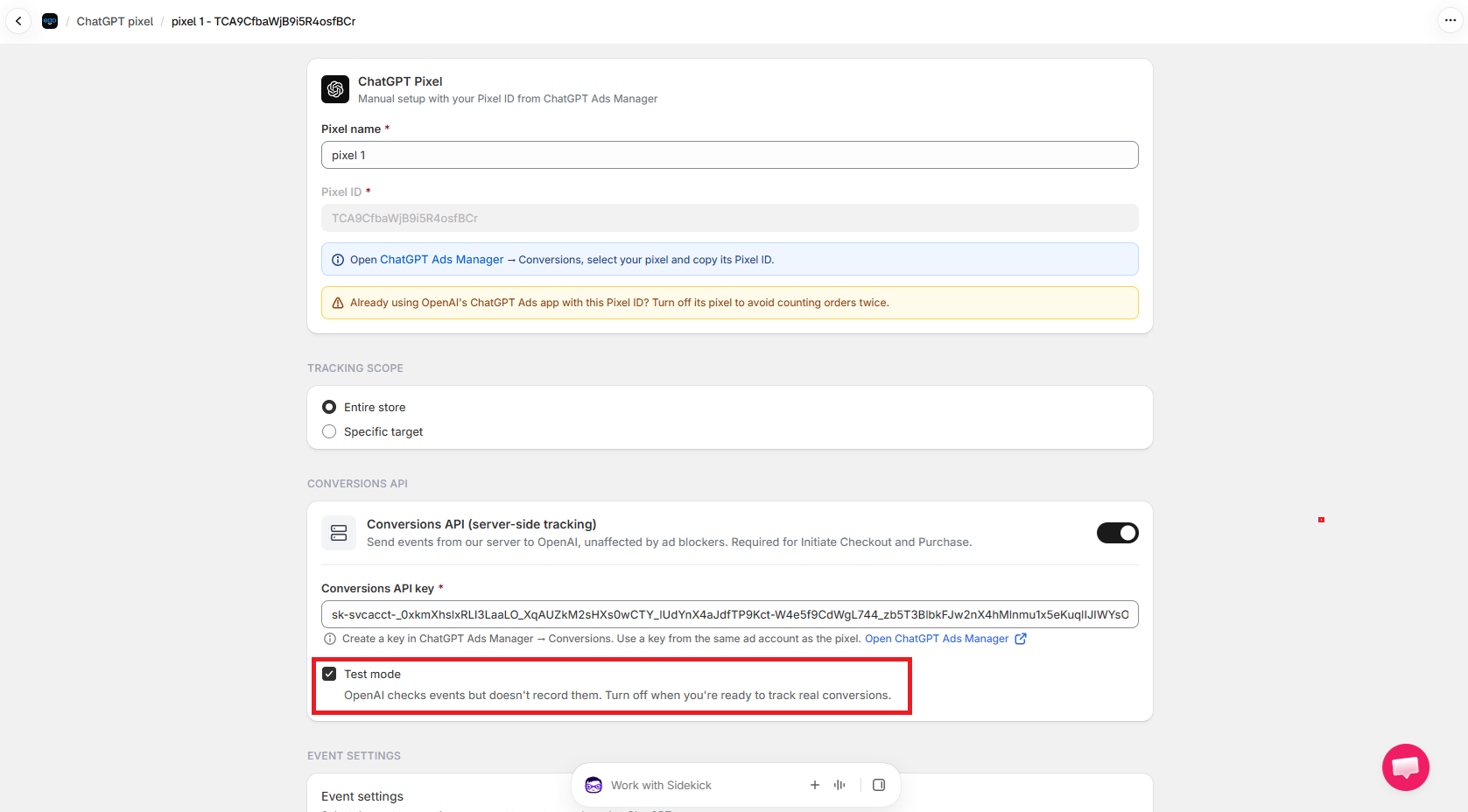
Important: Turn Test mode off before you run real campaigns. Otherwise your conversions won't be counted.
Still need help?
Our support team is available 24/7. Contact support →