

Prepare ChatGPT Pixel
Learn how to create a ChatGPT Pixel and an "Order created" conversion event in ChatGPT Ads Manager. Once created, you'll use the Pixel ID to connect it with Ego Pixel and start tracking ChatGPT Ads conversions.
Overview
Before connecting ChatGPT Pixel to Ego Pixel, you need a pixel in your ChatGPT Ads account.
In this guide, you will:
Access Conversions in ChatGPT Ads Manager.
Create a new ChatGPT Pixel.
Get your Pixel ID.
Create an "Order created" conversion event so purchases count as conversions.
Create Your Pixel in ChatGPT Ads Manager
Step 1: Access Conversions
Log in to your ChatGPT Ads account.
Open ChatGPT Ads Manager: https://ads.openai.com
Go to the Conversions tab.
⇒ This is where you create and manage your pixels, Conversions API keys and conversion events.
Step 2: Create a Pixel
Create a new pixel for your website.
Enter a pixel name you'll recognize, such as your store name.
Save the pixel.
⇒ If you already have a pixel for this store, skip to Step 3.
Step 3: Get Your Pixel ID
Select your pixel in the Conversions tab.
Copy the Pixel ID.
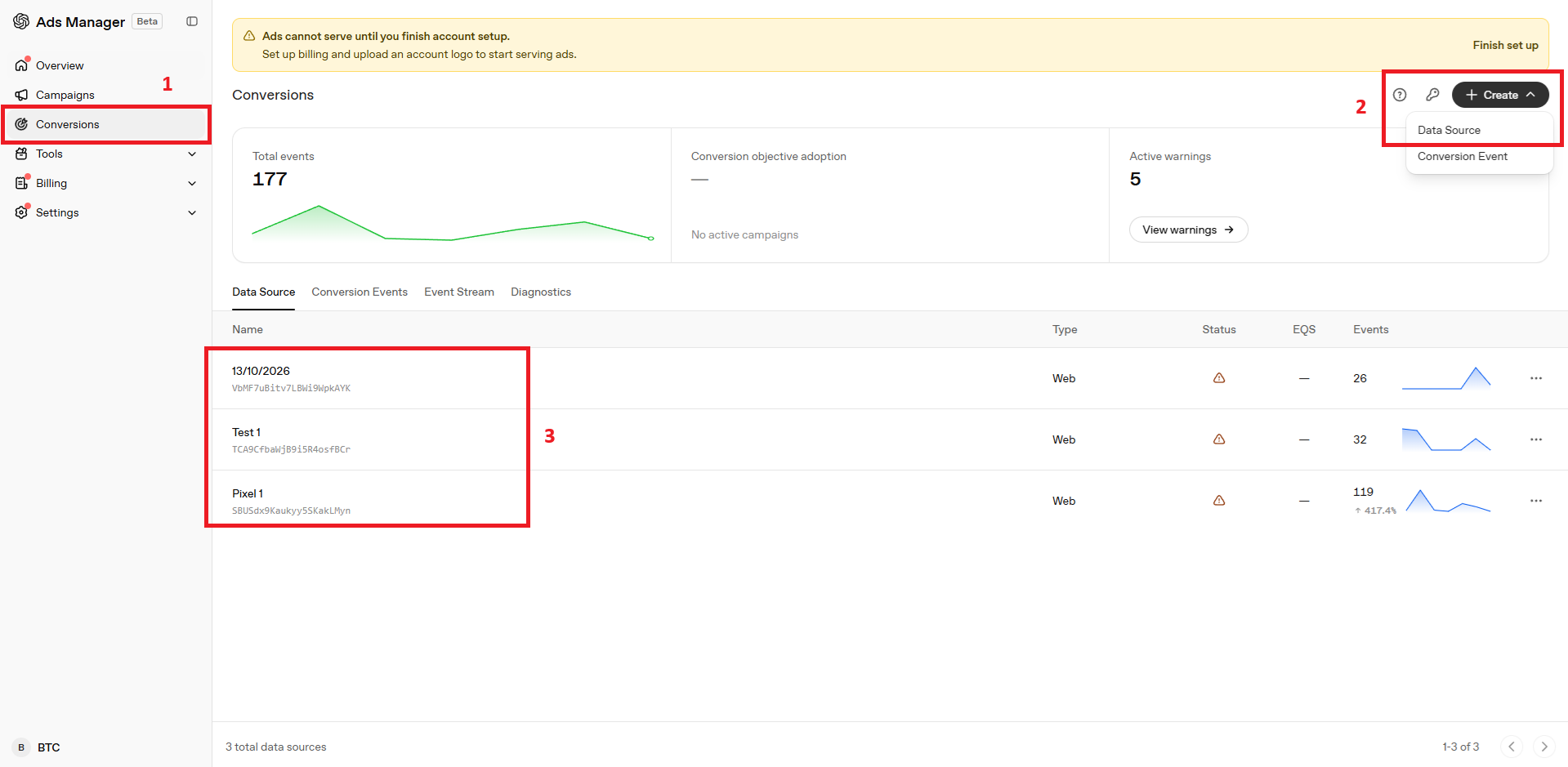
⇒ You'll paste this Pixel ID into Ego Pixel when you add your pixel.
Create an "Order Created" Conversion Event
ChatGPT Ads Manager only reports revenue and ROAS for events marked as conversions.
Step 4: Create the Conversion Event
In the Conversions tab, create a new conversion event.
Choose the Order created event type.
Select the pixel you created in Step 2.
Save the conversion event.
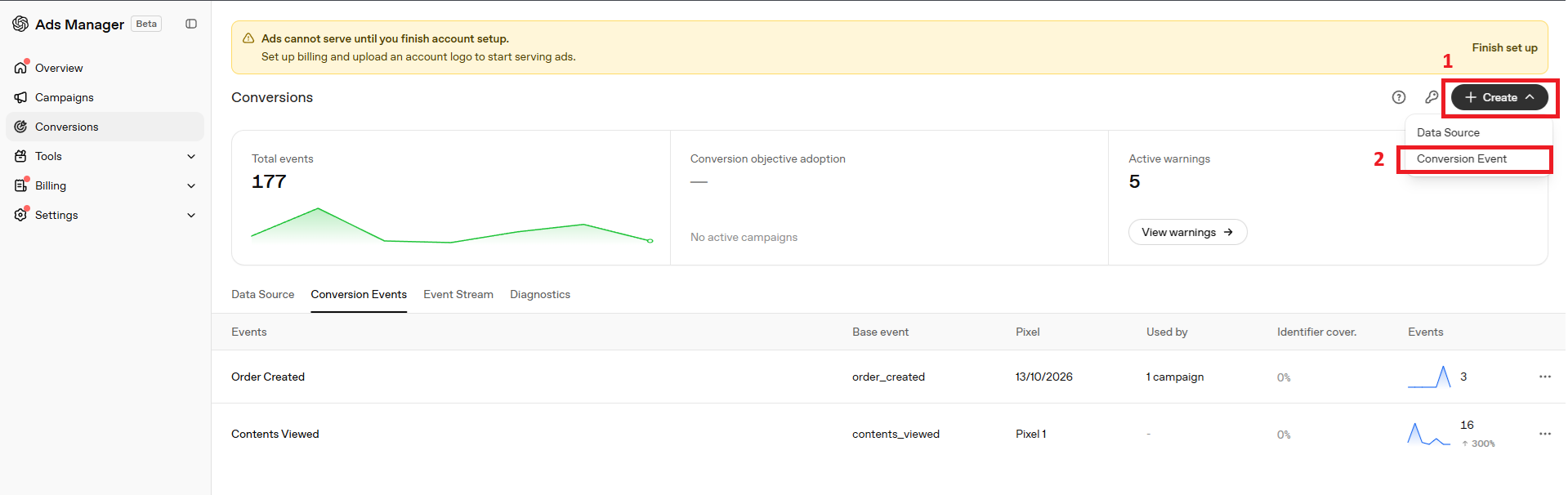
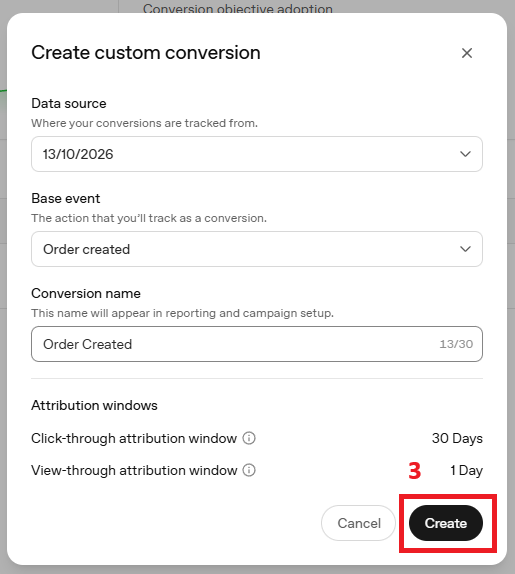
⇒ Purchases tracked by Ego Pixel now count as conversions in this event.
Step 5: Add It to Your Campaigns
Select this conversion event in your ChatGPT Ads campaigns so they're measured and optimized on purchases.
Note: Skipping this section doesn't stop tracking. Events still reach OpenAI, but your campaigns won't show purchases, revenue or ROAS.
Before You Connect
If your store also uses OpenAI's ChatGPT Ads Shopify app with the same Pixel ID, turn off the pixel in that app first.
Why: each app sends its own event IDs, so OpenAI can't tell they're the same order and counts every purchase twice.
Your pixel is now ready to connect to Ego Pixel.
Still need help?
Our support team is available 24/7. Contact support →