

Installing & Activating Ego Contact Form Survey
Install the app, enable the app embed, and verify surveys can reach your customers.
Overview
Ego Contact Form Survey helps you collect customer feedback with post-purchase, on-site, exit-intent and email surveys, build storefront forms, and analyze every response in one place.
Before your surveys can appear on the storefront, you need to follow the core steps:
Install the app from the Shopify App Store.
Enable the app embed in your Shopify theme.
Create and activate a survey inside the app.
Step 1 — Install the app
To install Ego Contact Form Survey:
Go to the Ego Contact Form Survey listing on the Shopify App Store.
Click Install.
Review the permissions requested by the app.
Click Install again to confirm.
After the installation is complete, Shopify will redirect you to the app Dashboard.
Step 2 — Activate the app embed
The app embed allows Ego Contact Form Survey to display surveys and forms on your storefront pages.
The quick way: on the Dashboard, the App embed card shows Inactive while the embed is off. Click Activate app embed to open the Theme Editor directly on the App embeds panel.
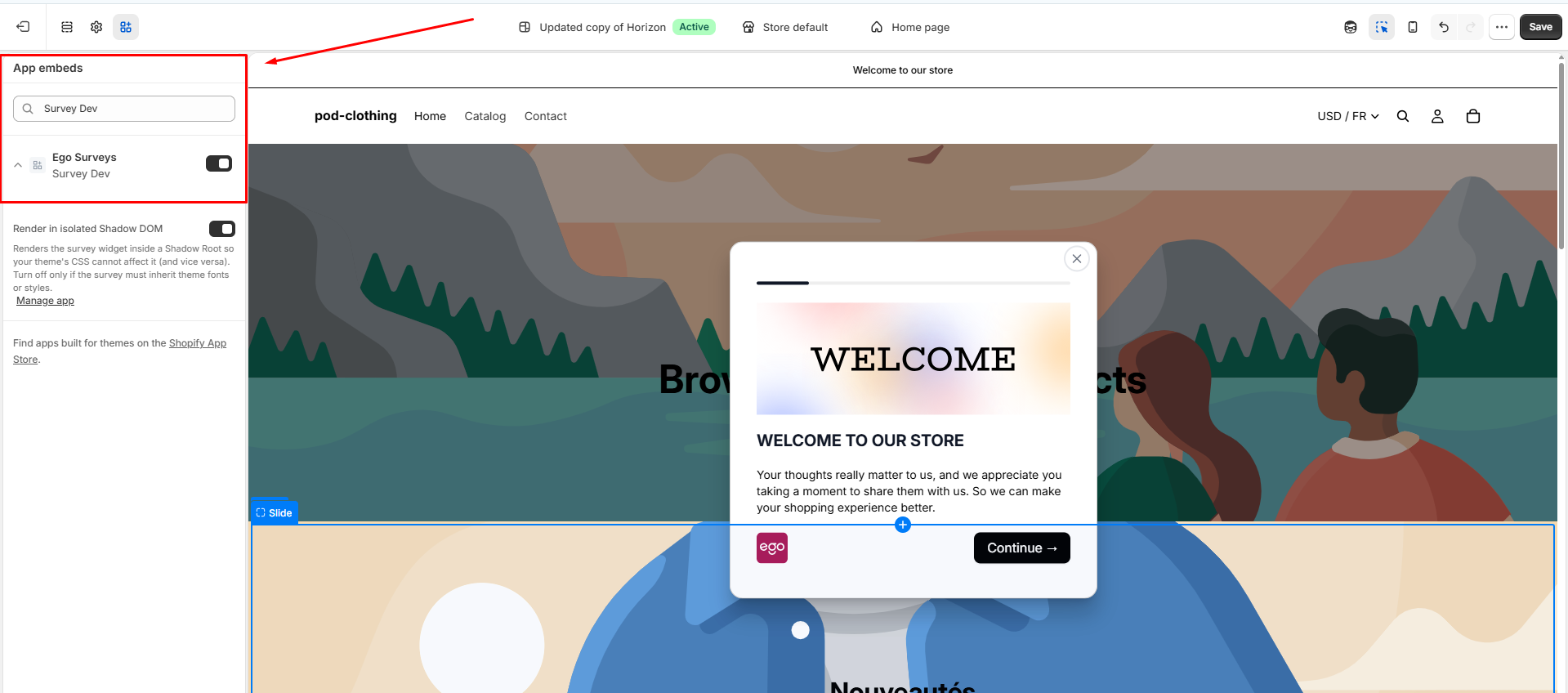
Or enable it manually:
From you Shopify admin, go to Online Store > Themes.
On your current theme (the large card at the top of the page), click Edit theme.
In the Theme Editor, click the App embeds icon in the left sidebar.
Find Ego Surveys in the list. You can type Ego Surveys in the Search app embeds box to find it faster.
Turn on the Ego Surveys toggle.
Click Save in the top-right corner.
Go back to the app Dashboard: the App embed card shows Active and the message "App embed is currently enabled. Surveys are now able to display on your store." The Side guide tracks the rest of your setup: Activate app -> Create your first survey -> Visualize how it appears.
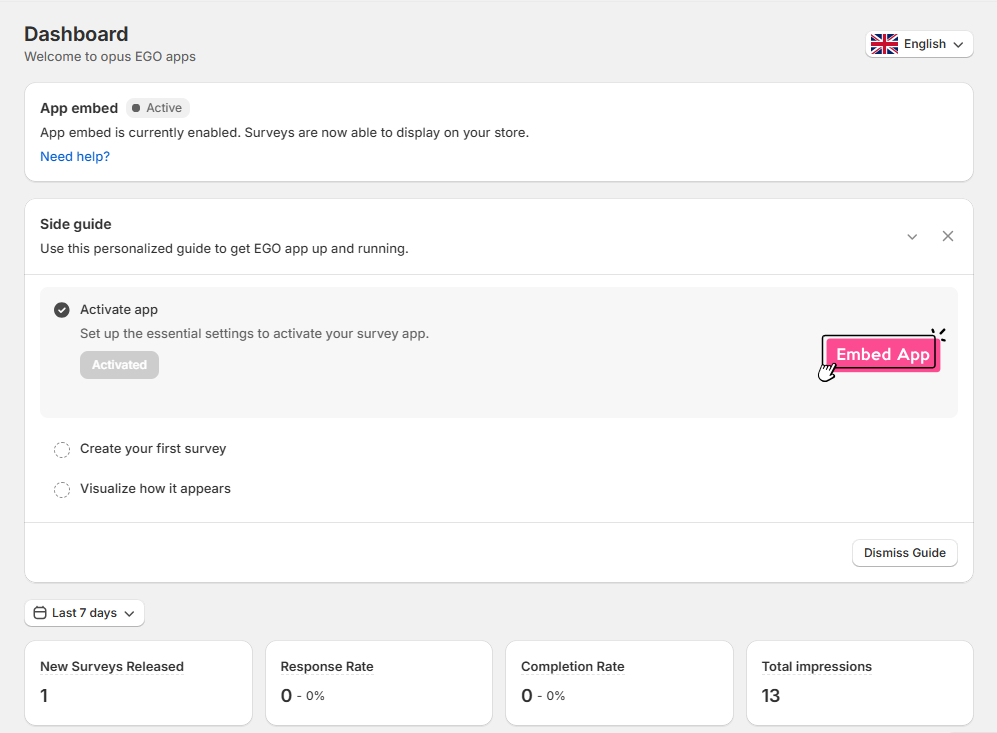
Step 3 — Set up and Activate a Survey
After the app embed is enable, create and configure your first survey.
To set up a survey:
Go to Surveys and click Create new survey.
On the Template survey page, click Select template on the template closest to your goal or choose Blank template.
In the builder, edit the questions in the Questions tab and choose where the survey appears in the Channels tab.
Enter a Survey name, check that Status is set to Active, then click Save.
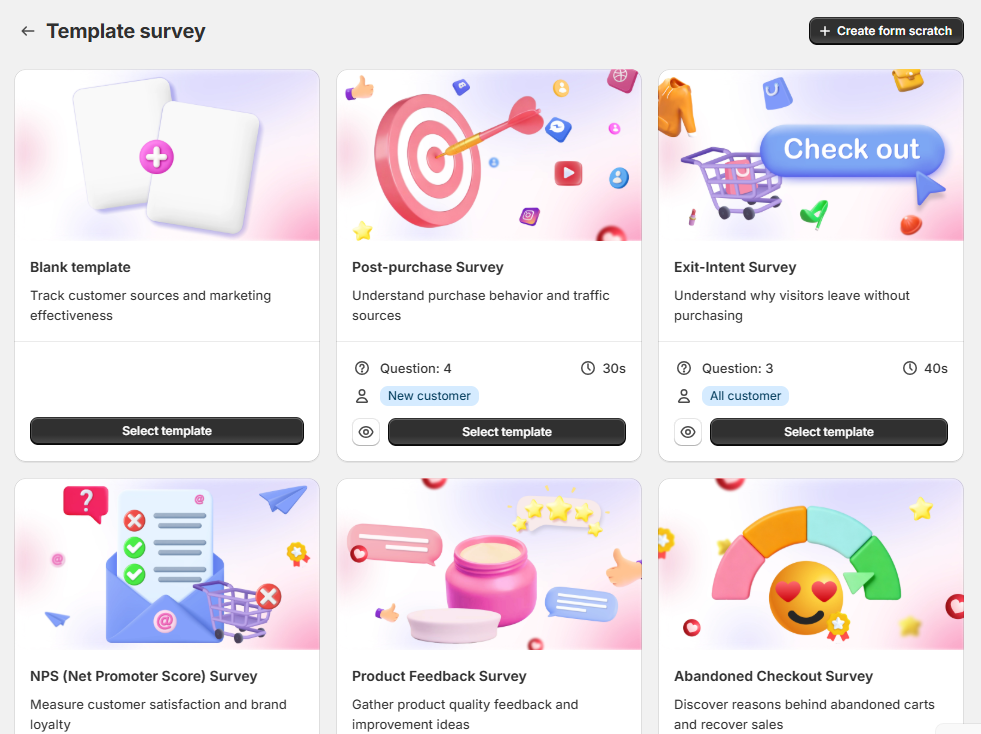
Still need help?
Our support team is available 24/7. Contact support →