

Disable Other Pixels
Disable other Meta Pixel integrations to prevent duplicate events and ensure accurate tracking in Ego Pixel.
Overview
If multiple integrations send events to the same Meta Pixel, duplicate events may occur and affect tracking accuracy.
From this guide, you will:
Disable Shopify's default Meta Pixel integration.
Disable Meta Pixel tracking from other Shopify apps.
Prevent duplicate events and improve tracking accuracy.
Disable Shopify’s Default Meta Pixel
Shopify provides a built-in Facebook & Instagram sales channel that may automatically send events to Meta. If this is enabled, it can duplicate the events sent by our app.
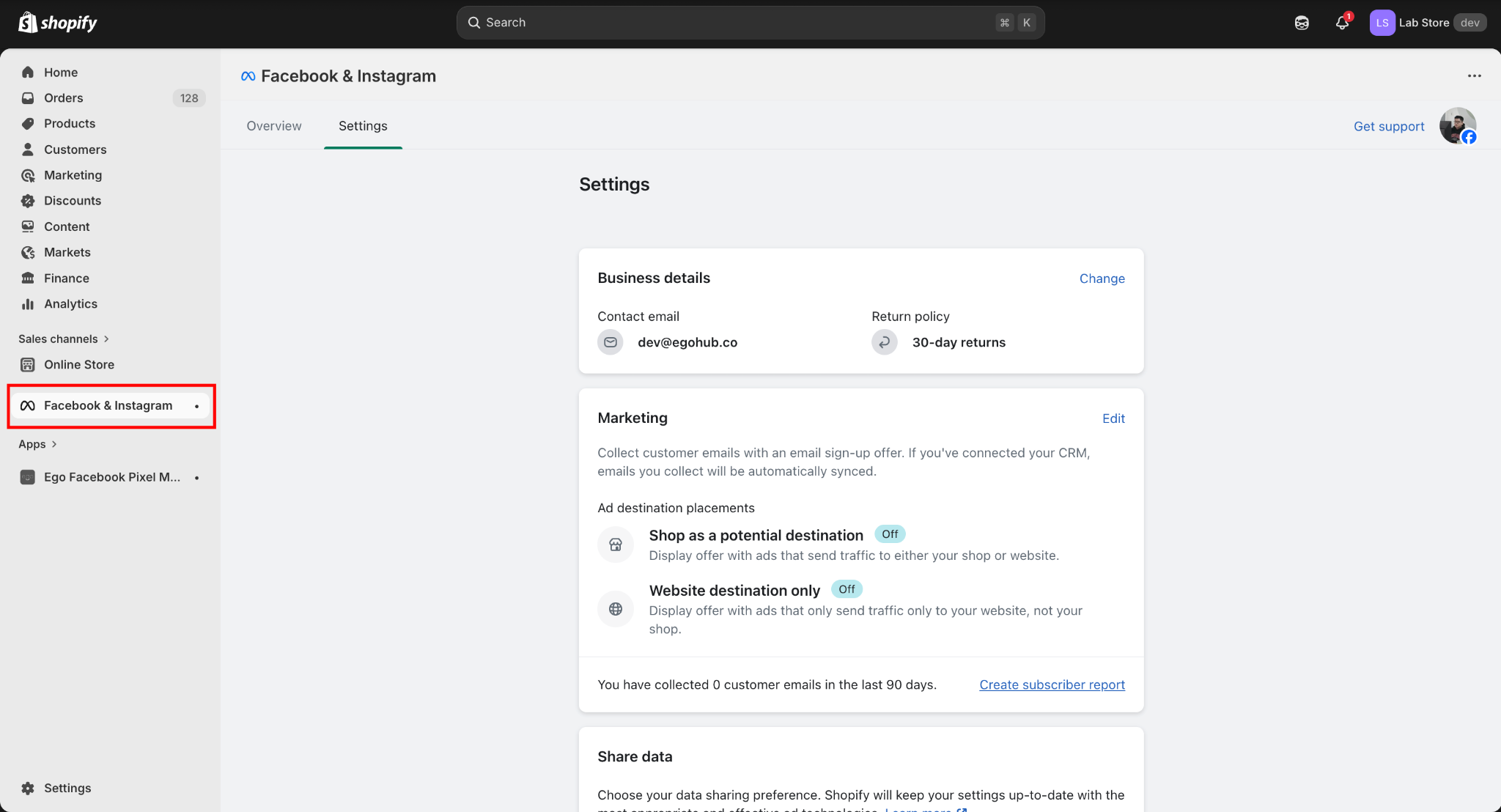
Step 1: Go to Shopify Admin and Click Facebook & Instagram in the left menu.
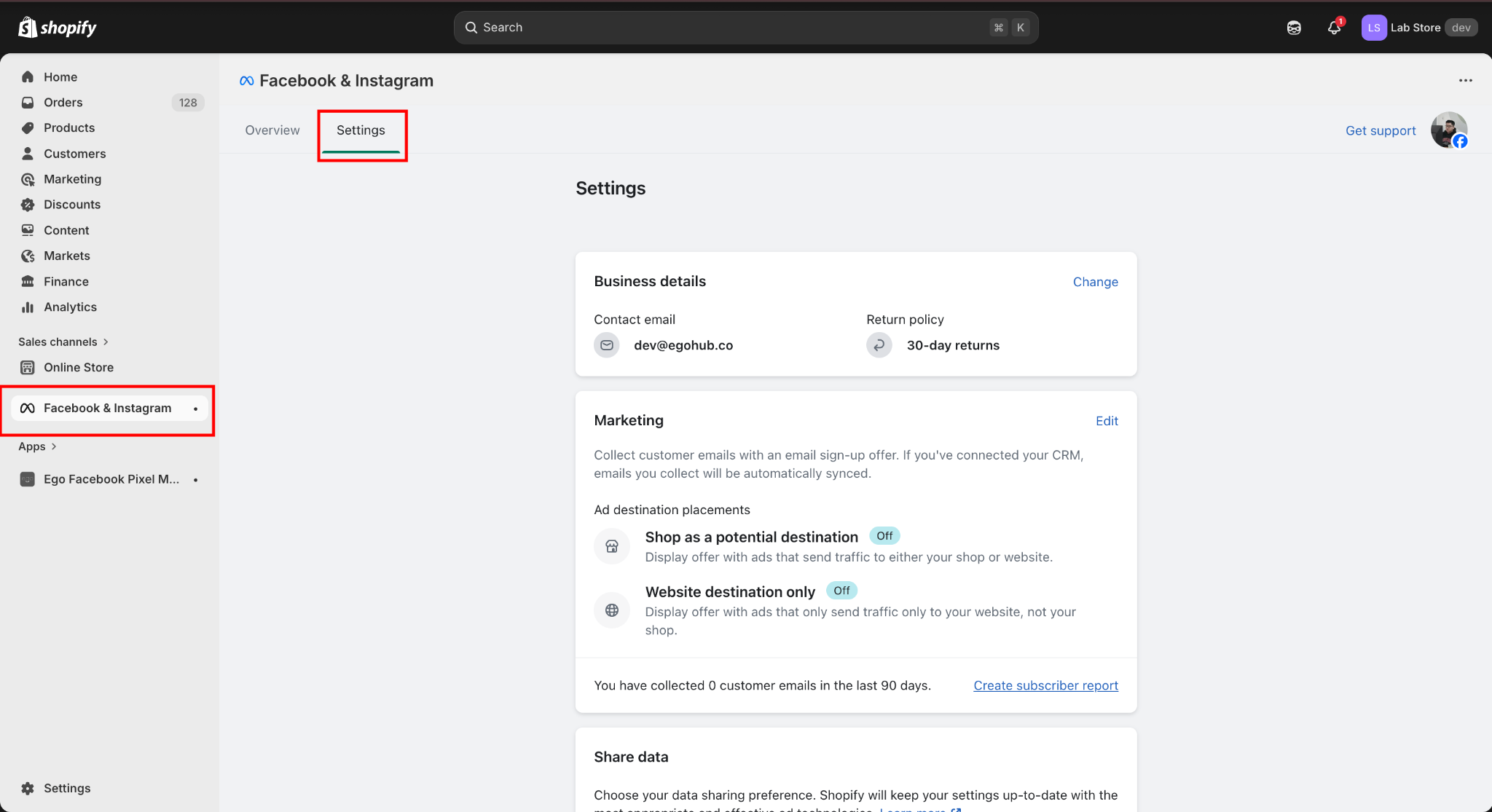
Step 2: Open the Settings tab.
Step 3: Find the Share Data / Pixel tracking section.
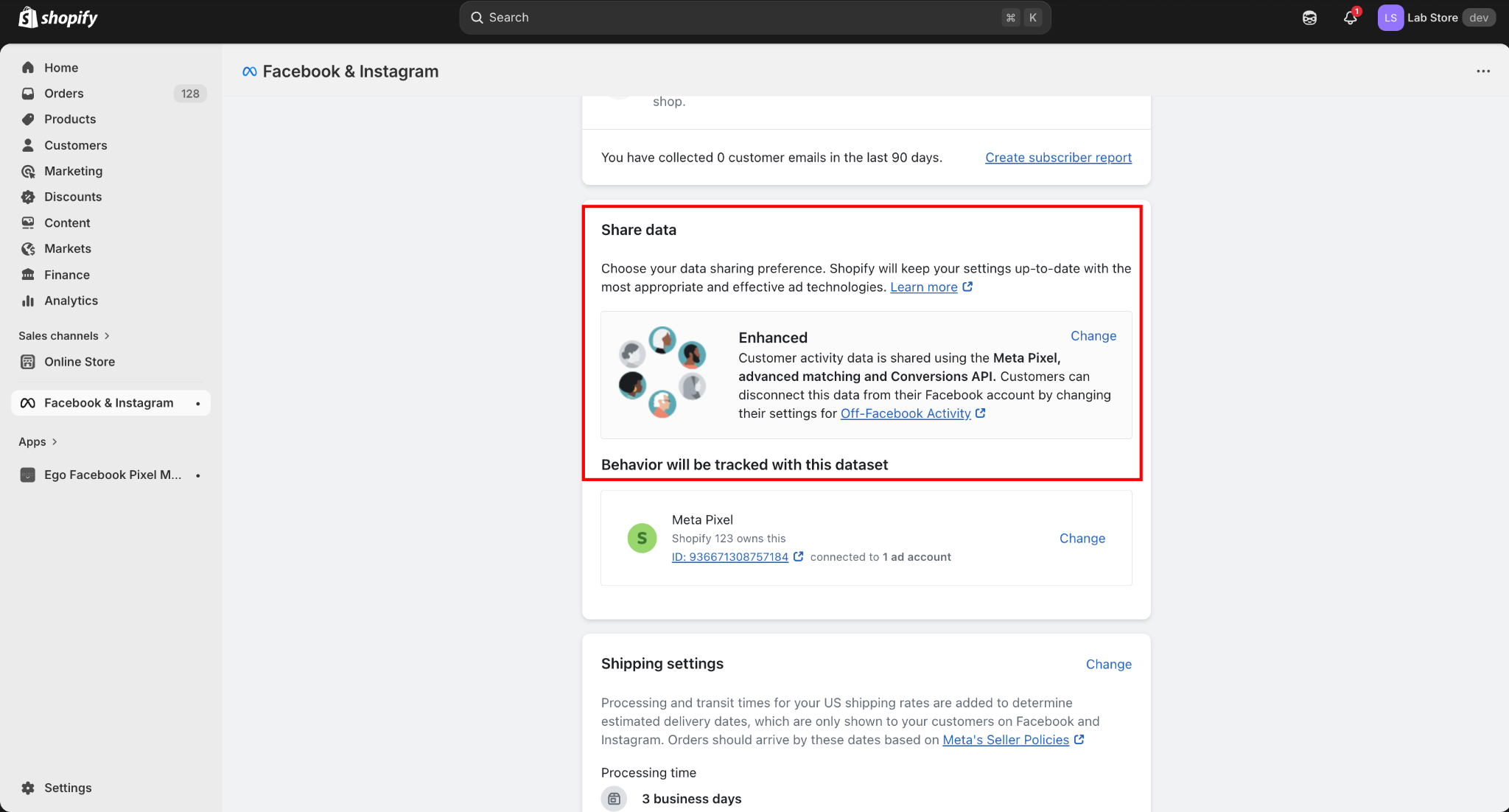
Step 4: Click Change.

Step 5: Set the tracking option to Disabled or remove the connected pixel.

=> This ensures Shopify will stop sending events through its built-in integration.
Disable Meta Pixel from Other Shopify Apps
To avoid duplicate tracking events, make sure to disable or uninstall other apps that also track Meta/Facebook Pixel or Conversion API.
If these apps remain active, they may send duplicate events to Meta, which can affect your tracking accuracy.
If you need assistance identifying or disabling other tracking apps, please contact our support team for help.

Still need help?
Our support team is available 24/7. Contact support →