

Prepare Pixel
Learn how to create a Meta Pixel (Dataset) in Meta Events Manager. Once created, you'll use the Pixel ID to connect it with Ego Pixel and start tracking website events.
Overview
Before connecting a Pixel to Ego Pixel, you need to create a Meta Pixel (Dataset) in Meta Events Manager.
In this guide, you will:
Access Meta Events Manager.
Create a new Meta Pixel (Dataset).
Get your Pixel ID.
Confirm that your Pixel is ready for connection.
Create Your Pixel in Meta Events Manager
Step 1: Access Events Manager
Log in to your Meta Business Manager account.
Open Events Manager from the main menu. https://business.facebook.com/events_manager
Click Connect Data.
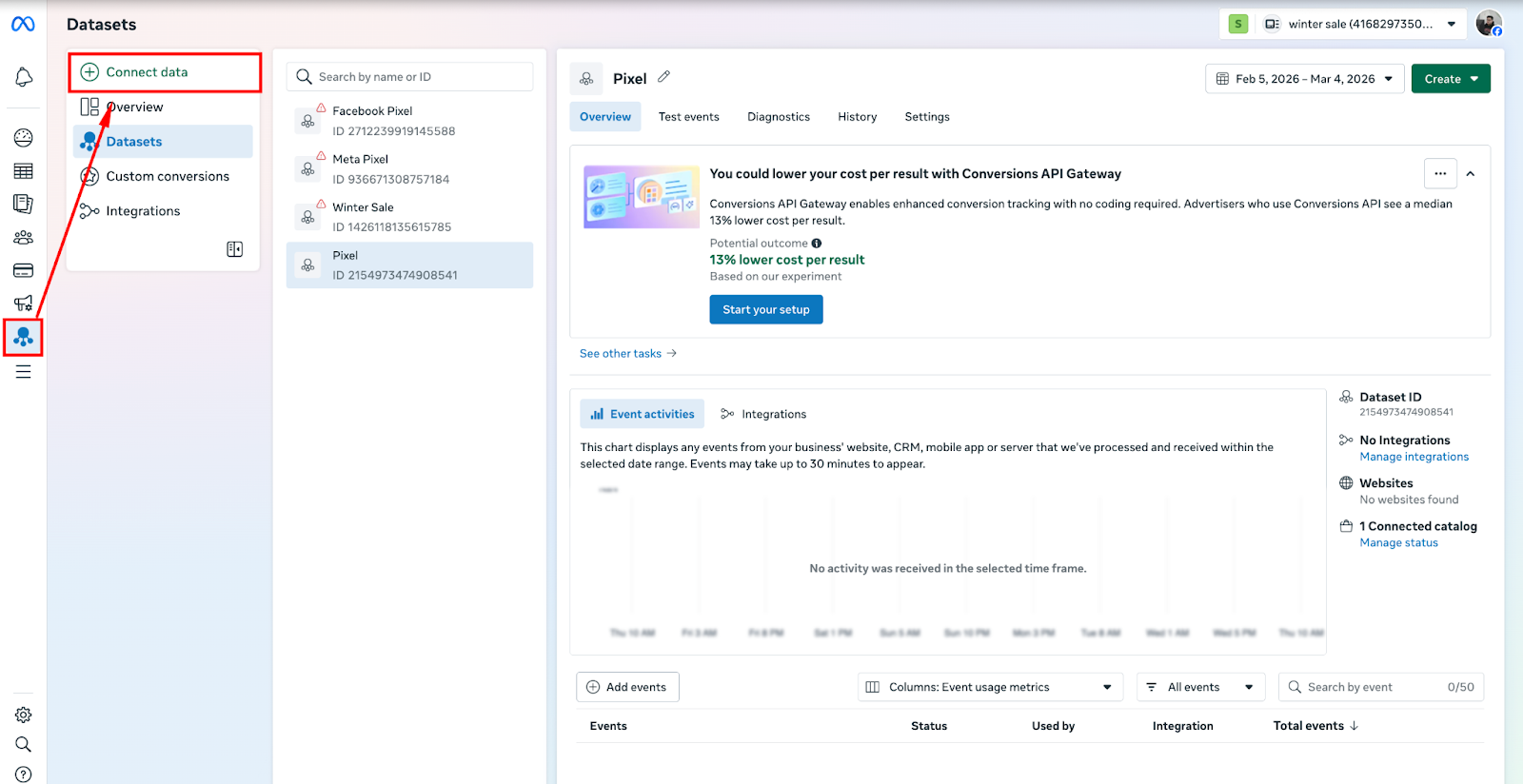
⇒ This is where you create and manage your tracking assets, including Pixel (Dataset).
Step 2: Choose Web as Your Data Source
Select Web as the data source type.
Click Next.
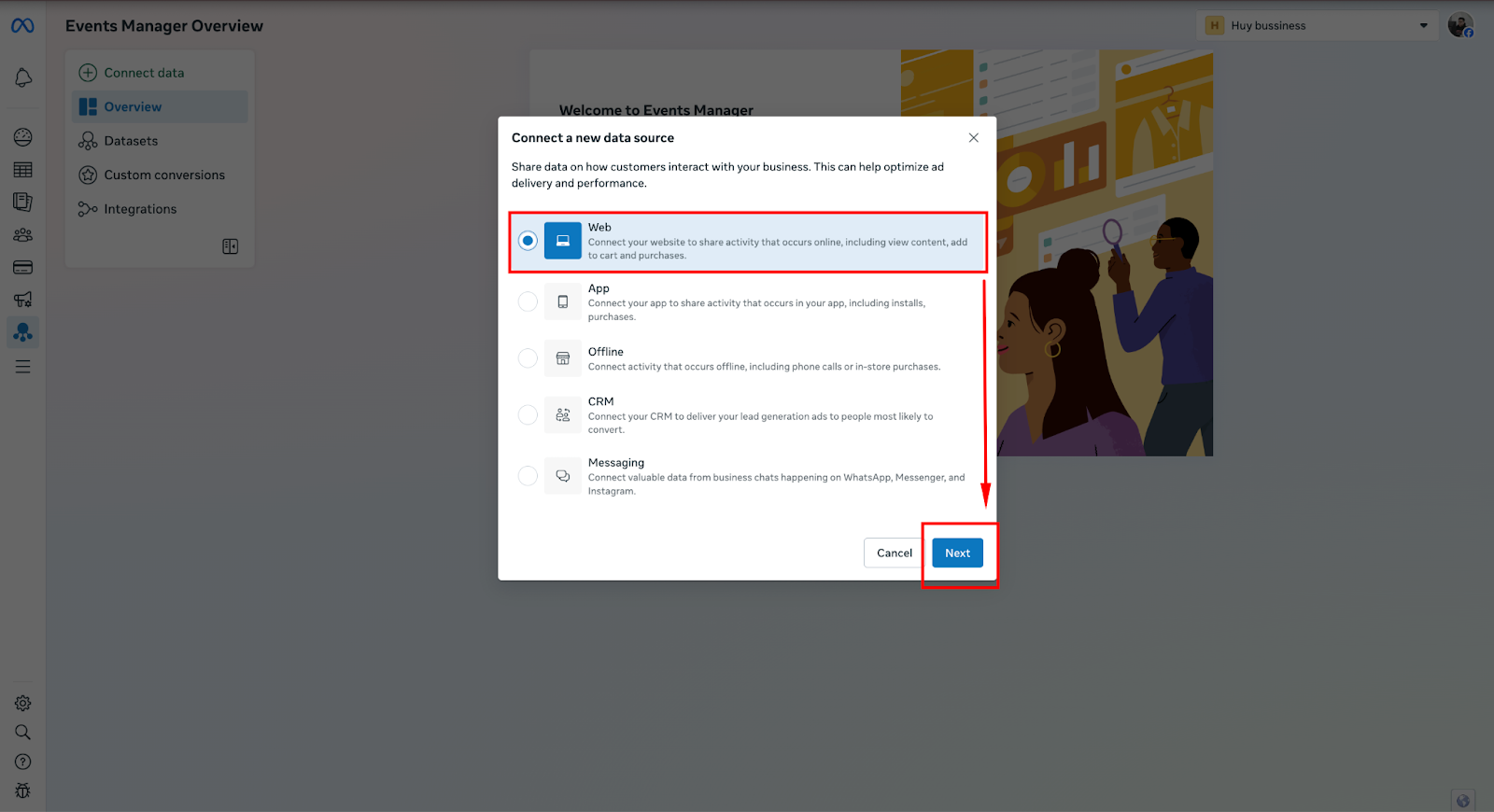
⇒ This tells Meta that you want to track website activity using a Pixel.
Step 3: Configure Your Pixel
Enter a Pixel Name (we recommend using your store or brand name).
(Optional) Enter your website URL.
Click Create.

⇒ Meta will now generate your new Pixel automatically.
Step 4: Confirm Pixel Creation
After setup:
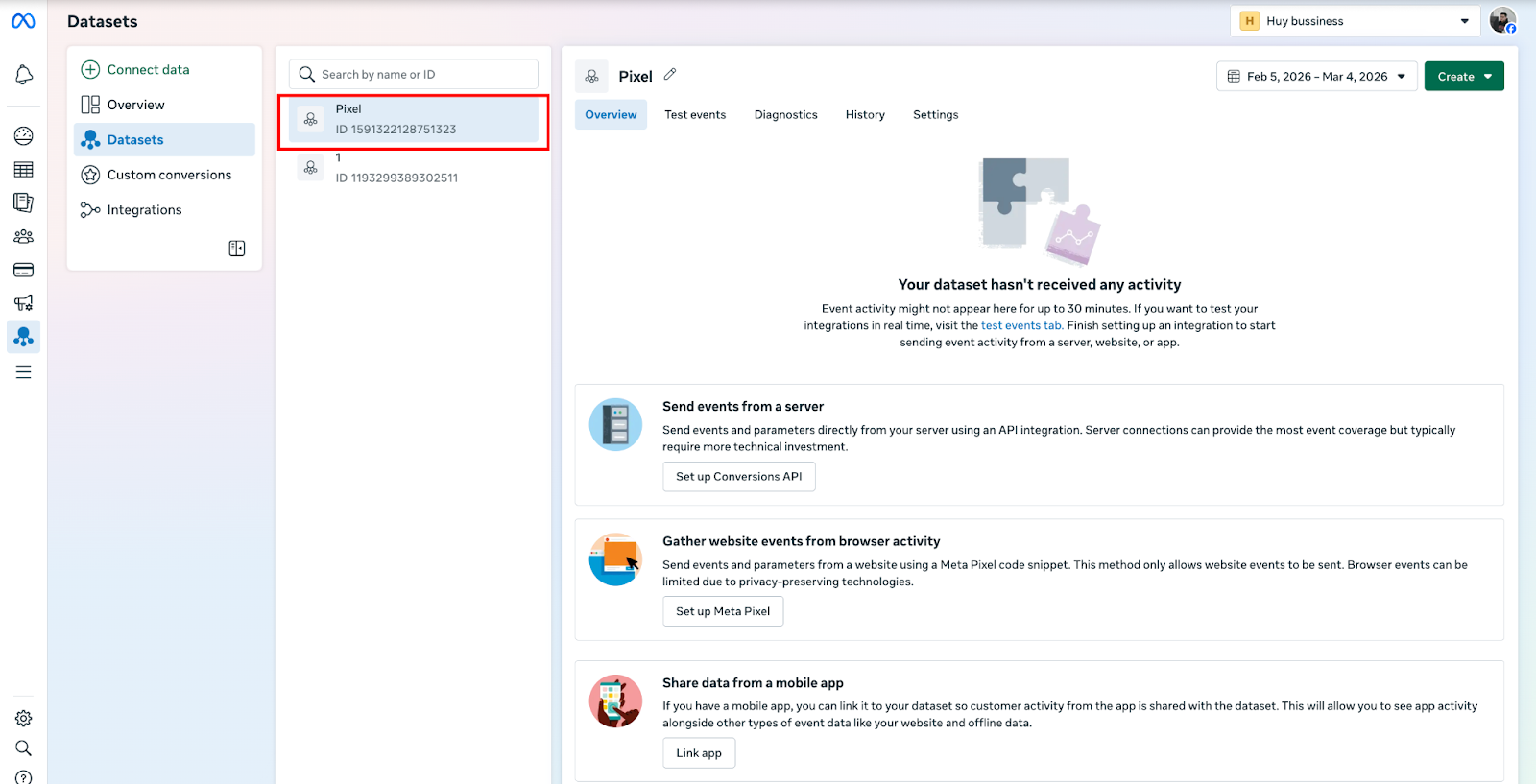
Your new Pixel will appear inside Events Manager
It will be assigned a unique Pixel ID
Still need help?
Our support team is available 24/7. Contact support →