

Email Surveys
Send a survey to customers by email after they place an order
Overview
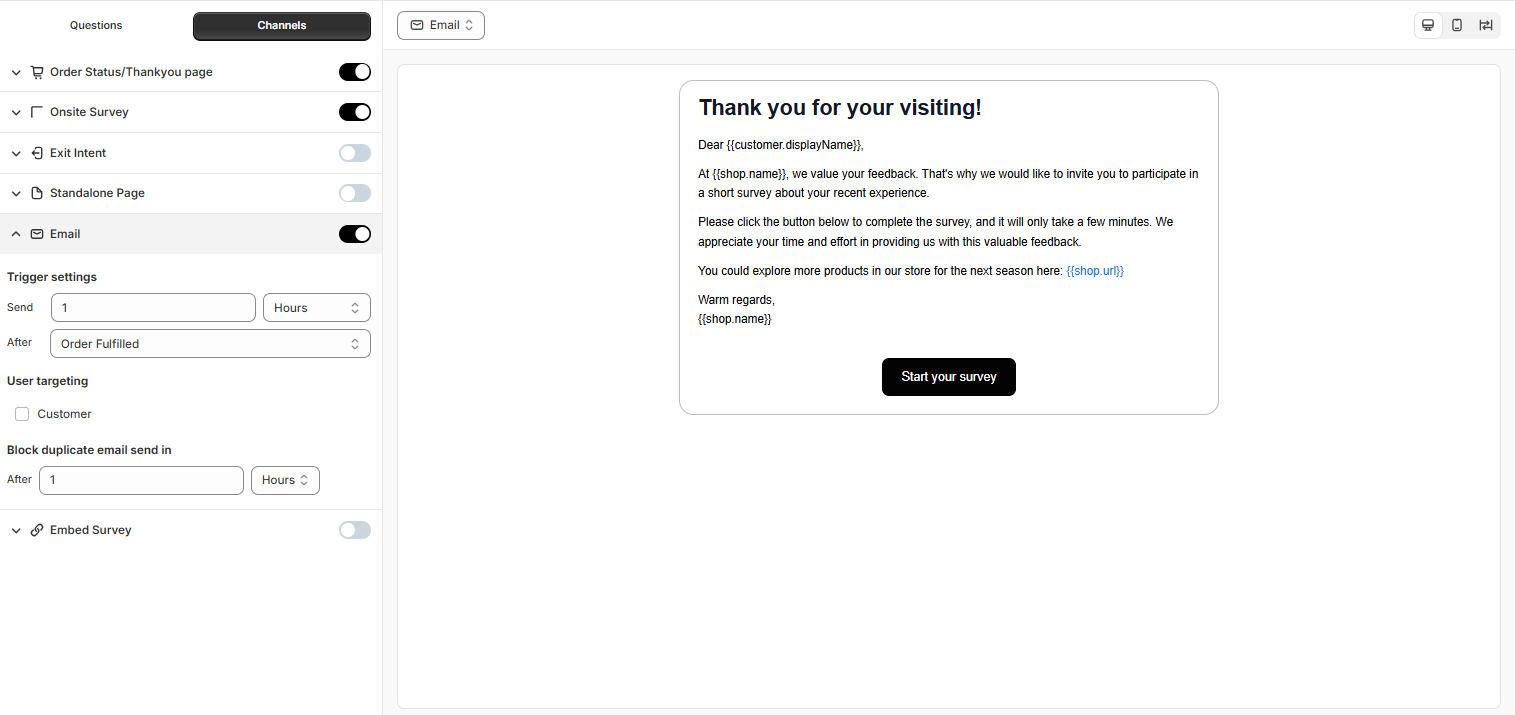
With the Email channel, customers receive an email with a button the opens your survey. You choose when the email is sent, and you can customize its text and design
Step 1 - Turn on the email
Open your survey and click the Channels tab
Turn on Email and click the arrow next to it to open its settings
Step 2 - Choose when the email is sent
Setting | What it does |
|---|---|
Trigger settings | When to send the email — for example, Send 1 Hours After Order Fulfilled. |
User targeting | Tick Customer to send the email only to certain customers — for example new customers, returning customers, or customers with a certain tag. See Targeting Rules. |
Block duplicate email send in | Prevents the same customer from getting the survey email again within the time you set, for example 1 hour. Useful when a customer places several orders in a short time. |
Tip: For product feedback, send the email a few days after the order is fulfilled, so customers have time to use the product.
Step 3 - Customize the email
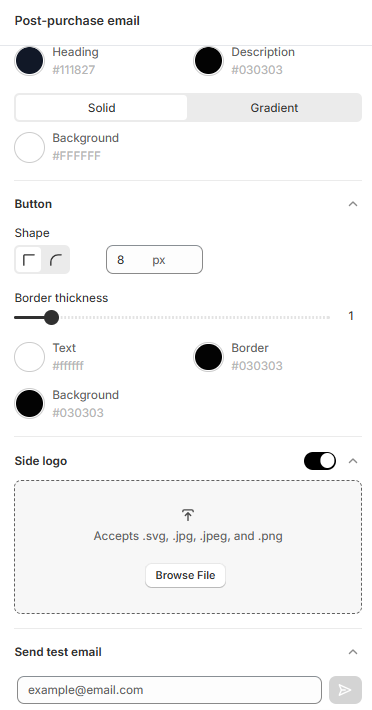
In the settings panel on the right (Post-purchase email):
Content - edit the Subject, the email content and the Text button, for example Start your survey
Color theme, Header logo, Background page, Widget, Button and Side logo - change the look of the email to match your brand
The preview in the center shows the email as customers will see it
Step 4 - Send a test email and save
Scroll to Send test email at the bottom of the settings panel
Enter your email address and click the send icon
Check the email in your inbox, then click Save
Still need help?
Our support team is available 24/7. Contact support →