

What Happens After Submit
Configure the thank-you message or redirect the customer once the form is sent.
What Happens After Submit
Choose what customers see after submit the form
Step 1 - Open After Submit
In the form builder, click the After submit icon in the rail on the left
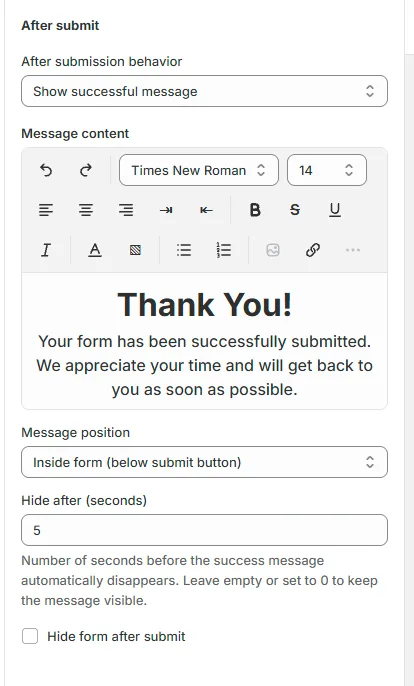
Step 2 - Choose the behavior
Under After submission behavior, choose one of the following:
Option | What customers see |
|---|---|
Show successful message | A success message, while the form stays on the page. |
Show Thank You page (replace form) | A thank-you page that replaces the form. |
Redirect to URL | Another page, at the link you enter. |
Close form | The form closes. |
Step 3 - Set up the message
If you show a message:
Write it in Message content. Use the toolbar to change the font, size, alignment, color and style, or to add lists and links.
Choose the Message position:
Inside form (above fields)
Inside form (below submit button)
Outside form (above page content)
Outside form (footer)
Floating toast message - a small pop-up message.
Optional: set Hide after (seconds) to hide the message after a few seconds. Leave it empty or set it to 0 to keep the message on screen.
Optional: tick Hide form after submit to hide the form once it has been sent
Click Save when you're done
Still need help?
Our support team is available 24/7. Contact support →