

Email Notifications
Get an email when a form is submitted and send the customer an automatic acknowledgement.
What Email Notifications
Get an email when a form is submitted, and send customers an automatic reply
Step 1 - Open the Email panel
In the form builder, click the Email icon (envelope) in the icon rail on the left
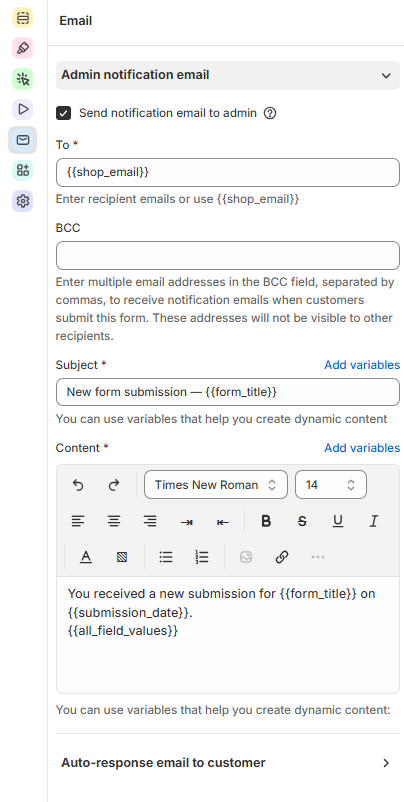
Step 2 - Get notified about new submissions
Expand Admin notification email and set it up:
Tick Send notification email to admin.
In To, enter the email addresses that should receive the notification. By default, it's your store email.
Optional: add more addresses in BCC, separated by commas.
Edit the Subject and Content of the email. Click Add variables to insert details from the submission, such as the form name, the submission date or all of the customer's answers.
Step 3 - Send customers an automatic reply
Expand Auto-response email to customer to send customers a confirmation after they submit the form - for example, to thank them and tell them what happens next.
Tick Send confirmation email to customer.
In To, choose the form's Email field. The reply is sent to the address the customer entered. If the form has several email fields, use the main one.
Optional: add addresses in BCC, and enter a Reply to address for customer replies. Leave Reply to empty to use your store email.
Edit the Subject and Content. Click Add variables to insert details such as your store name.
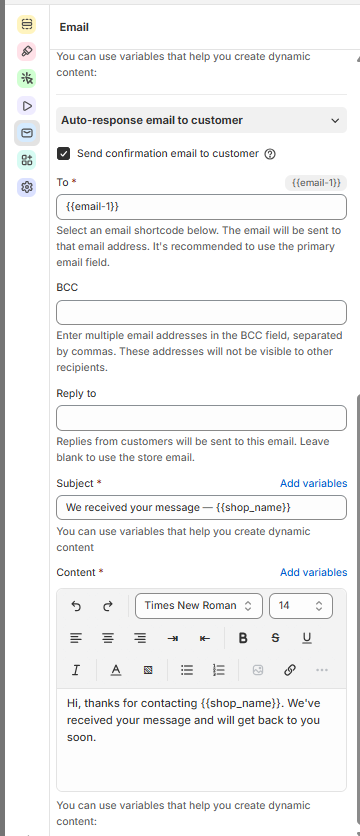
The form must include an Email field, so the reply has an address to go to
Click Save when you're done
Still need help?
Our support team is available 24/7. Contact support →