

Multi-step Forms & Conditional Display
Split a long form over several pages, style the step indicator, and show or hide fields based on earlier answers.
Overview
Multi-step forms split a long form into pages. Customers fill in one page at a time, which makes long forms feel shorter.
Conditional display shows or hides a field or a page depending on how the customer answered an earlier field.
Step 1 - Add a page
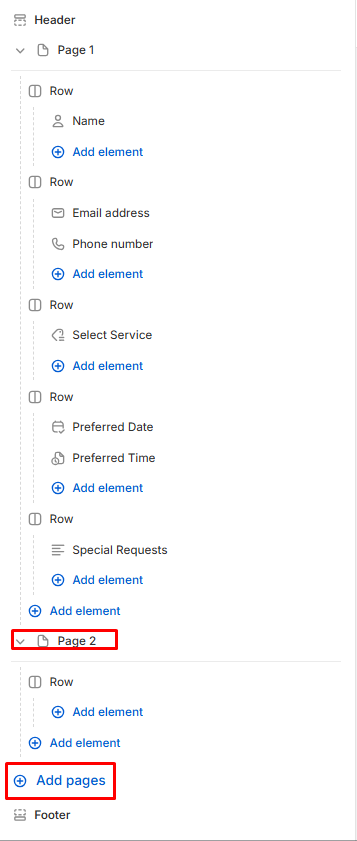
In the Elements panel, click Add pages at the bottom of the structure. A new page, for example Page 2, is added to the structure, and the page settings open
Add fields to the new page with Add element
The preview now shows a step indicator ad a Back button, so customers can move between pages
Step 2 - Style the step indicator
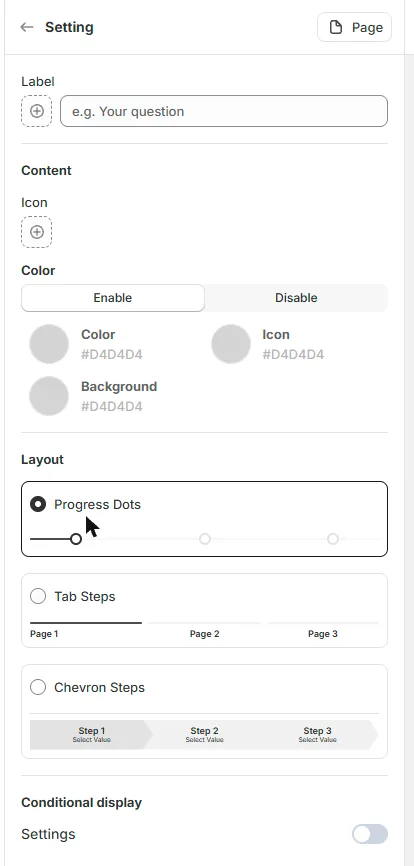
The page settings open when you click Add pages:
Label - the name of the step
Icon - an optional icon for the step
Color - choose Enable to set your own colors for the text, icon and background
Layout - how the steps are shown: Progress Dots, Tab Steps or Chevron Steps
Step 3 - Show a field or page only when it's needed
Click the filed or page you want to show or hide
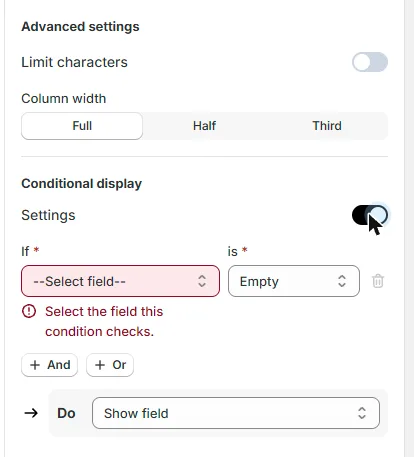
Under Conditional display, turn on Settings
Build the rule:
If - choose an earlier field
is - choose the condition, for example Empty
Do - choose what happens, for example Show page
Click + And or + Or to add more conditions. Click the bin icon to remove on
A rule can only use fields that come before the field or page you are setting up.
Click Save when you're done.
Still need help?
Our support team is available 24/7. Contact support →