

Form Builder Overview
What the Form Builder does, the four ways a form can appear on your storefront, and how to read the form list.
What is the Form Builder?
The Form Builder lets you build any customer-facing form — contact, quote request, custom order, wholesale or warranty registration, appointment booking — and show it on your storefront without touching your theme code.
A form is built from elements (fields, text, images, ratings, file upload…) arranged in rows across one or more pages. You choose how it appears:
On Page — inside the page content
Pop-up — in a window over the page
Float — as a floating button in the corner of the screen
Side-in — sliding in from the side of the screen
Submissions are saved in Responses, and you can get an email each time a form is submitted
The form list
In the app menu, click Forms. The Forms builder list shows all your forms. To create a new one, click Create new form
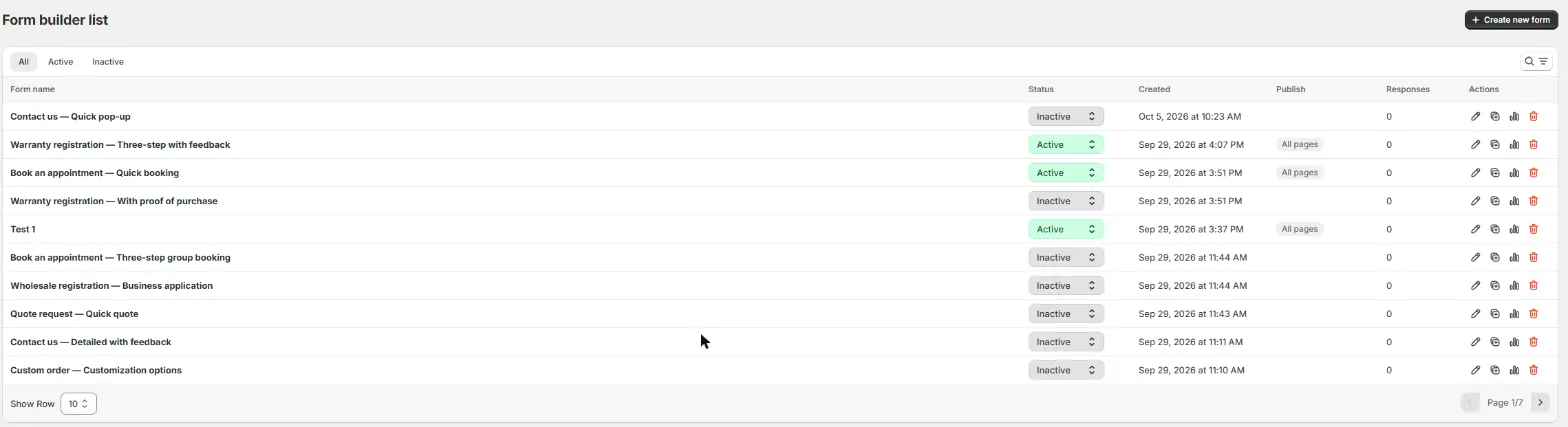
Column | What it shows |
|---|---|
Form name | The name of the form. Click it to open the builder |
Status | Active or Inactive. Switch it straight from the list — inactive forms never render on the storefront. |
Created | When the form was created. |
Publish | Where the form is shown, e.g. All pages. Empty until you publish it. |
Responses | Number of submissions received. |
Actions | Icon to edit, duplicate, see the analytics of, or delete the form |
Use the All/ Active/ Inactive tabs to filter the list, and the icon on the right to search and filter
How a form goes live
Create a form from a template or from scratch.
Add fields and customize the design.
Set when the form appears and publish it to the pages you want.
Make sure the Ego Contact Form Survey app embed is turned on in your theme. Without it, forms don't appear on your storefront. See Installing & Activating Ego Contact Form Survey.
Still need help?
Our support team is available 24/7. Contact support →