

Triggers & Publishing
Choose when the form appears, which pages it shows on, and switch on the theme app embed.
Triggers & Publishing
Choose when your form appears, publish it to your store, and turn it on or off
Step 1 - Choose when the form appears
In the form builder, click the Triggers icon in the icon rail on the left
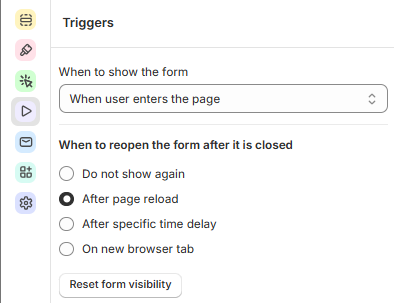
In When to show the form, choose:
When user enters the page
When user scrolls the page
When user stays for a while
When user intends to leave the page
When user clicks the trigger button
In When to reopen the form after it is closed, choose Do not show again, After page reload, After specific time delay or On new browser tab.
Optional: click Reset form visibility to show the form again to everyone, including customers who have already closed it.
Triggers apply to Pop-up, Float and Side-in forms. An On Page form is shown where it is placed on the page.
Step 2 - Set up the trigger buttons (Float forms)
A Float form opens from a round button in the corner of the screen. In the Triggers panel, you can:
Turn the button on or off with Display trigger button, and choose whether to Hide trigger button when the form is open.
Choose the Button alignment — bottom left, bottom center or bottom right.
Style the button for the Open and Close states: label, icon, border, colors and size.
Set the Bottom spacing and Right spacing from the edge of the screen.
Choose an Effect and an Animation style, for example Slide in from bottom.
Step 3 - Publish the form
Click Publish in the top right corner of the builder.
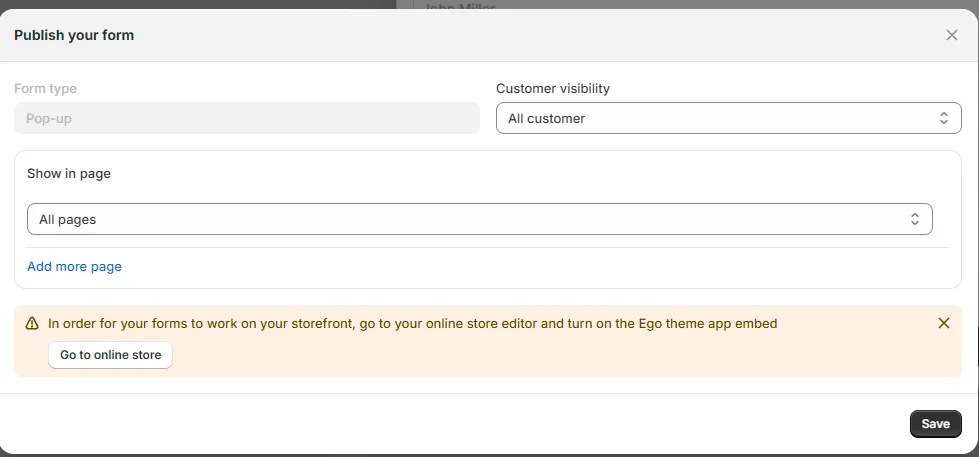
In Publish your form, set:
Customer visibility — who sees the form, for example All customer.
Show in page — where the form appears. Keep All pages, or choose a page and click Add more page to add others.
Click Save.
The Form type in this window shows the type you chose in Design and can't be changed here.
Turn on a form on or off
In the Form builder list, change the form's Status to Active or Inactive — no need to open the builder. This is the quickest way to pause a form or bring it back.
Still need help?
Our support team is available 24/7. Contact support →