

Launch Your Pixel·1 min read
Get a Test Event Code for Conversions API
Follow the steps below to get a Test Event Code.
Overview
Follow the steps below to get a Test Event Code.
Step 1: Open Meta Events Manager
- Log in to your Meta Business account, then go to Events Manager. https://business.facebook.com/events_manager2
- Select the Pixel (Dataset) that you want to test.
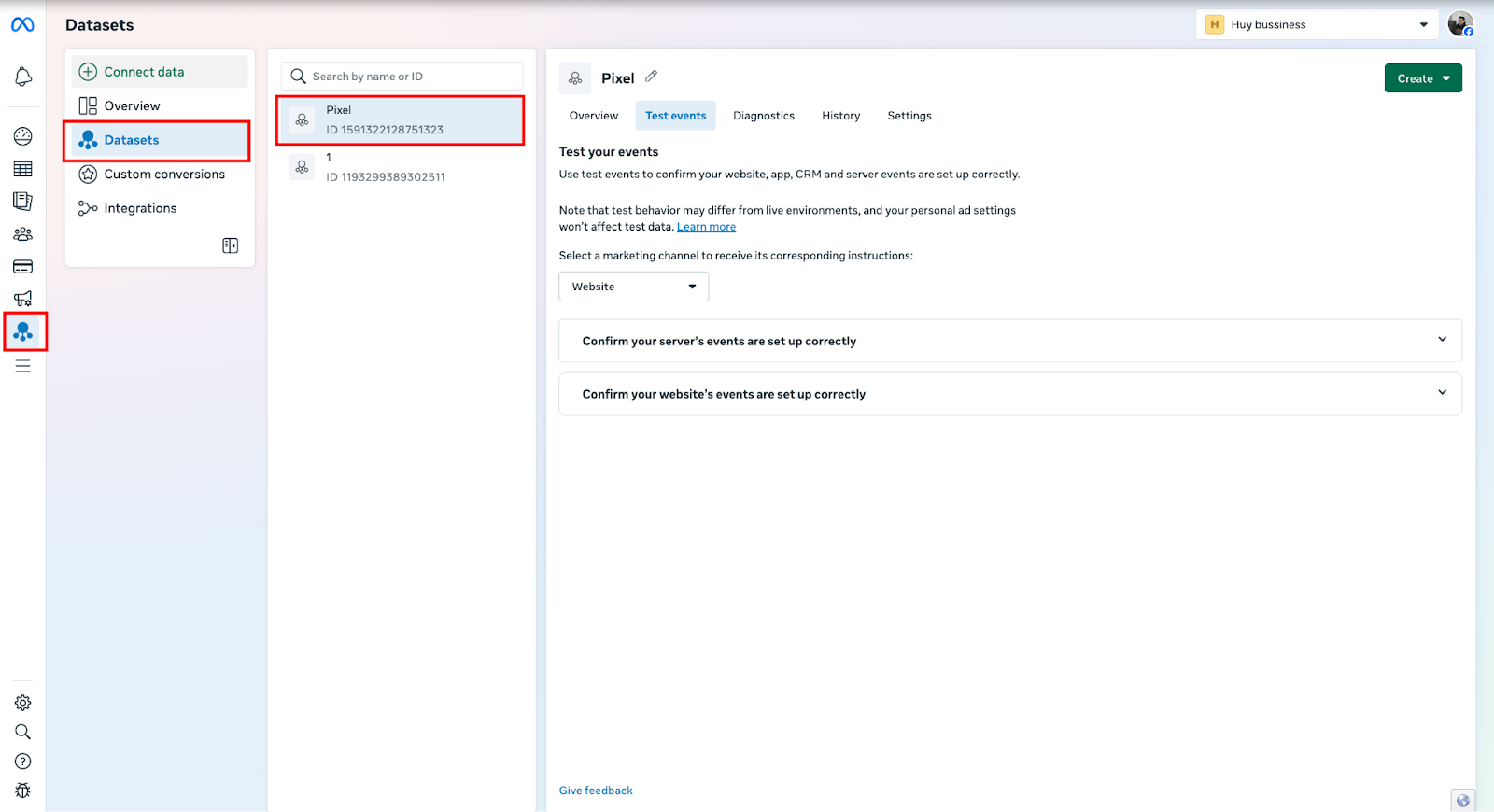
Step 2: Open the Test Events Tab
In the Pixel dashboard, click the Test events tab.
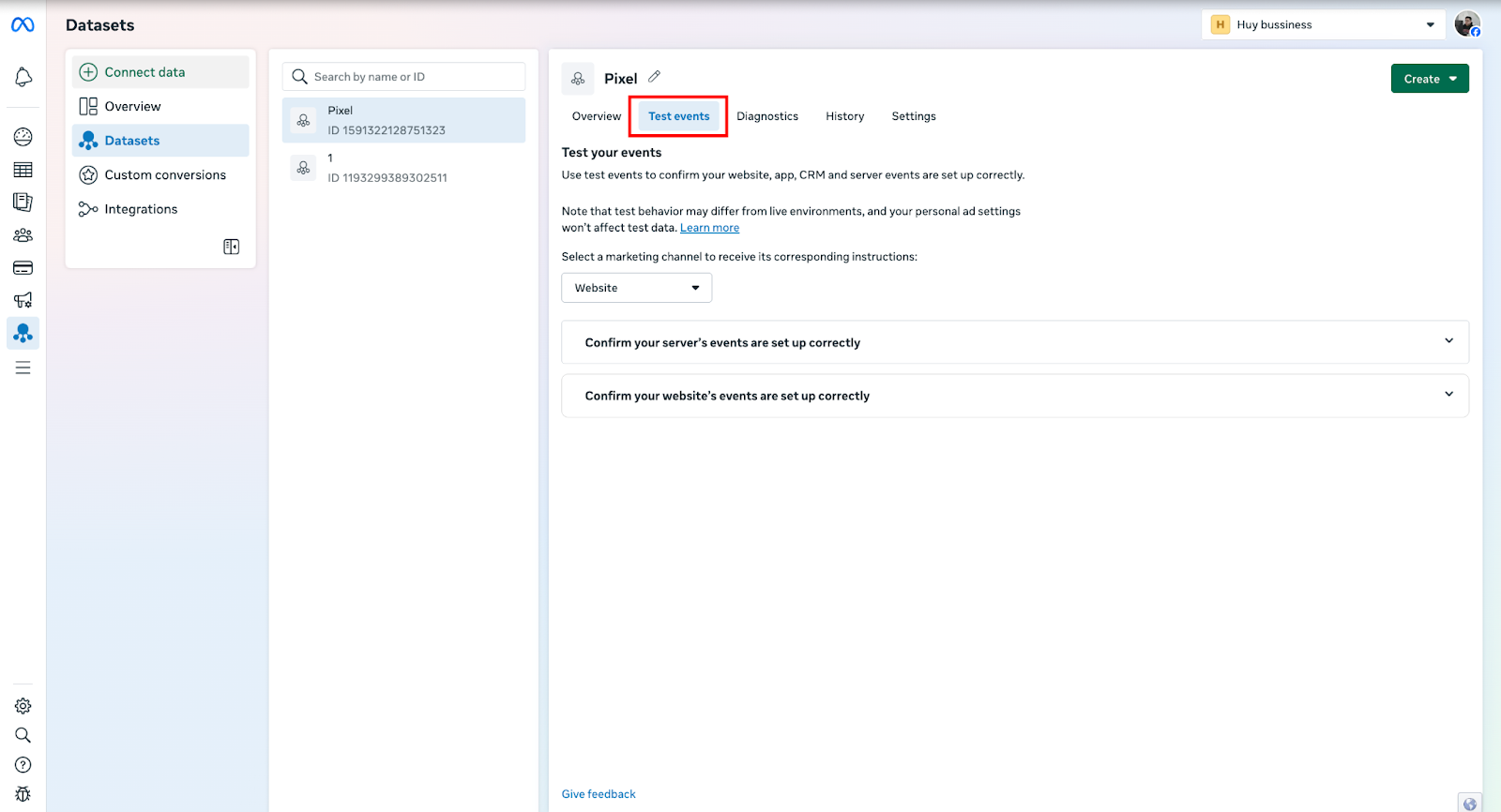
=> This section allows you to test events coming from your browser or server.
Step 3: Copy the Test Event Code
- Scroll down to the Confirm your server’s events are set up correctly
- Click Copy next to the Test Event Code.
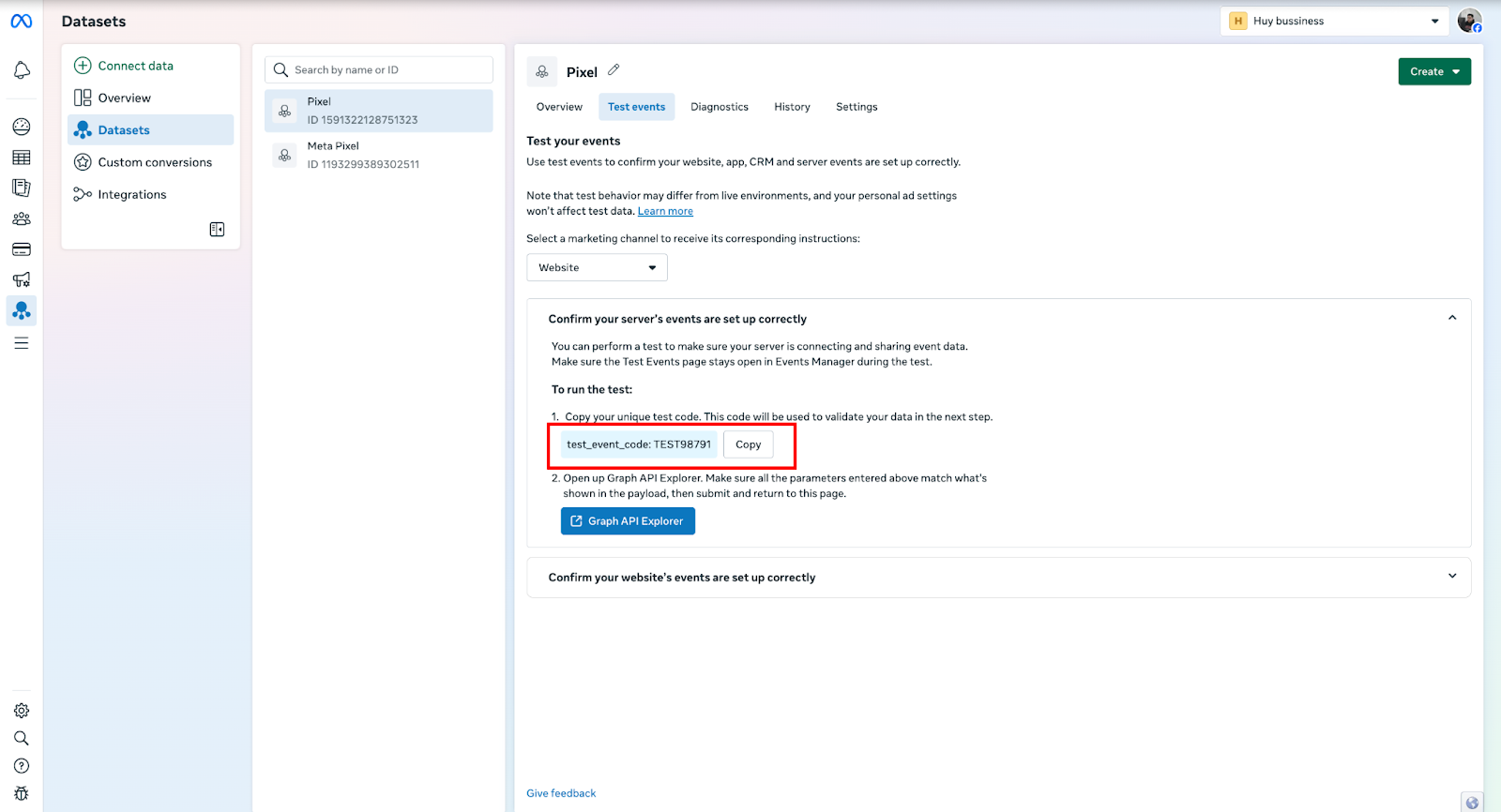
Step 4: Paste the Code into the App
Go back to your app dashboard and paste the Test Event Code into the Test Event Code field.
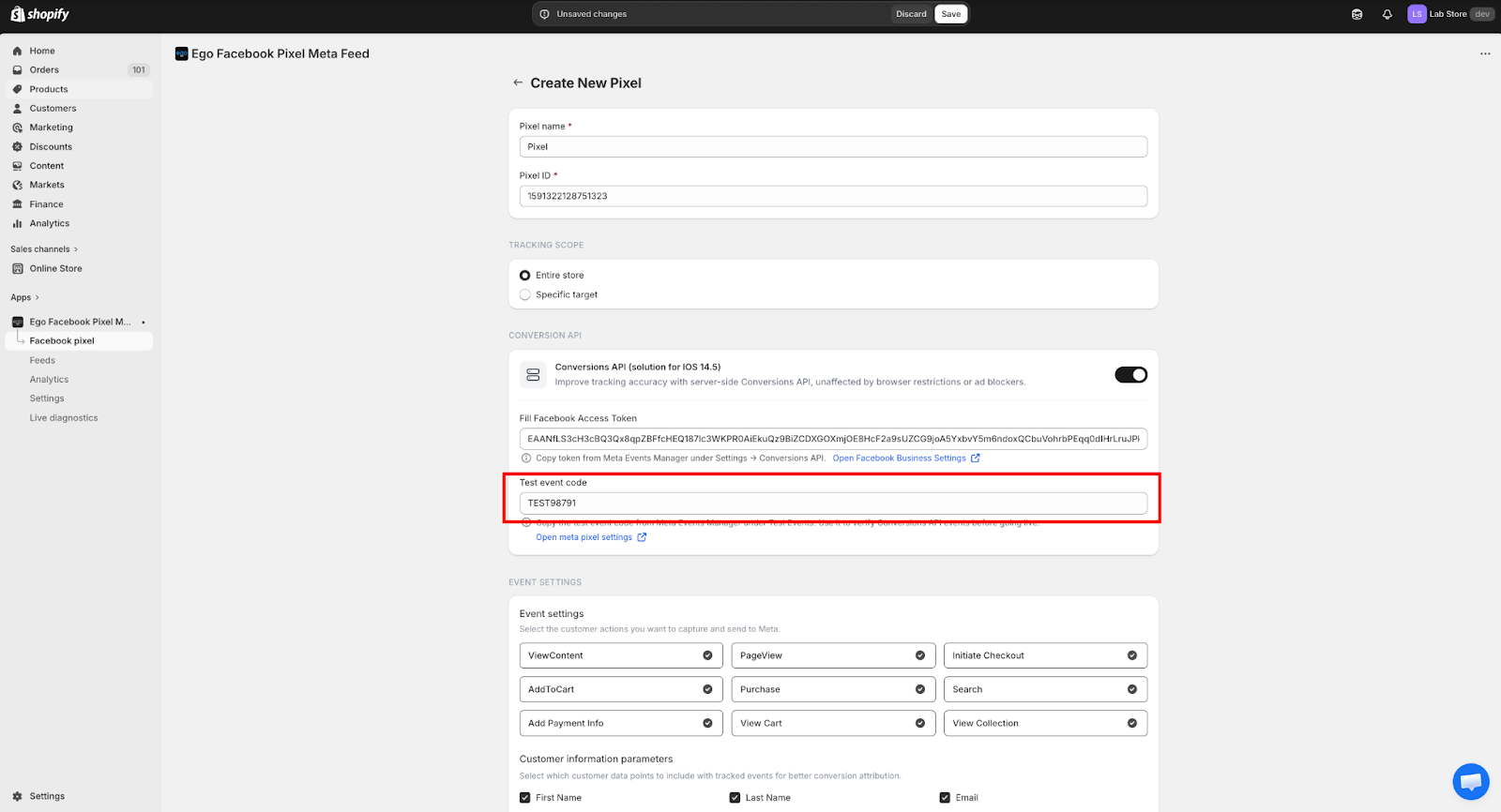
=> Once the code is added, all events sent from the server will appear in the Test Events section in Meta Events Manager, allowing you to verify that your Conversions API integration is working correctly.
Important: After completing the test, make sure to remove the Test Event Code from the app. If the code remains active, Meta will treat all incoming events as test events, and they will not be recorded in your production event data.
Still need help?
Our support team is available 24/7. Contact support →