

Forgot Password Notification
The Forgot Password Notification feature allows you to update your Shopify forgot password email so customers are directed to the correct password reset…
Overview
The Forgot Password Notification feature allows you to update your Shopify forgot password email so customers are directed to the correct password reset flow for your mobile app.
This setup helps ensure that the password recovery experience works properly between Shopify and your mobile app.
Where to Set It Up
You will need to configure this in 2 places:
Ego Mobile Builder: to get the code or URL you need
Shopify Notifications: to update the forgot password email template
Standard Setup Flow
Step 1: Open Forgot Password Notification settings in Ego Mobile Builder
Go to Ego Mobile Builder
Open Settings
Select Forgot Password Notification
The system will display the code or URL you need for the email template.

Step 2: Copy the code shown in the settings
Copy the full code snippet displayed in the setting screen
Notes:
Make sure to copy the entire content

Step 3: Open Shopify Notifications
Click “Open Shopify Notifications” in settings and find the email notification related to Forgot password or Customer account reset

Step 4: Paste the code and save
Open the corresponding email template
Paste the code copied from Ego Mobile Builder into the required location
Click Save
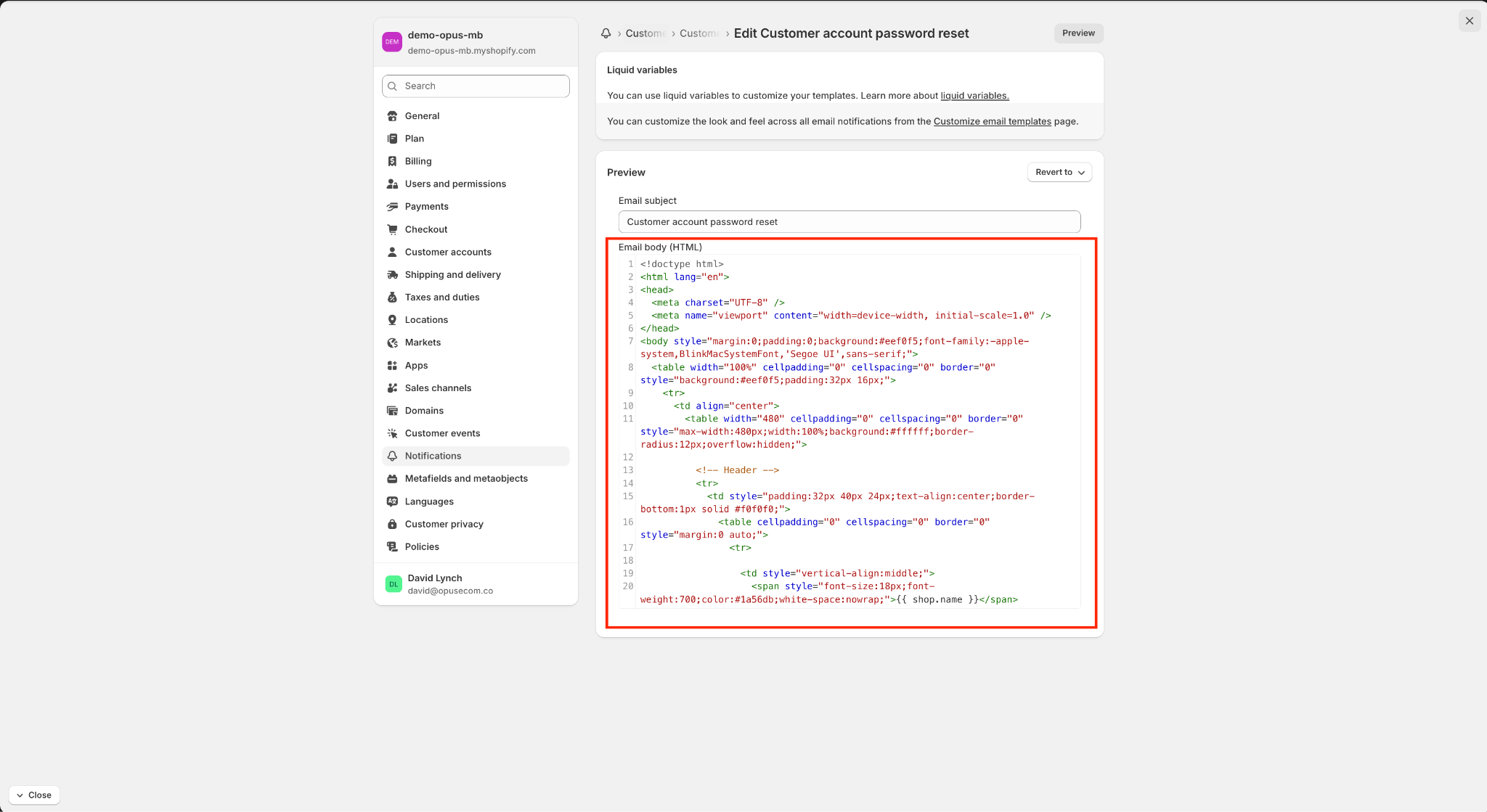
Notes:
Make sure you do not accidentally remove other important parts of the email template
After saving, the updated template will be used for forgot password emails
Step 5: Preview
Use the Preview function in Shopify Notifications
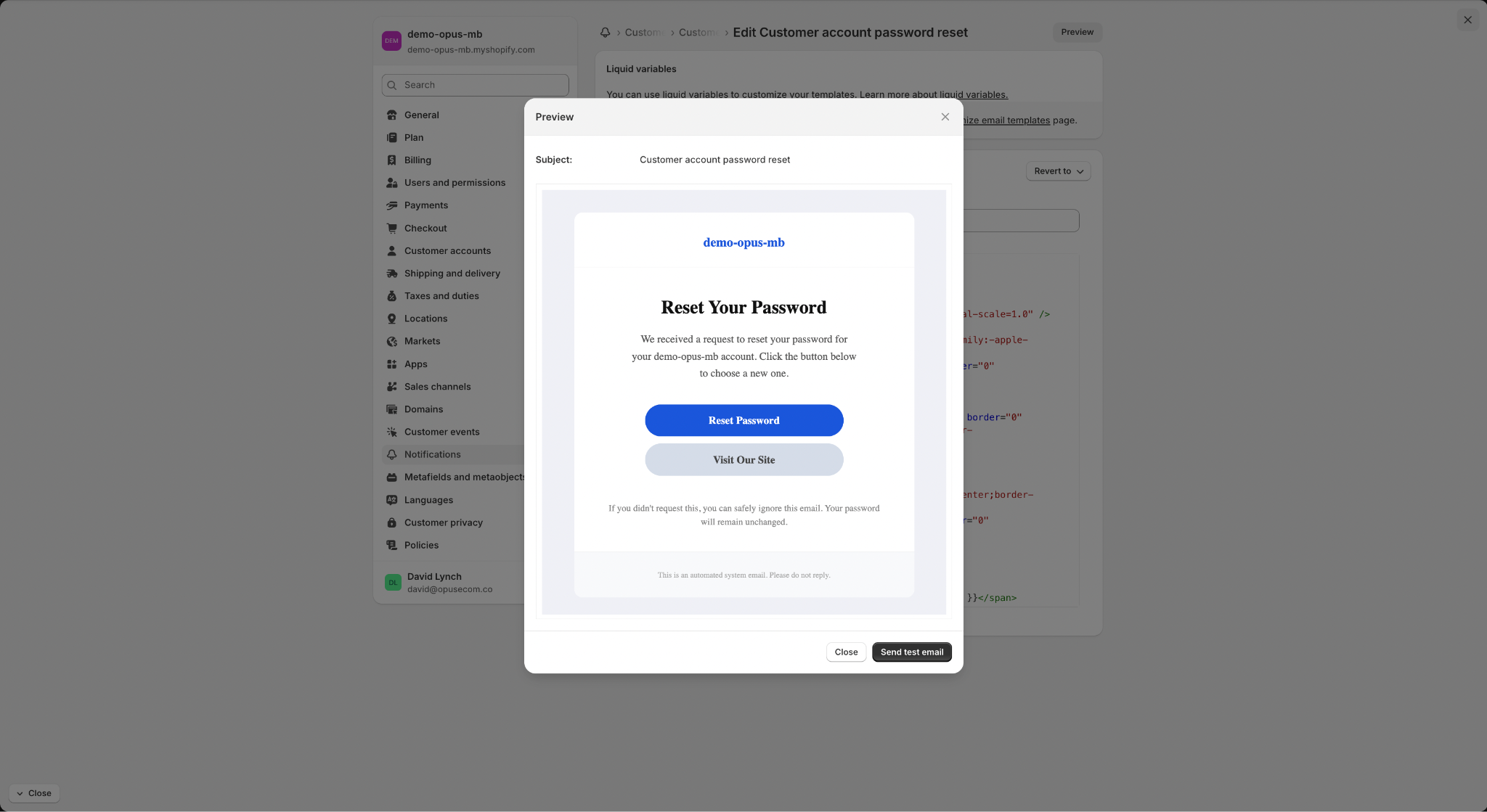
Check that:
The email content displays correctly
The reset password link is correct
The layout is not broken
Special Case: If the email template has already been customized
If you have already customized the email template in Shopify Notifications, you do not need to replace the entire template.
Instead, only update the reset password link by following these steps:
Step 1: Find this text in your existing email template and copy it:
Find the current reset password text or URL in your existing email template.

Step 2: Replace it with the URL below:
Replace the existing reset password URL with the URL provided in the Forgot Password Notification setting in Ego Mobile Builder.
Step 3: Save
Click Save to apply the changes
Notes:
Only replace the required URL
Keep the rest of your customized email template unchanged to preserve your branding and existing content
Best Practices
Back up your template before editing
Before making any changes:
Copy your current email template
Save it in a note or backup file
This makes it easier to restore the original version if needed.
Replace only what is necessary
If your email template is already customized:
Only replace the reset password URL
Do not replace the full template unless necessary
This helps preserve:
Branding
Layout
Existing custom content
Verify the link carefully
After updating the template:
Double-check that the URL was pasted correctly
Make sure there are no extra spaces
Make sure no characters are missing
Even a small error in the URL can break the password reset flow.
Always test with Preview
After saving:
Always preview the email
Check both the email content and the reset password link
If possible, send a test email to verify the full end-to-end flow.
Expected Outcome
After the setup is completed:
Forgot password emails will use the correct reset link for your mobile app
Customers will be guided through the correct password recovery flow
The risk of incorrect redirects or broken reset flows will be reduced
Frequently Asked Questions
1. Why do I need to configure the Forgot Password Notification?
This configuration ensures customers are directed to the correct password reset flow when they request a password reset from your mobile app.
2. Where do I configure the Forgot Password Notification?
You need to get the required code or URL from Ego Mobile Builder, then update the corresponding email template in Shopify Notifications.
3. Do I need to replace my entire Shopify email template?
No. If your email template has already been customized, you only need to replace the existing reset password URL and keep the rest of the template unchanged.
4. Will this affect my existing email branding and layout?
Not if you only replace the required reset password URL. Your existing branding, layout, and custom content can remain unchanged.
5. What should I check after updating the email template?
Preview the email and verify that the content displays correctly, the reset password link works, and the layout is not broken.
6. What should I do if the reset password link does not work?
Check that the full URL was copied correctly without missing characters or extra spaces, then test the flow again.
Still need help?
Our support team is available 24/7. Contact support →