

Reward Tier Discount Setup
Pick the Shopify discount behind a Rewards Bar tier, so shoppers who reach the milestone actually get the discount.
Why a tier needs a discount
The Rewards Bar shows milestones; the discount itself comes from a discount in your Shopify admin. A Discount tier with no matching discount only shows the milestone — shoppers see it reached but pay full price.
Pick a discount for a tier
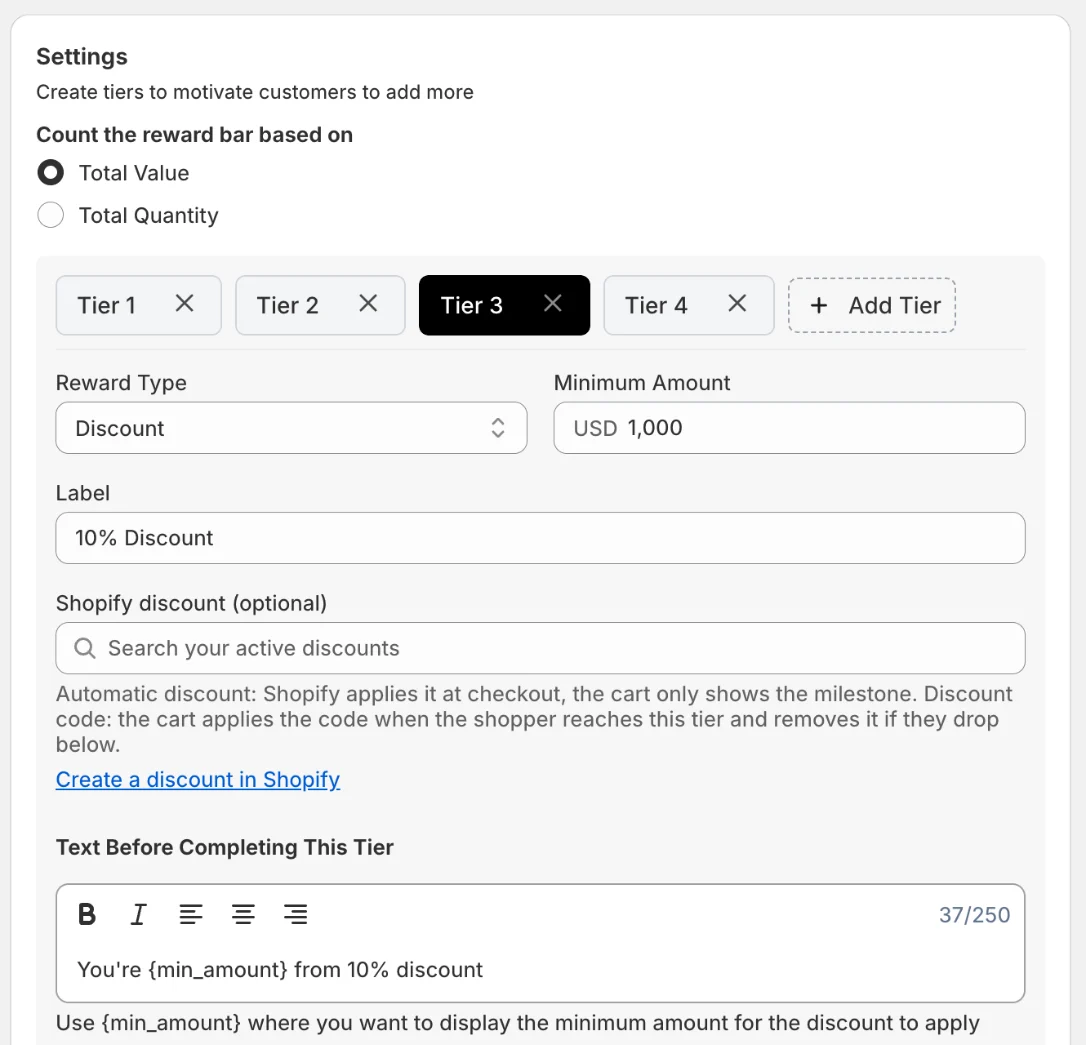
In the cart editor, open Rewards and open a tier whose reward is Discount.
In Shopify discount (optional), search your active discounts and pick one. Each result shows whether it is Automatic or a Code.
Click Save.
No discount yet? Use Create a discount in Shopify, then come back and pick it. Remove discount clears the selection.
Automatic discount or discount code?
| You pick | What happens |
|---|---|
| Automatic discount | Shopify applies it at checkout on its own. The cart only shows the milestone. |
| Discount code | The cart applies the code when the shopper reaches the tier, and removes it if they drop below. |
The discount's value and minimum purchase requirement must match the tier. If the tier unlocks at $100, the Shopify discount should also start at $100.
Check your tiers
The Cart setup checklist warns you with "A reward tier has no matching discount" when a discount tier has no discount selected and no automatic discount with the same minimum exists. See AI Assistant & Cart Setup Checks.
Still need help?
Our support team is available 24/7. Contact support →