

Countdown & Scrolling Announcement Setup
Count down to one shared deadline, such as the end of a sale, and make a long announcement scroll across the bar.
Choose a countdown type
In the cart editor, open Announcements. Under Announcement Type, select Single Announcement, then choose a countdown type in the Timer dropdown:
| Timer option | How it works |
|---|---|
| Per shopper (hours and minutes) | Each shopper gets their own countdown, starting from their first view. |
| Fixed end date | One shared deadline for everyone, for example a sale ending. Days are shown when more than 24 hours are left. |
Use {timer} in the announcement text where the countdown should appear.
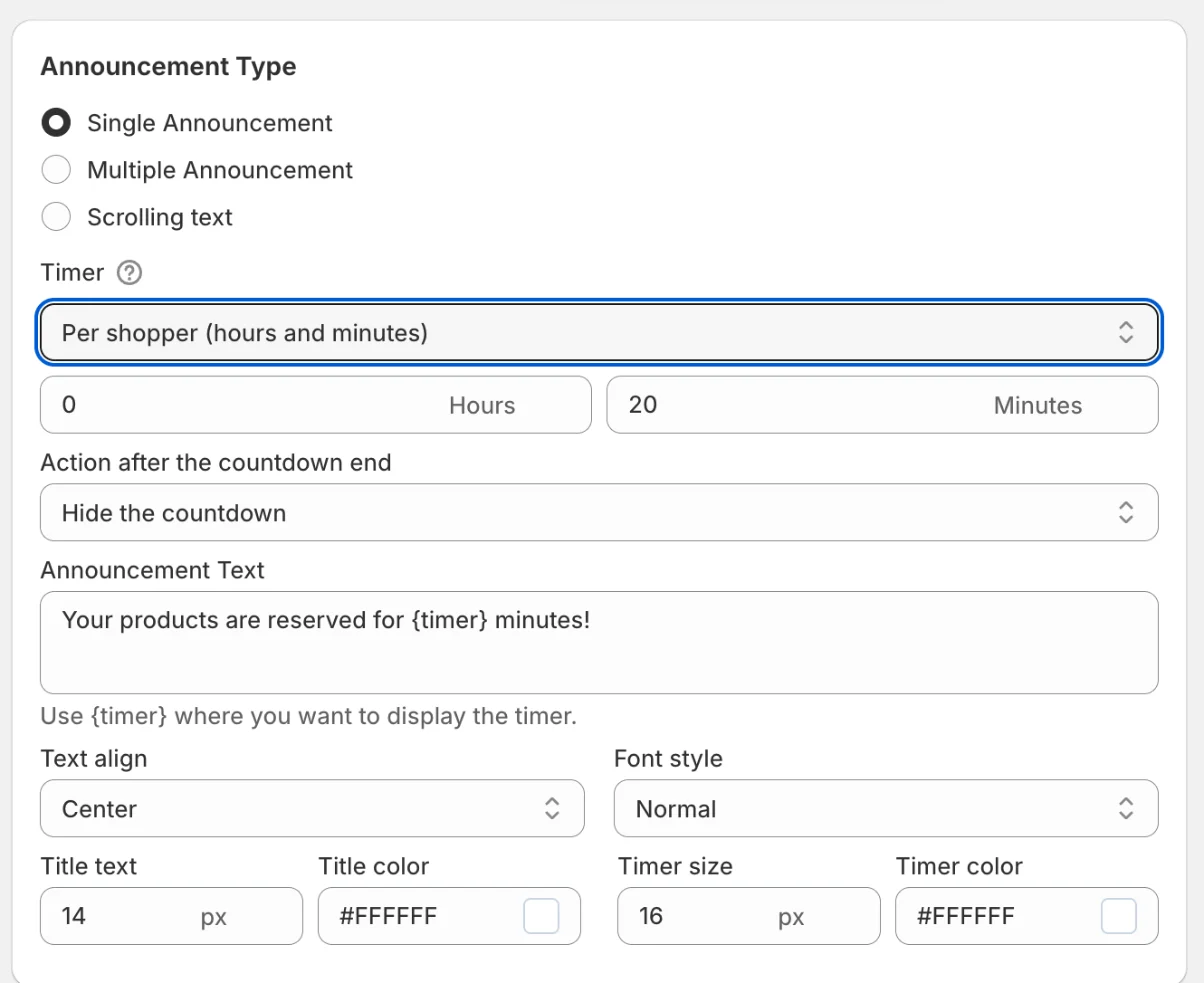
Set a fixed end date
In the Timer dropdown, select Fixed end date.
In Ends at, choose the date and time. The time is in your store's time zone, shown next to the field.
Click Save.
Every shopper sees the same deadline, and the announcement hides when it passes. If you pick a date that has already passed, the editor warns you that the countdown won't show.
Make the announcement scroll
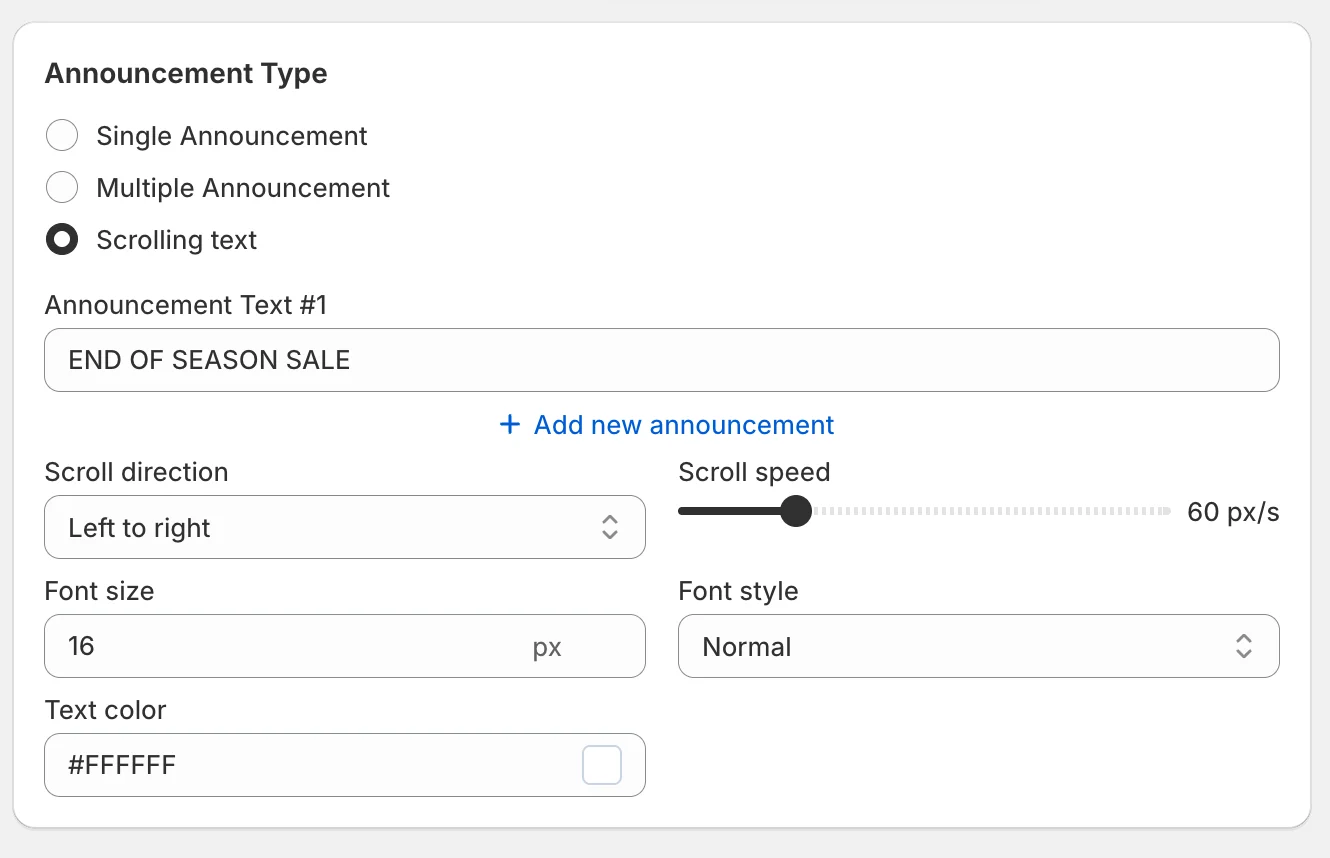
Under Announcement Type, select Scrolling text and enter your announcement text.
Choose a Scroll direction: Left to right or Right to left.
Set the Scroll speed.
Click Save.
Scrolling suits a message that is too long to fit on one line of the cart.
Still need help?
Our support team is available 24/7. Contact support →