

AI Assistant & Cart Setup Checks
Describe the cart you want and let the AI assistant edit the draft, then use the Cart setup checklist to find problems and improvements.
Ask the AI assistant
Open a cart in the Cart Editor and click Ask AI.
Type what you want, for example "Add free shipping from $50", "Show 3 related products as upsells" or "Match the cart colors to my theme".
The assistant updates the draft. Changes show in the preview right away.
Check the preview, then click Save. Nothing is live until you save.
Use Undo to take back the assistant's last change, Open this section to jump to the module it edited, and New chat to start over.
The assistant can edit announcements, rewards, upsells, design, free gifts, customized text, settings, display conditions, add-ons, trust badges, cart notes, discount codes and express payments. It can also switch a module on, but only if your plan includes that module.
Limits to know about
AI can make mistakes. Always check the preview before you save.
Monthly usage. Each plan has a monthly AI limit. The assistant shows how much you have used; the limit resets at the start of the next month.
Real stores only. The assistant is not available on development stores.
If a cart has many unsaved changes, save first and then ask again.
Cart setup checks
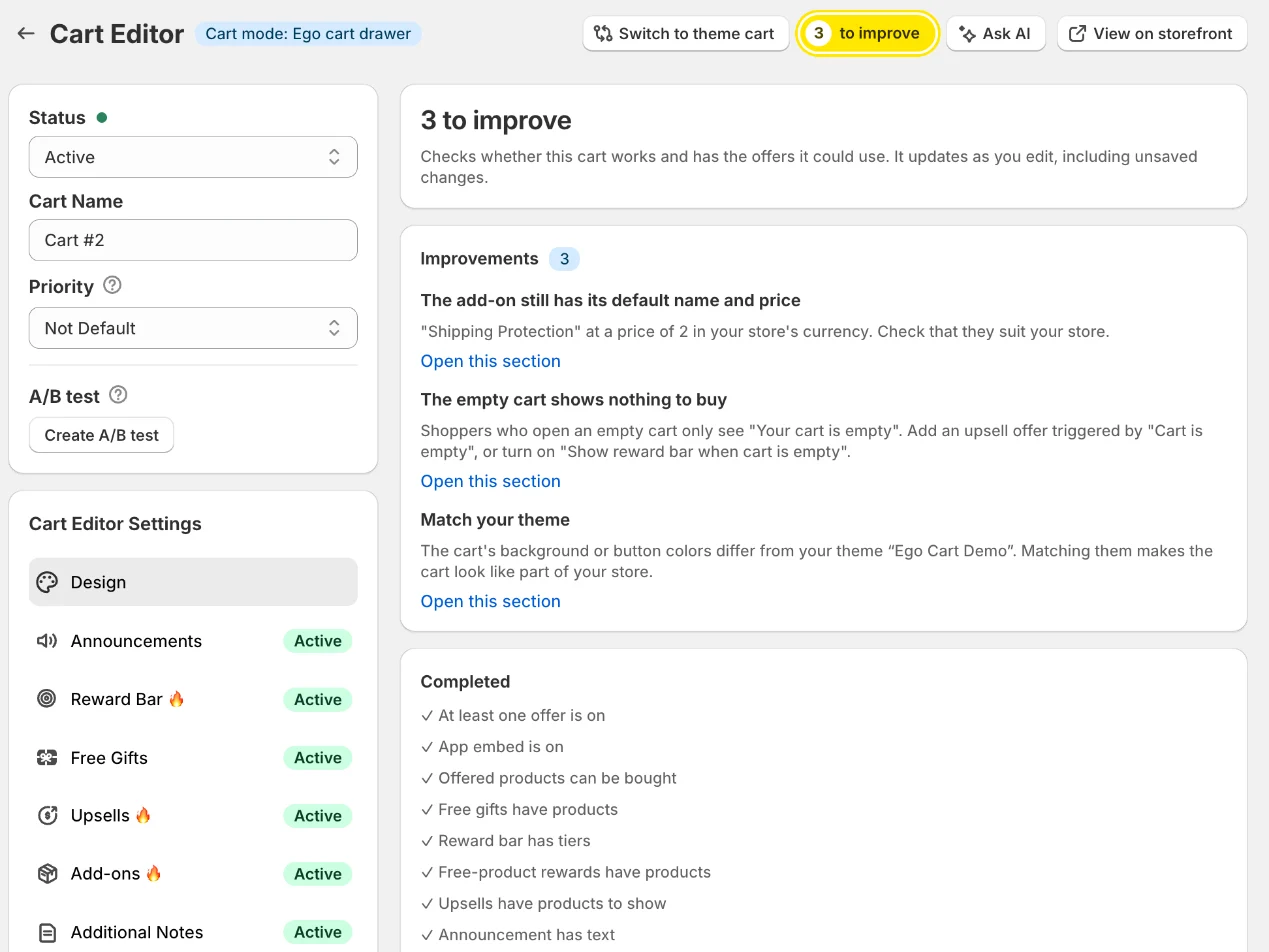
The Cart setup checklist in the cart editor checks whether the cart works and has the offers it could use. It updates as you edit, including unsaved changes. Items are grouped as:
Problems — things that stop the cart from working as expected, such as The app embed is off, The cart's schedule has ended, an offered product that can't be bought, or a free gift with no product.
Improvements — suggestions such as Add a reward bar, Add a second reward tier, Your first reward is far from your average order, The checkout button is hard to read or Missing translations.
Completed — checks the cart already passes.
Each item has a button that takes you to the right place: Open this section, Open theme editor, Open translations, or Fix with AI, which sends a ready-made request to the AI assistant.
If you save a cart that still has problems, a popup lists them. Your changes are saved either way — choose Review problems or Later.
On the Free plan the checklist lists half of what is left; fix those to see the next ones.
Review with AI
Under AI suggestions, click Review with AI. The AI reads this cart's settings and your store's numbers and points out what the checks can't: thresholds, overlapping offers and wording specific to your store. Each suggestion is marked Fix or Improve.
Each review counts as one AI message, and AI review is available on paid plans. If you change the cart afterwards, click Review again.
Still need help?
Our support team is available 24/7. Contact support →