

Offers & Discounts Setup
Show your existing Shopify discount codes as offers in the cart, with an Apply button, and choose whether the discount code box is always visible.
Overview
The Discount Codes module can now do more than show a code box. With Offers & Discounts you suggest discount codes you already created in Shopify. Each offer unlocks once the cart subtotal reaches its minimum; the cart then shows it with an Apply button and a View all offers list.
Choose a discount layout
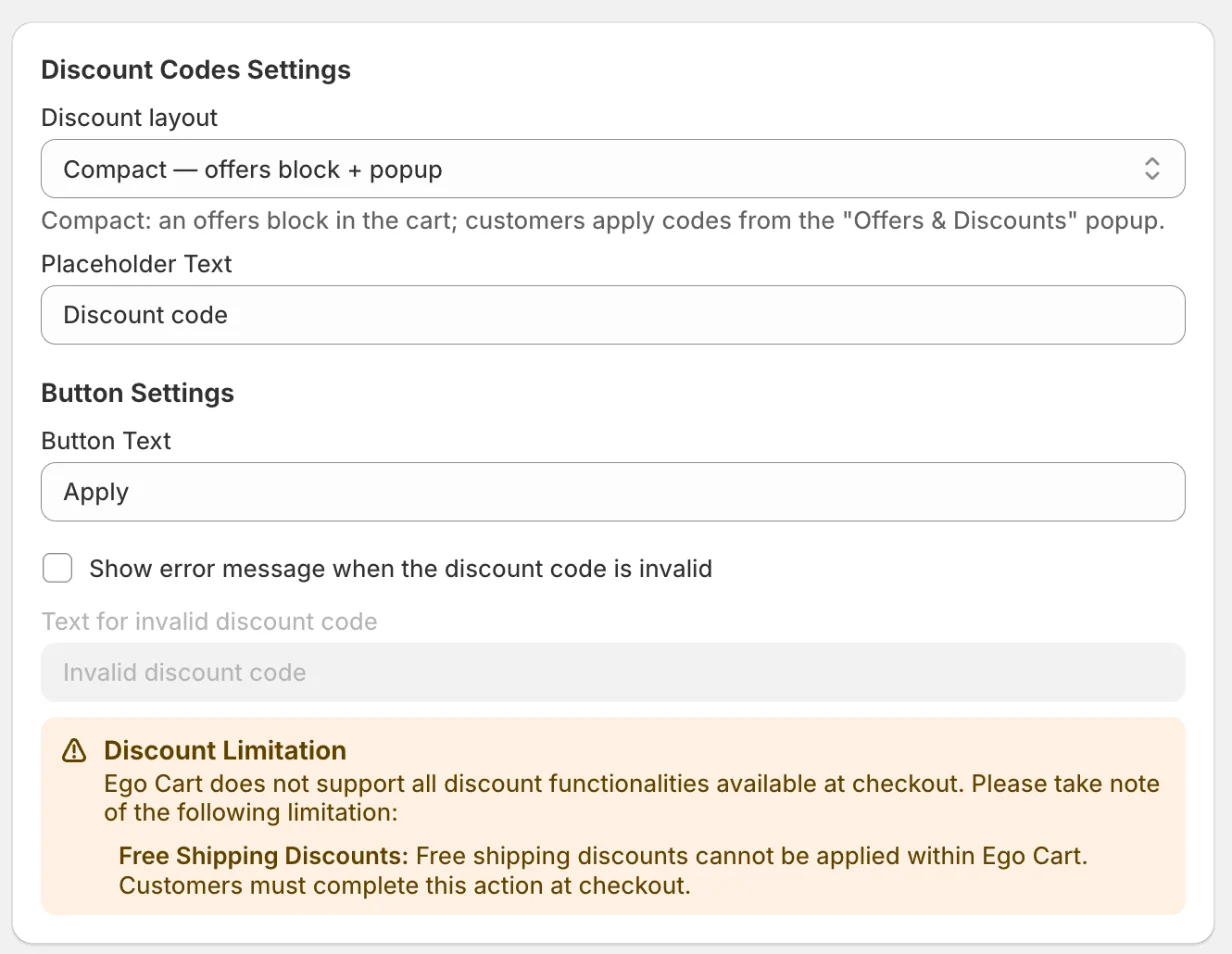
In the cart editor, open Discount Codes and pick a Discount layout:
Code box only (hide offers) — the classic box where shoppers type a code.
Compact — offers block + popup — an offers block in the cart; shoppers apply codes from the "Offers & Discounts" popup, and the code box moves into that popup.
Add offers
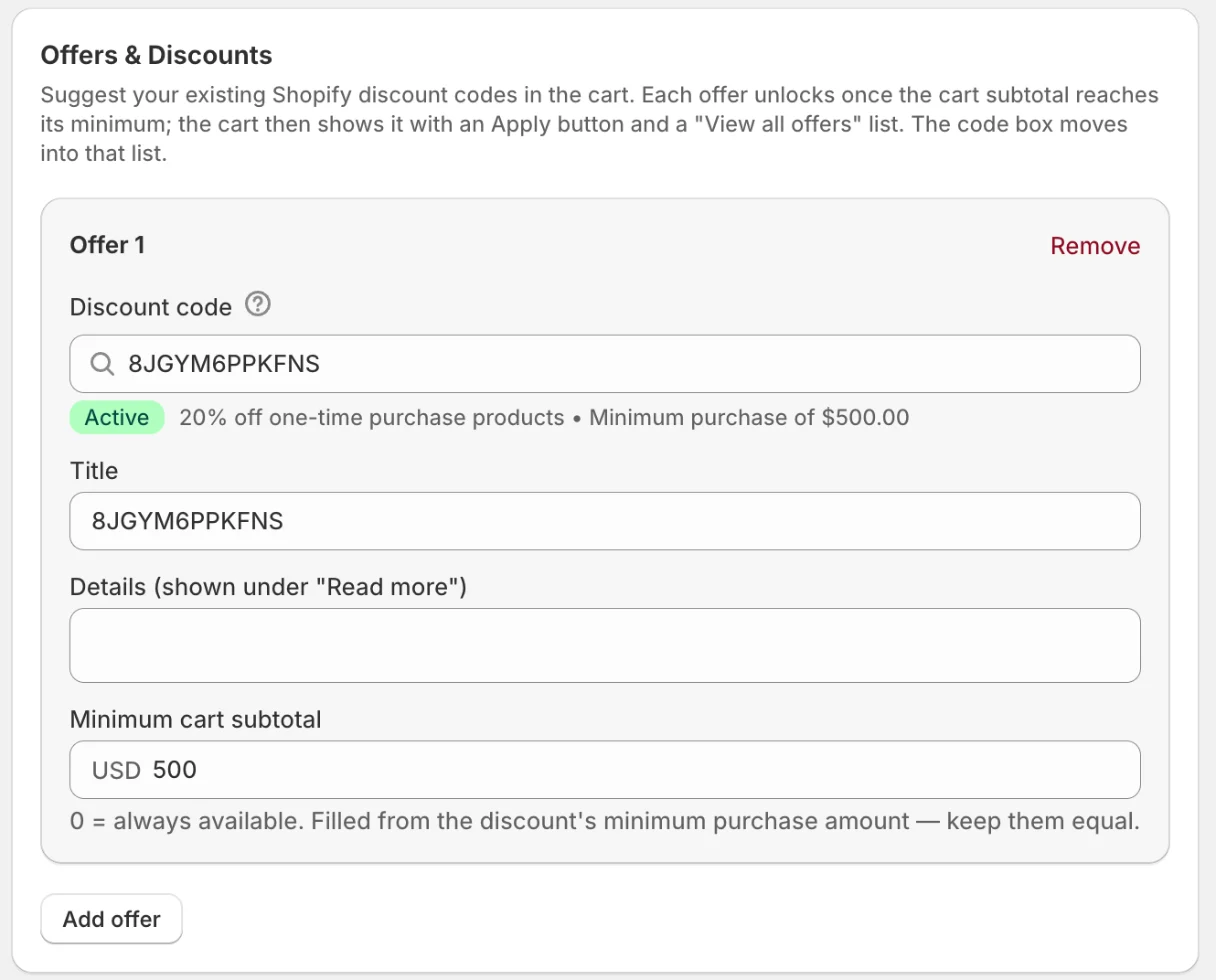
Under Offers & Discounts, click Add offer.
In Discount code, search and pick a code discount from your Shopify Discounts. Active and scheduled codes are listed. If you have none, use Create one in Shopify Discounts.
Enter a Title (for example 10% off your first order) and, if you like, Details shown under "Read more".
Check the Minimum cart subtotal. It is filled from the discount's minimum purchase amount — keep the two equal. 0 means the offer is always available.
Click Save.
Each code can be used in one offer only. Shopify still applies the code's own requirements at checkout, so an offer the cart shows as unlocked can still be refused by Shopify if, for example, the customer is not eligible.
Under Offers text you can change every label shoppers see: the panel title, the "View all offers" link, the available and not-applicable headings, the "Use code" label, the "Read more" link, the applied label and the locked offer text. In the locked offer text, {amount} is the amount left to unlock and {code} is the discount code.
Show or hide the discount code box
Show discount code box controls whether the box is open by default. When it is off, shoppers see an Add discount code link that opens the box — fewer distractions before checkout.
Limitations
Several automatic discounts can apply at once, but only one manual discount code can be applied in the cart. To use more than one code, shoppers continue to checkout.
Free shipping discount codes cannot be applied in the cart; shoppers apply them at checkout.
Still need help?
Our support team is available 24/7. Contact support →